The Random Picker chooses a student at random, then keeps track of who has had a turn. Use it for cold-calling during a discussion, choosing who reads next, or picking someone to answer at the board. By default it picks everyone once before anyone comes up a second time, so quieter students do not slip through and nobody is asked twice in a row by chance.
Where your data goes
Everything stays on this device. Your classes come from the Student List. Your lessons, who has been picked, and your settings are saved in this browser and are never sent anywhere. That also means they are not on your other devices, and clearing the browser's data deletes them. To keep a copy, or to move your data to another computer, use Backup & Restore in the sidebar.
Quick start
- Add your class to the Student List (under Data Sources in the sidebar). Every student needs a first name, a last name and a class. If you have a spreadsheet, Import CSV on that page adds the whole class at once.
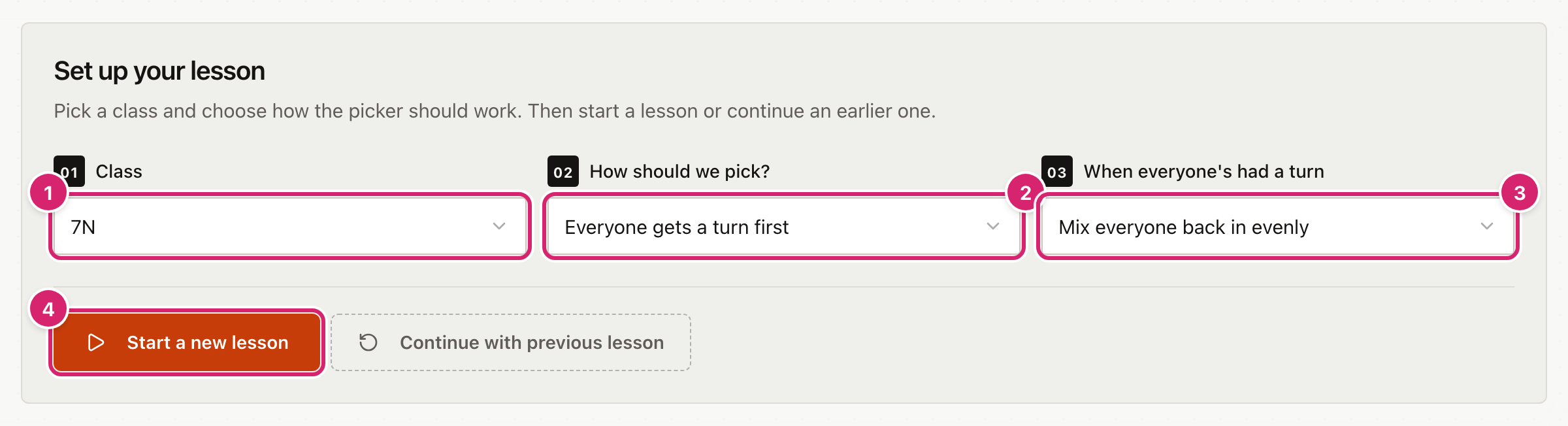
- Open the Random Picker and choose your class 1.
- Under How should we pick? 2, choose Everyone gets a turn first or Totally random.
- Under When everyone's had a turn 3, choose what happens at the start of the next round. The next section explains both choices.
- Select Start a new lesson 4.
- Select Pick a student.
How students are picked
How should we pick? has two choices.
- Everyone gets a turn first picks each student once. Only when everyone has had a turn does a new round begin and everyone goes back in the pool. This is the default.
- Totally random picks from the whole class every time, so the same student can come up twice running. It does not count turns, so Class progress does not change. Picked so far still lists every pick.
When everyone's had a turn matters when you use Everyone gets a turn first.
- Mix everyone back in evenly puts the whole class back in the pool. This is the default.
- Pick skipped students first next time puts students you marked as away in the last round at the front of the queue in the next one.
The Random Picker remembers your choices, and the last class you chose, for next time.
Pick students during a lesson
Once you start a lesson, the picker appears with a panel of who has been picked.
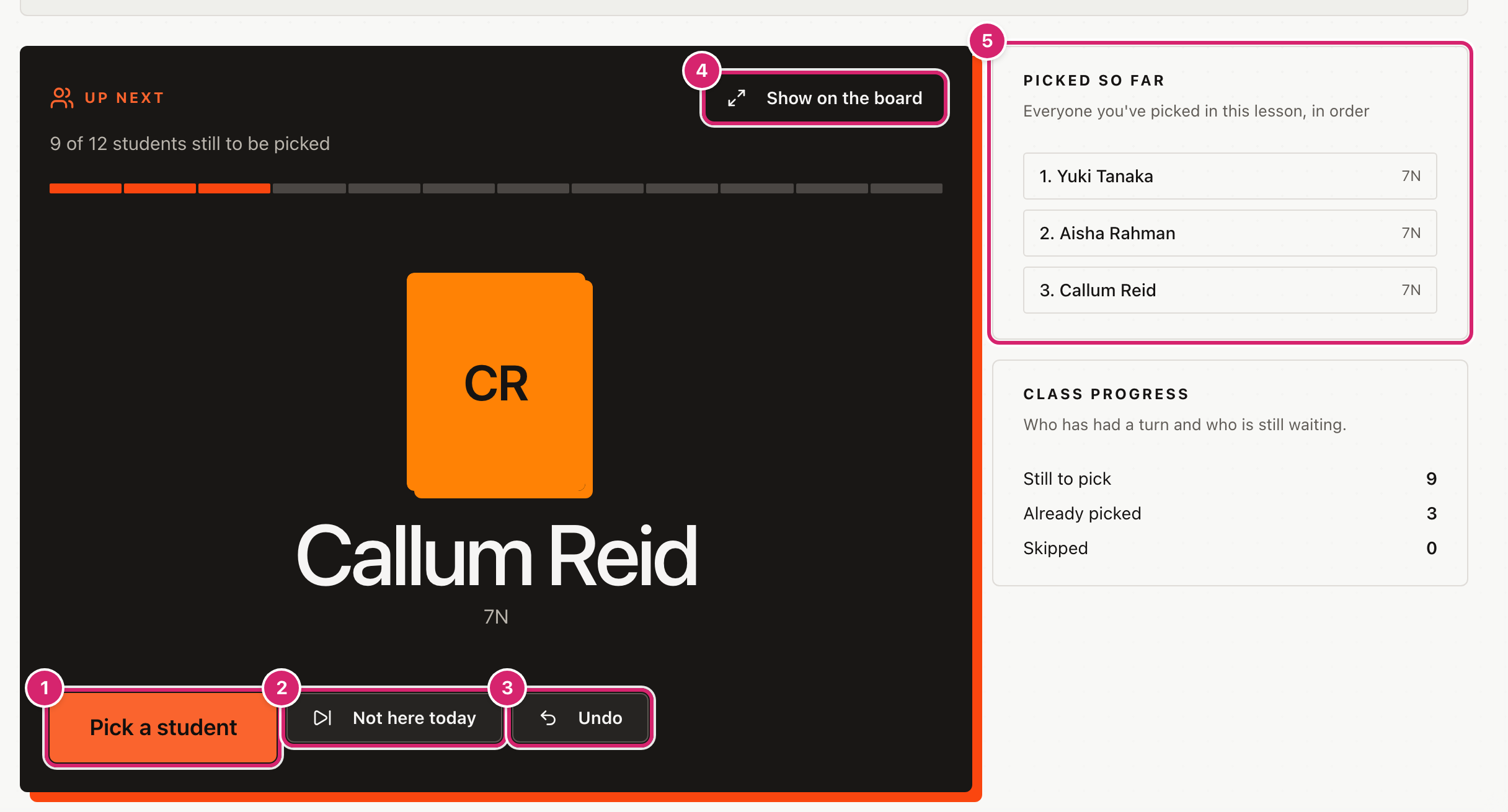
- Select Pick a student 1. The student's photo, or their initials if there is no photo, and name appear in large type.
- Select Not here today 2 if the student is absent. They are taken out of the rest of this round, and the pick is removed from the list.
- Select Undo 3 to take back the last pick. With Everyone gets a turn first, that student goes back in the pool.
- Select Show on the board 4 to show the name large enough for the room. The next section covers it.
- Picked so far 5 lists everyone picked in this lesson, in order. Class progress beside it counts how many are still to pick, already picked and skipped.
When every student has had a turn, a new round starts by itself and a message tells you.
Show a name on the board
Select Show on the board to fill the screen with one big name.
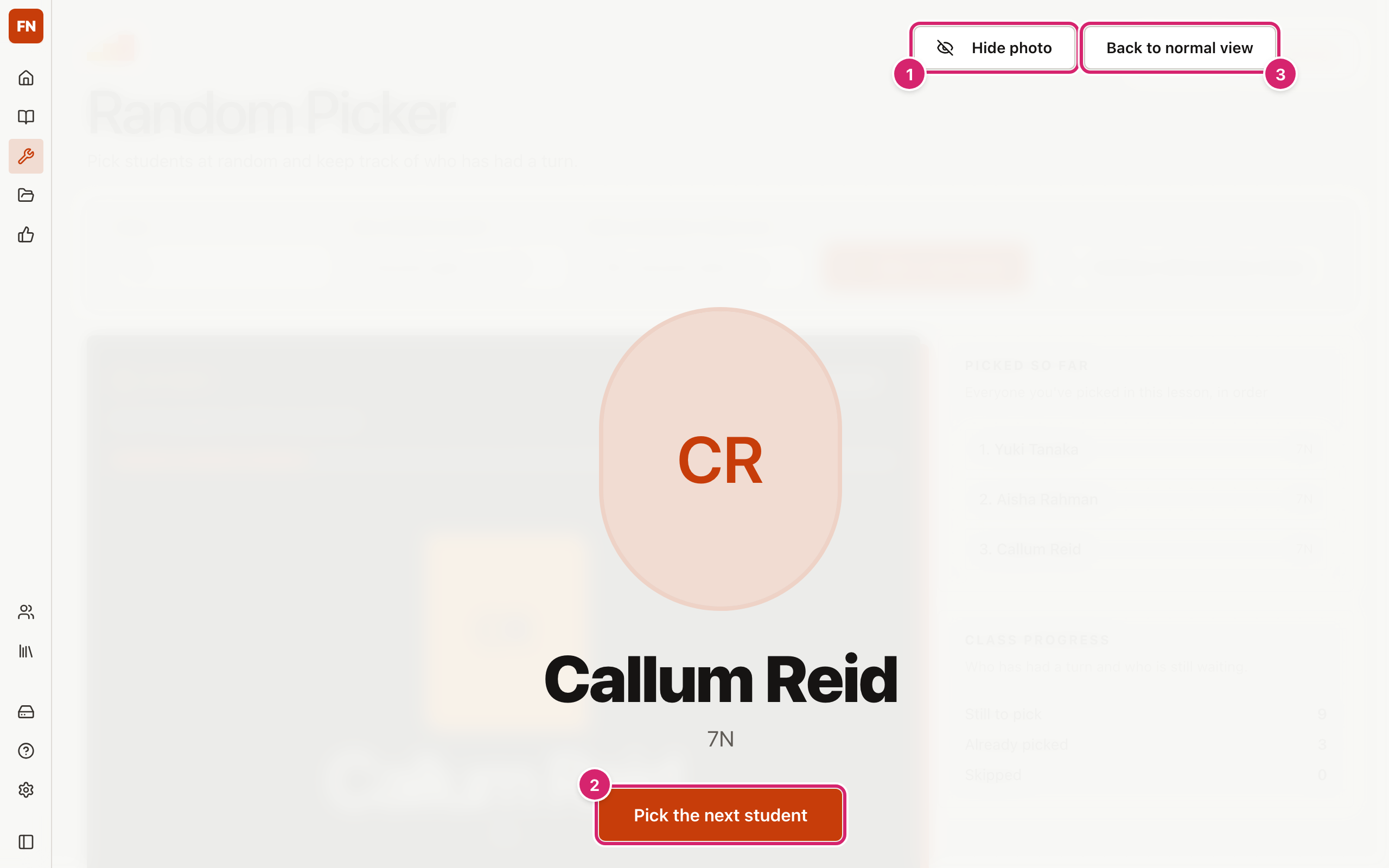
- Select Hide photo 1 if you want the name alone. The button then reads Show photo.
- Select Pick the next student 2 to pick again without leaving the board.
- Select Back to normal view 3 to return. If the browser went full screen, pressing Esc does the same.
The Random Picker asks the browser for full screen. If the browser refuses, the board still fills the window.
Come back to a lesson later
Starting a lesson is not the same as continuing one.
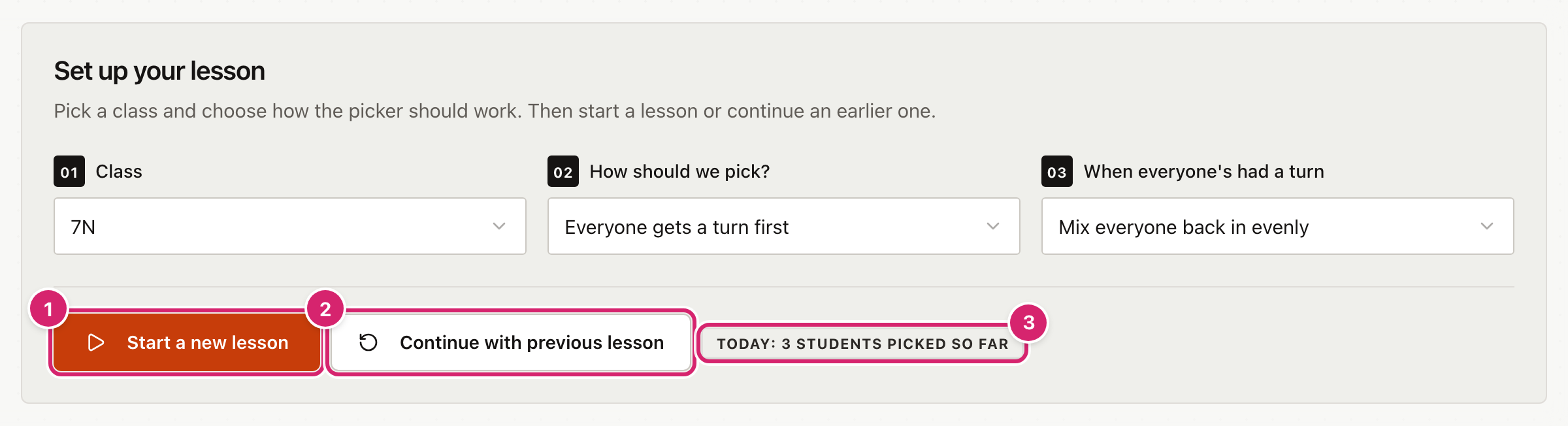
- Start a new lesson 1 always begins a fresh round. Everyone is back in the pool, whoever was picked before.
- Continue with previous lesson 2 reopens the lesson you started earlier today for this class, with its list of picks and the round as you left it. It is only available if you started a lesson for this class today.
- The label 3 tells you how many students you have picked so far today.
If you choose a different class, the current lesson closes. Choose the first class again and select Continue with previous lesson to pick up where you left off.
Tips
- Use the board for cold-calling. Putting the name up is fairer than saying it, because the class can see it was random.
- Keep Undo for accidents. If you pick twice by mistake, select Undo once to remove the extra pick.
- Add photos for the board. Students with no photo show their initials. Add photos in the Student List if you want the board to show faces.
- Start one lesson per class per day. Selecting Continue with previous lesson on your next period keeps the round going, so the same students are not asked again.
- Choose "Totally random" for quick, low-stakes picks. It does not track anyone, so it suits a warm-up where repeats do not matter.
Troubleshooting
The class list says "No classes yet." The Random Picker gets its classes from the Student List. Add your students there first, with a class for each one.
I cannot see the Pick a student button. It appears once a lesson is running. Choose a class, then select Start a new lesson or Continue with previous lesson. Until then the page says "Start a new lesson or continue an earlier one to begin picking students."
Start a new lesson is greyed out. Choose a class first.
Continue with previous lesson is greyed out. No lesson has been started for this class today. Select Start a new lesson instead.
The same student came up again. Check How should we pick?. With Totally random, repeats can happen. With Everyone gets a turn first, a repeat means a new round has started, either because everyone had a turn or because you selected Start a new lesson.
I marked a student as away by mistake. There is no button to bring them back. Undo takes back the last pick, not an absence. Selecting Start a new lesson begins a fresh round with everyone in it.
Show on the board did not go full screen. Some browsers block full screen. The board still covers the page. Select Back to normal view when you are done.
My picks have gone. They are stored in this browser. They will not be in a different browser or on another computer, or after the browser's data has been cleared.