The Group Maker splits a class into groups at random. Use it to set up poster teams for a project, lab partners for a practical, or discussion groups for a lesson. You can say how many groups you want or how many students should be in each, keep two students together or apart, and swap anyone by hand before you share the result.
Where your data goes
Everything stays on this device. Your classes come from the Student List, and your saved groups and remembered pairing rules are kept in this browser. Nothing is sent anywhere, and the PDF is made in the browser too. That also means they are not on your other devices, and clearing the browser's data deletes them. To keep a copy, or to move your groups to another computer, use Backup & Restore in the sidebar.
Quick start
- Add your class to the Student List (under Data Sources in the sidebar). Every student needs a first name, a last name and a class. If you have a spreadsheet, Import CSV on that page adds the whole class at once.
- Open the Group Maker and choose your class 1. The settings for splitting it appear.
- Type how many groups you want 2.
- Select Make groups 3. The groups appear below the buttons.
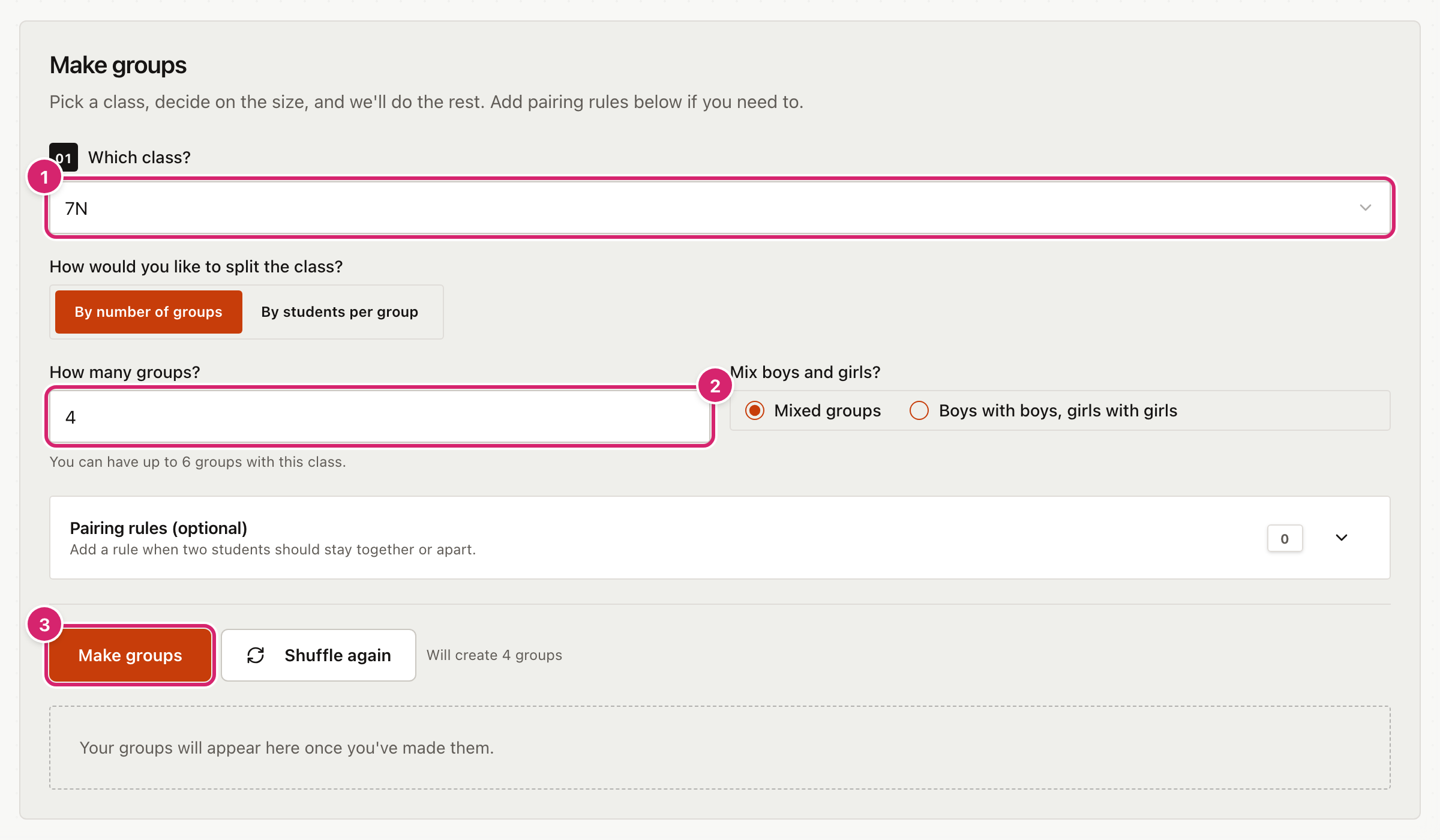
Choose how to split the class
Under How would you like to split the class? there are two choices.
- By number of groups asks How many groups? You can choose from 2 up to half the class, rounded down. A class of 12 can have up to 6 groups.
- By students per group asks How many students in each group? You can choose from 2 up to the size of the class. The line below the buttons, such as "Will create 3 groups", tells you what you will get.
If the students do not divide evenly, some groups have one more student than others.
Mix boys and girls? decides how gender is used. Mixed groups ignores it. Boys with boys, girls with girls keeps each group to one gender, using the gender recorded in the Student List. Students whose gender is neither male nor female are grouped separately from both. If that needs more groups than you asked for, the Group Maker makes the extra ones and the "Will create" line shows the new number.
Keep students together or apart
Open Pairing rules (optional) to add a rule. The number beside it shows how many rules you have.
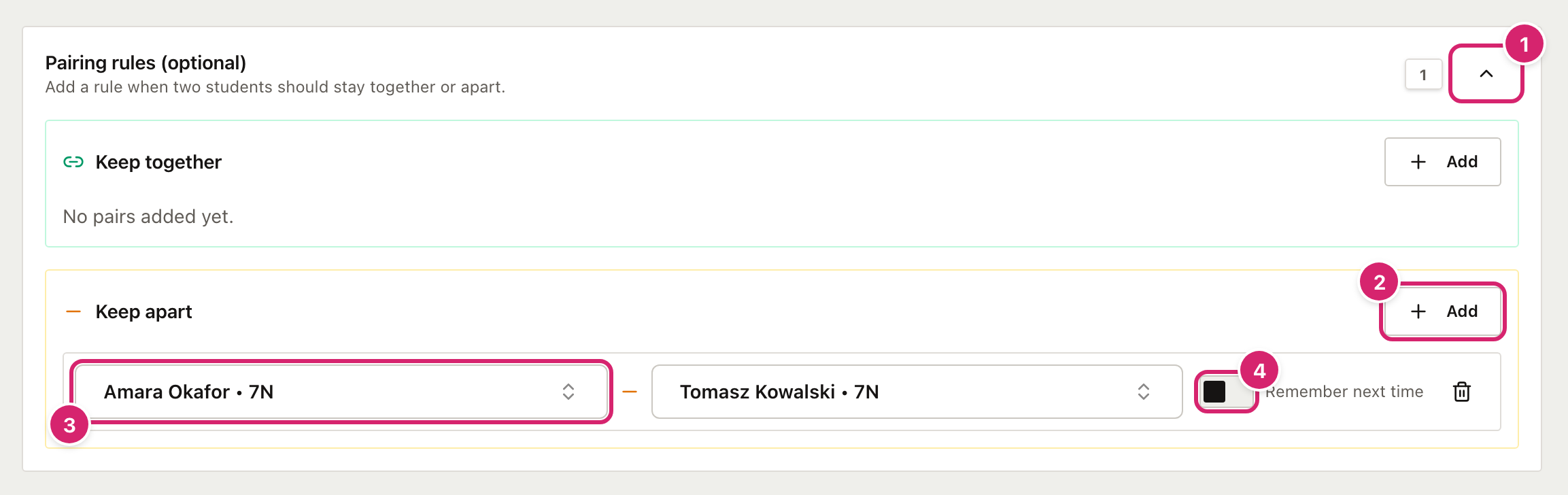
- Select the arrow 1 to open or close the panel.
- Under Keep together or Keep apart, select Add 2.
- Choose the two students. Select each box 3, then type part of a name to find them.
- Switch on Remember next time 4 if you want the rule kept. It then comes back whenever you choose that class. Choose two different students first, or the Group Maker will not remember it.
- Select the bin to delete a rule. A remembered rule is deleted for good.
Rules apply the next time you make groups. If you change a student in a remembered rule, it turns Remember next time off and applies only this once. Switch it on again to keep it.
The Group Maker tries hard to follow your rules, but it cannot always manage. If it cannot, it makes the best groups it can and shows a message such as "Couldn't keep Amara Okafor and Tomasz Kowalski apart this time."
Check and change the groups
Select Make groups to deal the groups. Shuffle again does the same thing, so use either one until you like what you see.
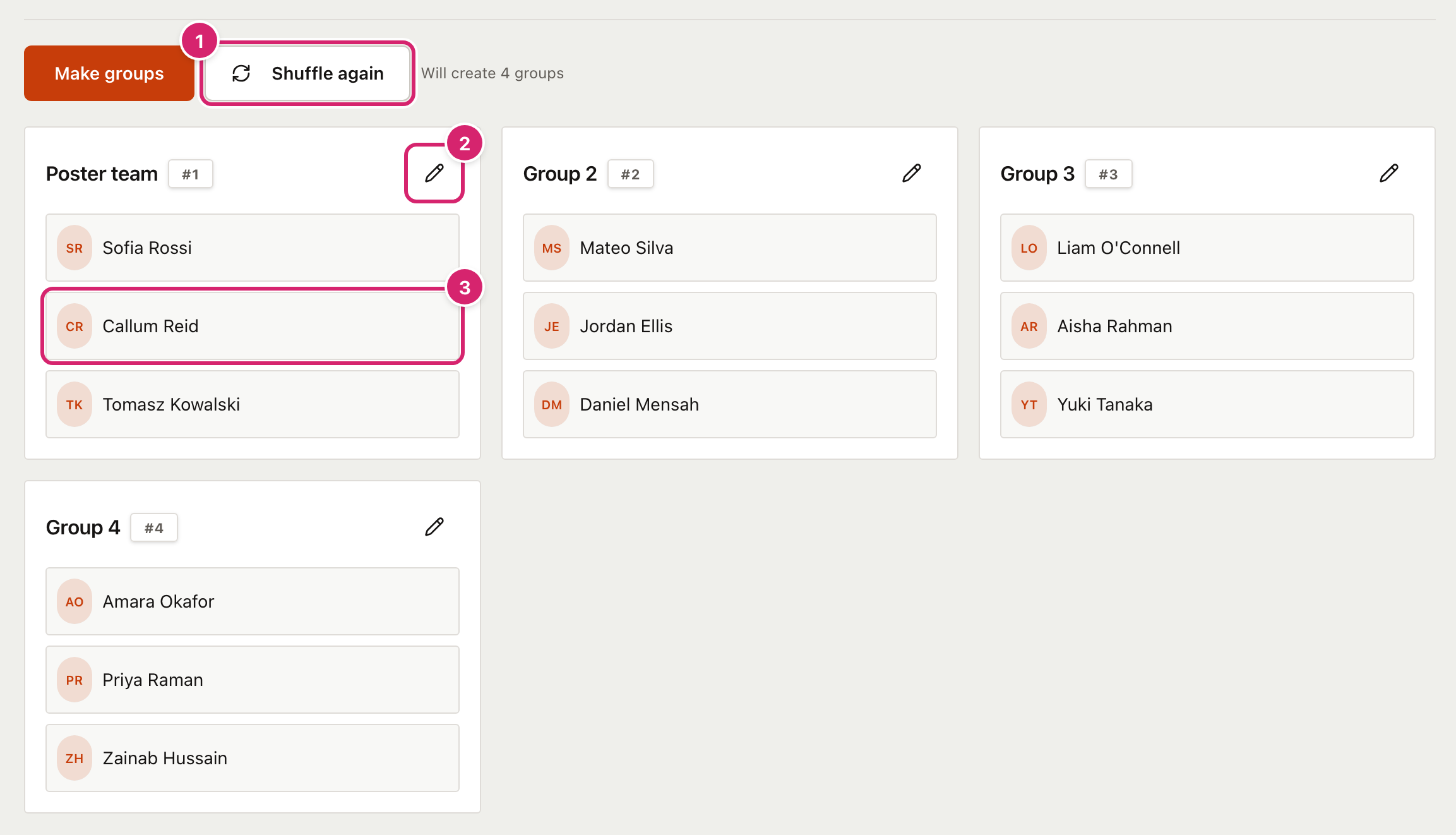
- Select Shuffle again 1 for a new set of groups. The old set is not kept.
- Select the pencil 2 to name a group, for example "Poster team". Type the name, then press Enter or select the tick.
- Drag a student 3 onto a student in another group to swap them. The two trade places, so every group stays the same size. If the swap breaks one of your rules, a message tells you.
Changes you make by hand are part of the groups you save or print.
Save, print or download the groups
When groups are on the screen, a box appears below them.

- Type a name in Give these groups a name 1. If you leave it empty, the groups are named after the class and today's date, such as "7N Groups - 07/09/2026".
- Select Save for later 2 to keep the groups in this browser. Each time you select it, a new copy is saved.
- Select Download as PDF 3 to get a printable A4 page. It lists each group, using your group names, with its students. The file is named after the groups, for example
7N poster projects.pdf. It has names only, not photos.
You do not have to save before you download.
Come back to saved groups
Select Your saved groups to open the list.

- Select the heading 1 to open or close the list. The arrow at its right points down while the list is open.
- Select Load 2 to put those groups back on the screen. It also chooses the class and brings back any remembered rules for it.
- Select the bin 3 to delete a saved set. A window asks Delete these groups? and names the set. Select Delete to confirm, or Cancel to keep it. A deleted set cannot be brought back.
Tips
- Shuffle until it feels right. There is no limit, and it takes a second.
- Use "students per group" for roles. If every group needs a scribe, a speaker and a timekeeper, ask for groups of three.
- Name the groups for the task. "Poster team" or "Bench 4" is easier to call out than "Group 2", and the names appear on the PDF.
- Remember the awkward pairs. If two students never work well together, add a Keep apart rule and switch on Remember next time. It applies every time you make groups for that class.
- Print for the wall. The PDF is a plain A4 page, so it prints without fuss.
Troubleshooting
The class list says "No classes yet." The Group Maker gets its classes from the Student List. Add your students there first, with a class for each one.
Make groups is greyed out. You need to choose a class first, and the class needs at least two students.
I cannot ask for more groups. The most you can have is half the class, rounded down. A class of 12 gives up to 6 groups. To get smaller groups than that, use By students per group.
A message says it could not keep two students apart (or together). Your rules cannot all be met with this class size or number of groups. Select Shuffle again, ask for more groups, or remove one of the rules.
The groups are different sizes. When the class does not divide evenly, some groups get one extra student. With Boys with boys, girls with girls, group sizes also follow how many boys and girls there are.
I asked for 2 groups with single-gender groups and got 3. Students whose gender is not male or female are grouped on their own, so the Group Maker needs a group for them. Check the gender in the Student List.
My rule has disappeared. Only rules with Remember next time switched on come back, and only when you choose a class that contains both students. A remembered rule also turns itself off if you change one of its students.
The groups I made have gone. Groups on the screen are not saved. If you leave the page or choose another class, they are gone. Select Save for later first.
The PDF did not download. Check your browser's download bar or downloads list. Some browsers ask before a site downloads a file, and the PDF will not appear if you block it.
I cannot drag a student on my tablet or phone. Swapping uses the browser's drag and drop, which some tablet and phone browsers do not support. Select Shuffle again until you get groups you are happy with instead.