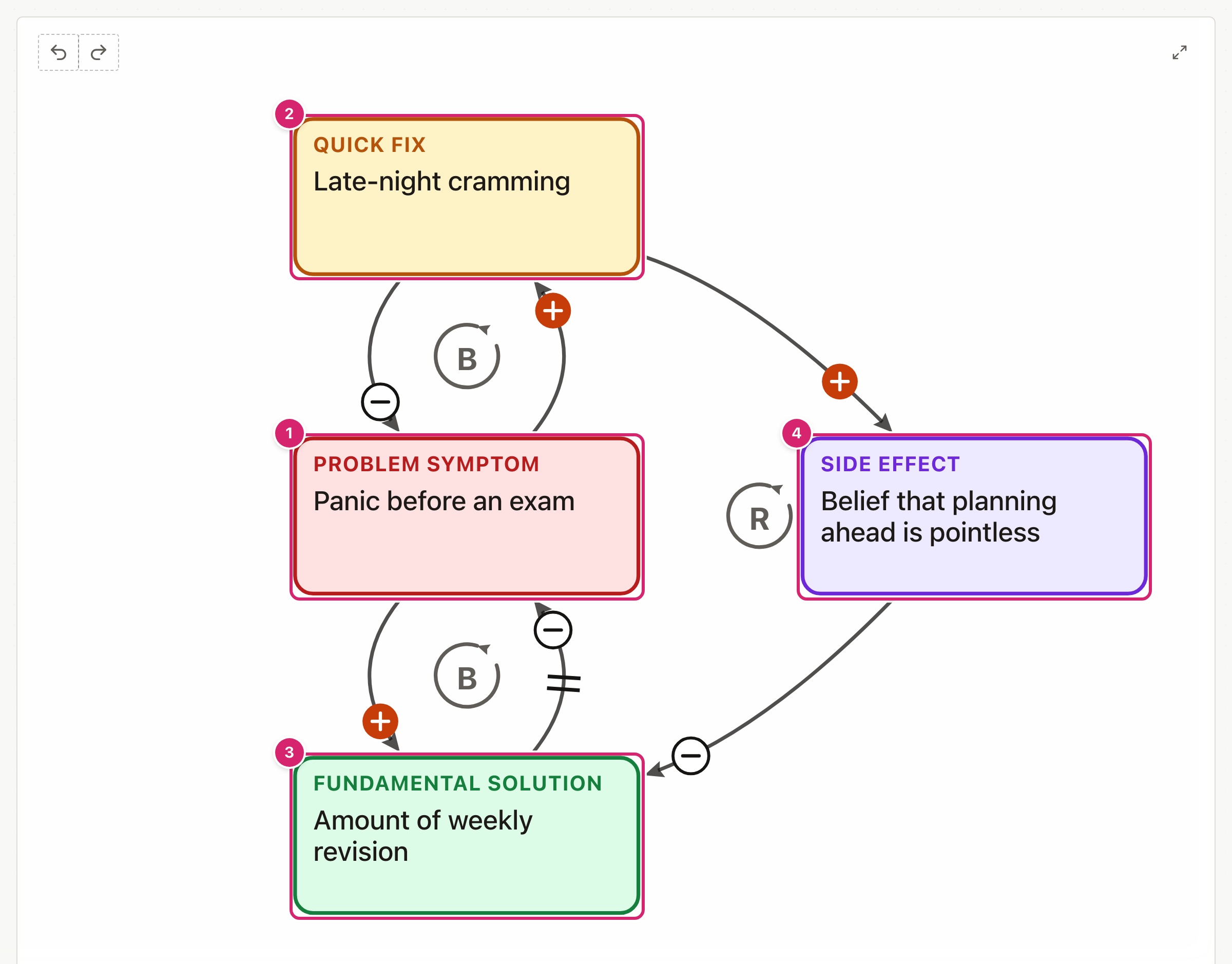
Shifting the burden is a common pattern. A quick fix eases a problem today but makes the lasting solution harder, so the problem keeps coming back. The pattern is already drawn. Students fill in four boxes and talk about where to break the cycle. A Year 11 tutor group might look at why cramming the night before keeps winning over revising every week.
Where your data goes
Your diagram is kept in this browser as you work, so it is still there when you come back. Save keeps a copy under a name you choose. Saved copies are included in Backup & Restore, and in sync if you have turned it on. A share link holds the whole diagram, so nothing is uploaded and nobody needs an account. If you clear the browser's data, you lose anything you have not backed up.
Quick start
The tool opens on a worked example, "Exam stress". Each box asks a question.
- Select the title or the question at the top of the page and type your own.
- Select Problem symptom 1: what keeps coming back, however often it is dealt with?
- Select Quick fix 2: what do we do that makes it better straight away?
- Select Fundamental solution 3: what would make it better for good, but takes longer?
- Select Side effect 4: how does the quick fix make the lasting solution harder?
Start from an example
Open File and select Examples for 9 ready-made examples for ages 8 to 18, in tutor time, maths, English, geography, science, PE and computing. They run from copying maths answers online to food aid after a poor harvest. Each one shows its age range and its question, and many add a note for teachers, such as the story behind the pattern, in plain words. Select a subject to narrow the list, then Open to use one. It replaces what is on screen, and Undo brings your work back.
Write in a box
Select a box and type. The box's question shows underneath while you write. Press Enter to finish, or Shift and Enter for a new line. Press Escape to undo what you typed in that box.
Keep each box short: a few words that the class can read from the back of the room. Write each one as something that can rise or fall, such as "Amount of weekly revision" rather than "Revise every week". The arrows' + and − signs only make sense for things that can go up and down.
How the pattern works
The arrows never change, because the pattern is always the same:
- The quick fix eases the symptom fast. That is the top B (balancing) loop. The symptom goes up, so we reach for the fix, and the symptom goes down again.
- The fundamental solution works too, but slowly. The two short lines across its arrow mark the delay. That is the lower B loop.
- Each time the fix is used, its side effect weakens the lasting solution. That is the R (reinforcing) loop. The more we rely on the fix, the more we have to.
In the example, more late-night cramming calms the panic before one exam. But because it "works", the belief that planning ahead is pointless grows, the amount of weekly revision falls, the panic comes back before the next exam, and cramming wins again.
Share, save and download
- Share makes a link. A starter for students locks your title and every box you filled in, and students fill the empty ones. An exact copy is for handing work back or sharing with a colleague.
- Save keeps a copy on this device under a name you choose. It reads Saved while the screen matches a saved copy. To find it again, open File and select Open a saved diagram. You can rename or delete saved copies there too, and deleting asks first.
- To download the drawing, open File and select Picture (PNG), for slides or Drawing (SVG), to edit or print large.
- Full screen is the button with two arrows in the top-right corner of the drawing. The tool then fills the screen, which suits the board. Press Esc, or select it again, to go back.
- Undo and Redo are the two curved arrows at the top left of the drawing. Undo takes back your last change, and Redo puts it back. A whole drag counts as one change, and so does a word typed in one go. With a keyboard, press Ctrl+Z (⌘Z on a Mac) to undo, and Ctrl+Y (⇧⌘Z) to redo. In a box you are typing in, those keys undo the typing instead.
- To start again, open File and select New blank diagram. It asks first. If you change your mind, select Undo.
Tips
- Give students the symptom. Fill in Problem symptom yourself and share a starter link. Students work out the other three.
- Start from the quick fix. Most students recognise the quick fix first. The side effect is the hardest box and the best discussion.
- End with "where could we break it?" The answer is usually to put up with the symptom for a while and stick with the slow solution.
Troubleshooting
I removed something by mistake. Select Undo straight away, as many times as you need. It works back through every change since the page opened, including starting a new one.
I cannot move the boxes or arrows. They are fixed on purpose, because the pattern is always the same. Only the words change.
I cannot write in a box. It came from your teacher's starter link and is locked. Write in the empty boxes.
The text is cut short in the box. A box shows three lines. Shorten what you wrote so all of it fits.
My diagram has gone. It is kept in this browser only. Another browser or device will not have it unless you saved it and turned on sync, or restored a backup there.