The Report Review is for whoever checks reports across a year group: a head of year, a deputy head, a data lead. You drop in the iSAMS exports and it finds every missing report, wrong name, wrong pronoun, copied comment and grade that does not add up, says who needs to fix it, and drafts a short email to each head of department. Upload the matrix again the next morning and it shows what has been fixed since.
Where your data goes
Everything stays on this device. The spreadsheets are read in your browser, and the reports, settings and heads of department are saved in this browser only. The links in the emails carry each class's fix list inside the link itself, so the list is never stored on a server either. Reports describe children, so keep a backup with Backup & Restore in the sidebar, and delete old seasons you no longer need in Setup.
Quick start
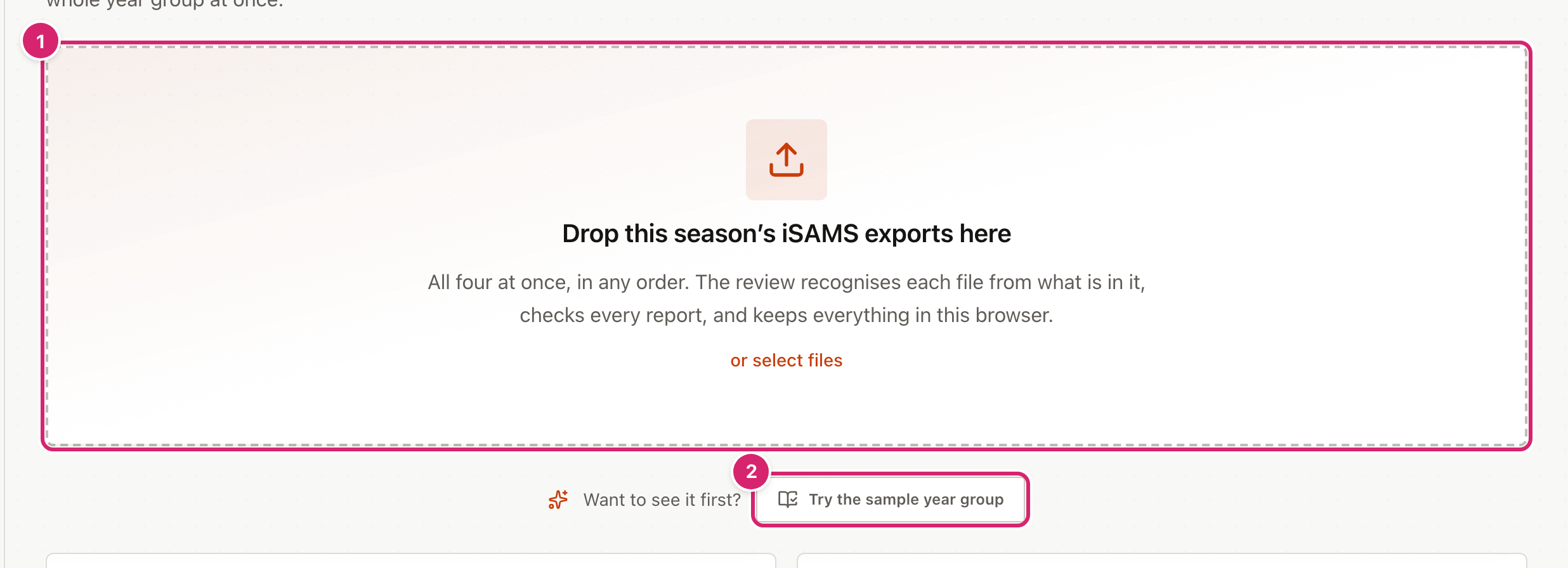
- Open the Report Review and select Try the sample year group 2 to see a finished example, or drop your own exports on the page 1.
- Read the banner at the top of Overview. It says what was fixed and what is new since the previous upload.
- Select a department in the Departments table to see its issues.
- Open Send to email each head of department their list.
Get the files from iSAMS
Only the report matrix is needed. The other three files make the review more useful.
- Report matrix: Report Printing › Matrix. Include grades, comments, set codes, the student form and School ID, and show blanks as hyphens. Keep the year and month in the file name, for example
2026_06_year7.xlsx, and the season is read from it. - Teacher set lists: Teaching Manager › Subject View › Edit sets › Export sets, with every set for the year group, as Excel. This says who teaches each set. Shared sets name only the lead teacher.
- Sets report: Teaching Manager › Reports › Pupil Set Code Spreadsheet, saved as CSV (a spreadsheet saved as plain text). This is the timetable: it shows students who should have a report but are missing from the matrix.
- Student list: Student Manager › Export Wizard with Forename, Surname, Preferred Name, Gender and Form. Add any other column you want to filter by, such as EAL. Every extra column becomes a filter.
Add files and check what was found
Drop all the files at once, in any order, or select Add files. Each file is recognised from what is inside it, not from its name.
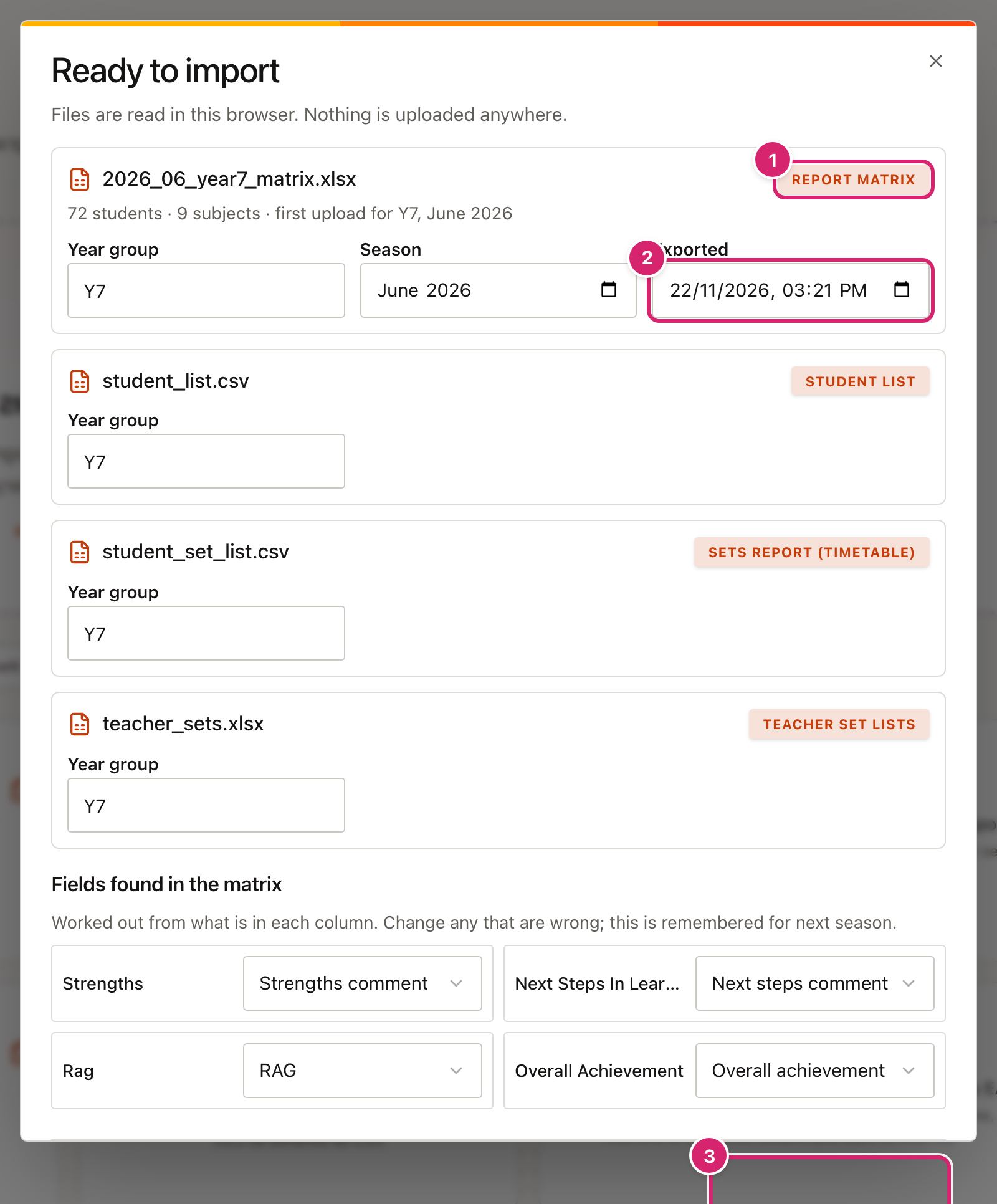
Before anything is saved, a summary lists each file 1 with its year group and season. For a matrix it also shows when it was exported 2, which is the file's own date. Change any of these if they are wrong. The first time, it also lists the fields it found in the matrix and how it will treat each one. If it is unsure of a grade scale's order, it asks you to put the levels in order, lowest first, and pick the first level that counts as meeting expectations. This is remembered for every later season. Select Import and review 3.
Follow the fixes day by day
Export the matrix again each morning and drop it in. It is added to the same season as a new upload rather than replacing the last one, so the review can say what changed:
- Fixed issues are gone since the previous upload.
- New issues appeared since the previous upload, usually in reports written yesterday.
- Came back issues were fixed once and are back.
The Progress tab charts the share of reports written and the open issues at each upload, against the deadline you set in Setup. To see the season as it was on an earlier day, pick that upload in the menu beside the year group.
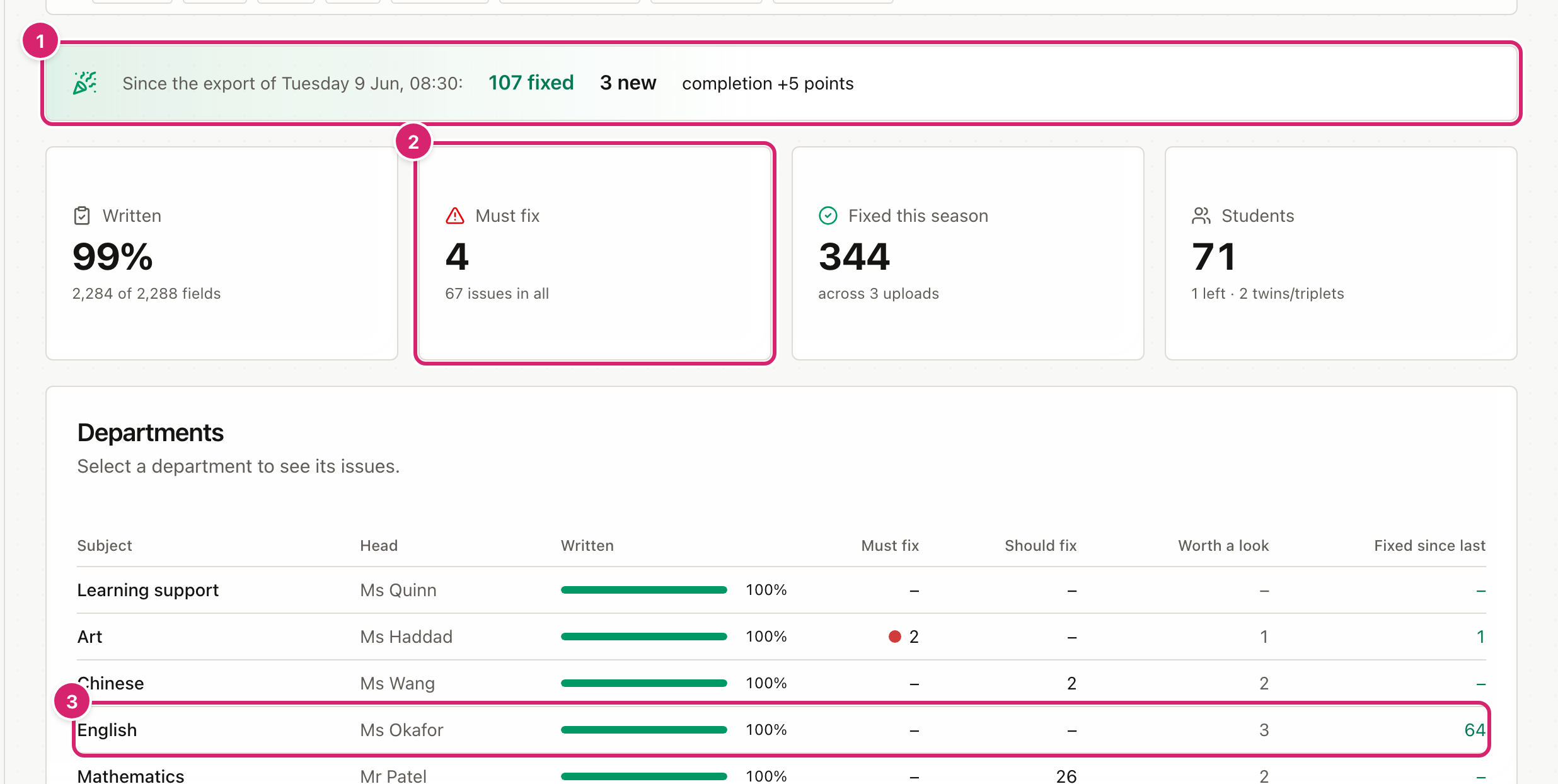
The banner 1 sums up the last day. Must fix 2 counts the issues that would embarrass the school if a parent saw them. Select a department 3 to open its issues.
Read the issues
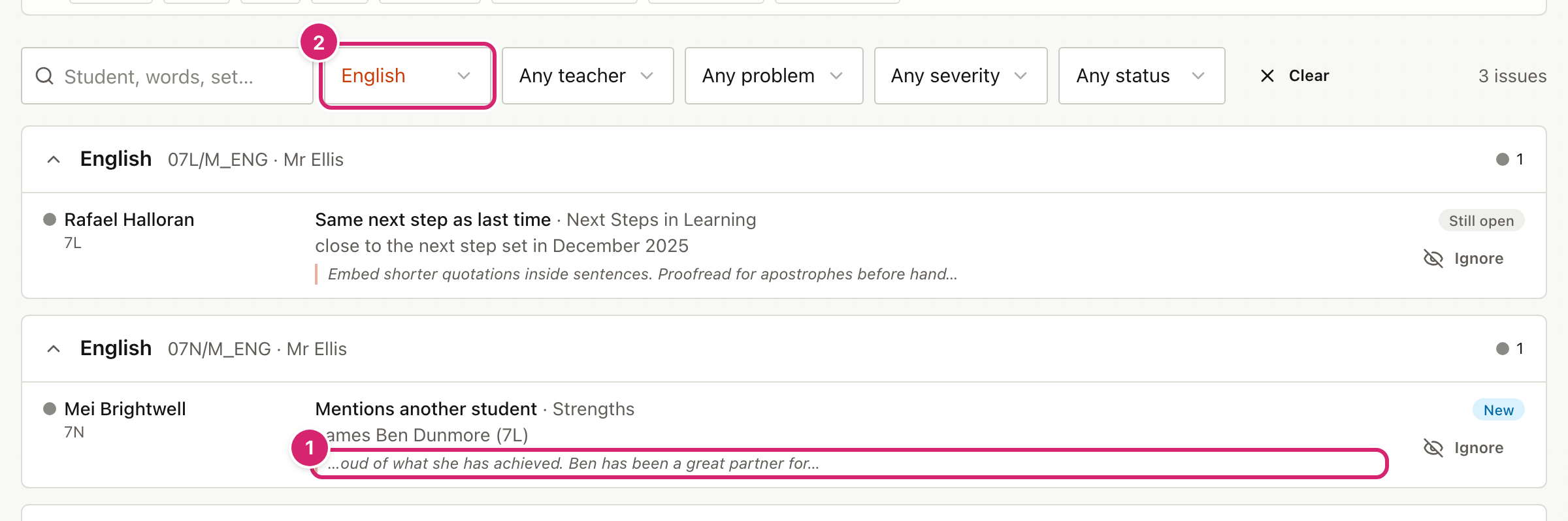
The Issues tab groups problems by subject and class. Each one shows the student, the problem, and a short quotation from the comment where that helps 1. Narrow the list with the menus at the top 2. The filter row above every tab narrows to groups of students instead: girls, EAL, AEN, new pupils, or any column from your student list.
What the review looks for:
- Completion: missing fields, students on the timetable but not in the matrix, and reports in a different set from the timetable.
- Names and pronouns: the student's name missing, a misspelling of it, the registered name used instead of the preferred one, another student's name (most serious when it is a classmate or a twin), and two students whose comments name each other, which usually means they were swapped.
- Writing: placeholders such as
[student name], comments too short or too long, typing slips, American spelling, and phrases you have asked to avoid. - Sameness: comments that are the same as other students' once the names are taken out, the same comment for twins, and comments repeated from last season.
- Grades: Overall Achievement and RAG that contradict each other, and drops since last season.
Twins and triplets are found from the dates of birth in the teacher set lists: the same surname and birthday.
Students who joined late or left
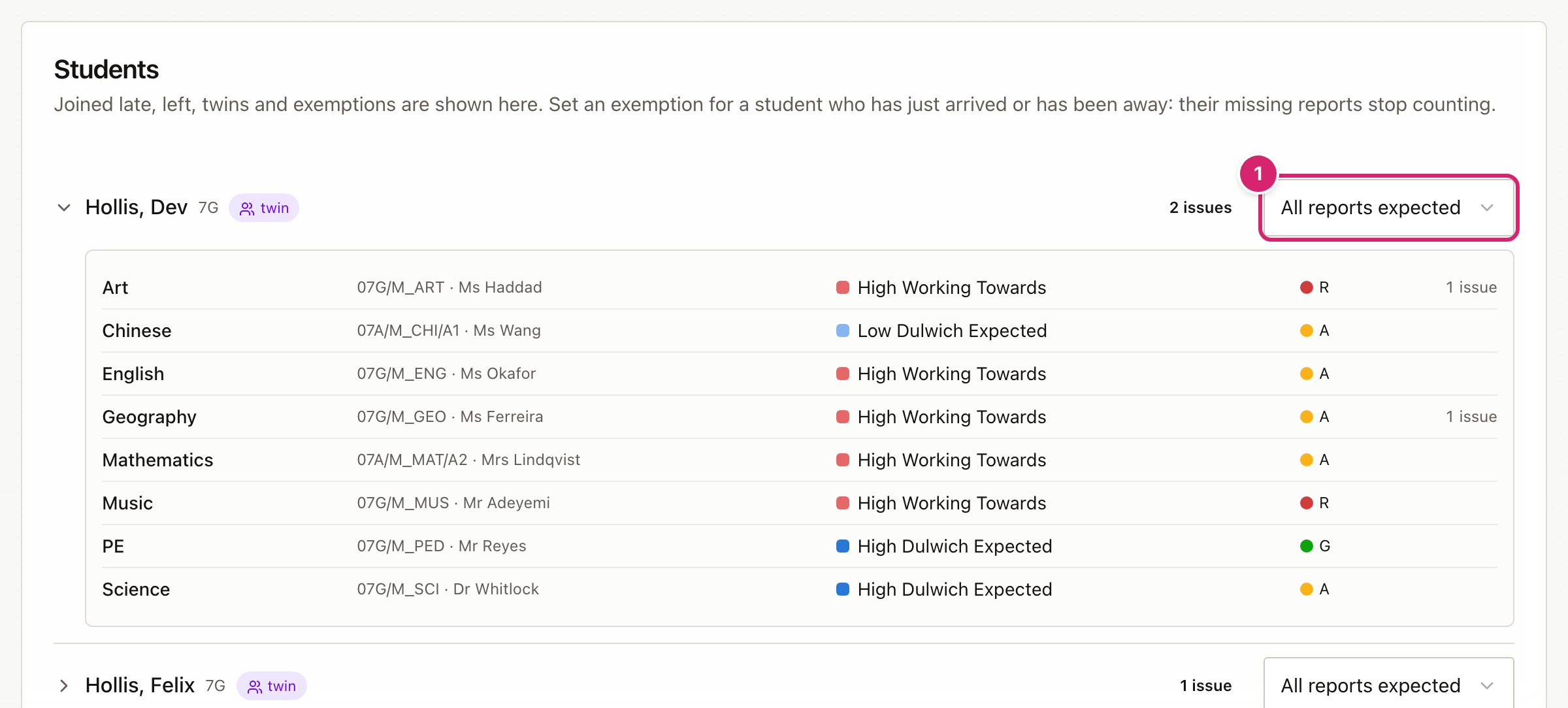
A student who stops appearing in the matrix is treated as having left, and their missing reports stop counting. For a student who arrived recently, open Students and choose what is expected for them 1: core subjects only, some subjects, or none. Add a reason so nobody is chased for a report they could not write. In Setup, you can also choose to expect only core-subject reports from every student marked as a new pupil in the Sets report.
Tag students adds a tag such as EAL to everyone in a pasted list, and Add to roster puts the year group in your class roster so other tools know them.
Look at grading and comments
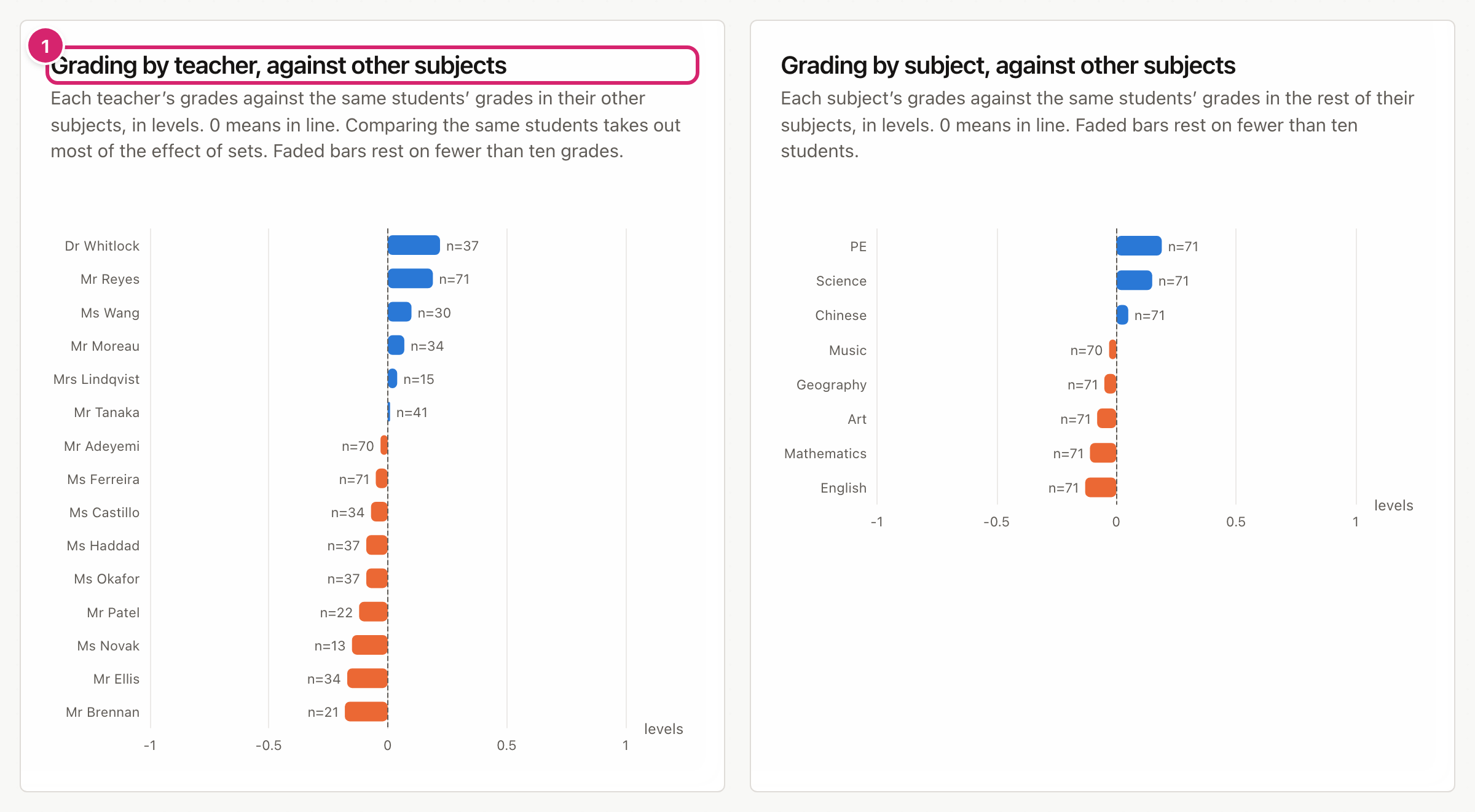
- Grades shows the spread of Overall Achievement by subject, teacher or set. Gaps between groups compares groups of students, such as girls (red) and boys (blue), in three ways: every level for each group in a panel per subject, the share at the expected level, or the gap between two groups in percentage points. The last two charts compare each teacher's grades 1, and each subject's, with the same students' grades in their other subjects; 0 means in line. Comparing the same students removes most of the effect of which set a teacher has. Faded bars rest on too few grades to read much into.
- Comments shows comment lengths against the limits you set, how alike each teacher's comments are, and the phrases that come up most in each department's next steps. Summarise with AI asks the AI set up in Settings for the main themes. Every student's name is removed first, but if that AI is an online service, the comments are sent to it.
- Staff puts each teacher's completion, lateness, problems, time to fix, sameness and grading in one table. Tinted cells are in the worst quarter. Patterns across seasons lists anyone in the worst quarter for the same thing in two or more seasons.
- Compare follows the same students from an earlier season, matched by School ID, even after they move up a year.
Send each head of department their list
In Send, every head of department gets one short email: a summary and one link per class 1. A link opens that class's checklist in the browser, with the fix for each problem. Teachers can tick items off as they go. Select Copy email 2 and paste it into a new message, or select Outlook to open it ready to send. Set the heads of department once, in Setup. They are copied into the next season.

The same tab downloads everything as an Excel workbook, and downloads a draft email for every head at once. Department packs makes a PDF for each department, all in one folder: the issues to fix come first, then information about the department (each teacher's completion and problems, grading against other subjects, boys and girls, and comment length) that nobody has to act on. Open one shows a single department's pack.
Tips
- Upload at the same time each day, such as first thing in the morning. Lateness is measured from your uploads, so it is only as precise as how often you upload.
- Set the deadline in Setup before the first upload, so lateness is counted from the start.
- Treat the Staff table as a conversation starter, not a league table. A teacher with a top set and one with a bottom set will look different for reasons that are not about them.
- If a word that is also a name keeps being flagged as another student, such as Grace or Will, add it to Names that are also words in Setup.
Troubleshooting
A file says Not recognised. Check it is the export described above, not a copy saved in another format. The matrix needs its two header rows with School ID and Set Code.
Reports are not credited to teachers. Upload the teacher set lists. Set codes must match the matrix exactly, including the last part, such as 07A/M_CHI/A1.
A student is flagged on the timetable but not in the reports. Either the student was never added to the reporting set in iSAMS, or they have left the class. Ask the data manager, or set an exemption in Students.
The same upload was skipped. It is identical to one already added. Export the matrix again to get today's version.
A department has no head in its email. Add their name and email in Setup. Emails without a head are grouped together so nothing is lost.