The Text Differentiator takes a passage and rewrites it at a different reading level. Paste in the paragraph from a Year 9 geography textbook and get a simpler version for a pupil who finds it hard going, or a more demanding one for a class that is ready for a stretch. You can ask for several levels at once and copy each version into your own worksheet.
Where your data goes
By default, the passage never leaves this device. The tool uses a small AI model that runs inside your browser. The first time you use it, the browser downloads that model once, about 600 MB, from the Hugging Face model website, along with some supporting files from the jsDelivr content network. Those downloads are of the model, not of your text. The browser keeps the model afterwards, so later uses do not download it again.
Your passage and the rewritten versions are held only on the page. Nothing is saved, so leaving the page clears them. Copy anything you want to keep.
One setting changes this. The model is chosen in Settings, under AI Settings, and the choice applies to every AI tool in the app. If someone switches it to a model on an Ollama or LM Studio server, your passage goes to the server address in that setting. That is usually another program on this same computer. If they also turn on Use External Service and choose one of its models, your passage is sent over the internet to that service, such as OpenAI. Check which model is active before you paste in anything about a pupil. See "Choose where the model runs" below.
Quick start
- Paste your passage into Source Text 1.
- Select Analyse Reading Level 2. The estimate appears under Detected reading level 3.
- Under Target Reading Levels, select one or more levels, then select Adapt Text.
- Read the new versions under Rewritten text and select Copy on the one you want.
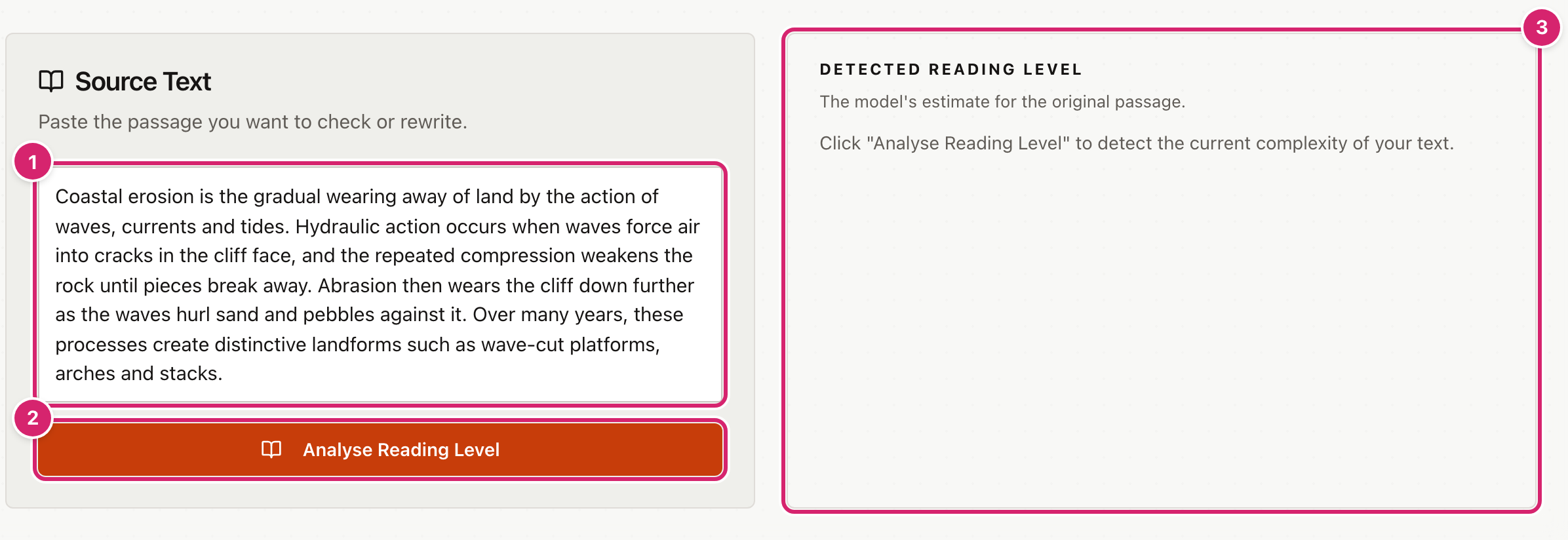
The very first time, a Downloading the AI model bar appears at the top of the page while the model downloads. It can take several minutes. See "Get the model ready before a lesson" below.
Check the reading level
Select Analyse Reading Level after you paste in a passage. The button reads Analysing... while it works, and the text box is locked until it finishes.
The Detected reading level panel then shows one of five levels with a short reason:
- Early Years (Age 5-7)
- Primary (Age 8-11)
- Middle School (Age 12-14)
- Secondary (Age 15-18)
- Academic (Adult/University)
This is the model's estimate, not a measured score. Treat it as a second opinion.
The model reads up to 1,500 characters at a time, which is a long paragraph or two. If your passage is longer, it reads three excerpts of 500 characters each, from the start, the middle and the end, so a simple opening does not hide a harder ending. When it does this, a note under the reason tells you how many characters it read out of the total.
The check is optional. You can go straight to a rewrite. But if you do check first, the matching level button below gets a Current label, and the rewrite knows whether to make the text simpler or harder (see Tips).
Rewrite for different readers

- Select the levels you want 1. A selected level is filled in. Select it again to turn it off. Levels that are not chosen 2 stay white.
- Select the Adapt Text button 3. It shows how many levels you picked, such as Adapt Text (2 levels). It stays switched off until the passage box has text and at least one level is selected.
- Wait. The tool works through the levels one at a time, and the button for the level it is on shows a spinning wheel. The button reads Adapting Text....
The versions appear under Rewritten text. With one level you see a single version. With several, there is a tab for each level. Select a tab to read that version.
Select Copy above a version to copy it. The button reads Copied for a moment. Then paste it into a worksheet or slide.
Each rewrite starts again from your original passage, not from a previous rewrite. Running Adapt Text a second time replaces the versions that were there.
Choose where the model runs
Select Settings at the top right of the page. It opens at AI Settings.
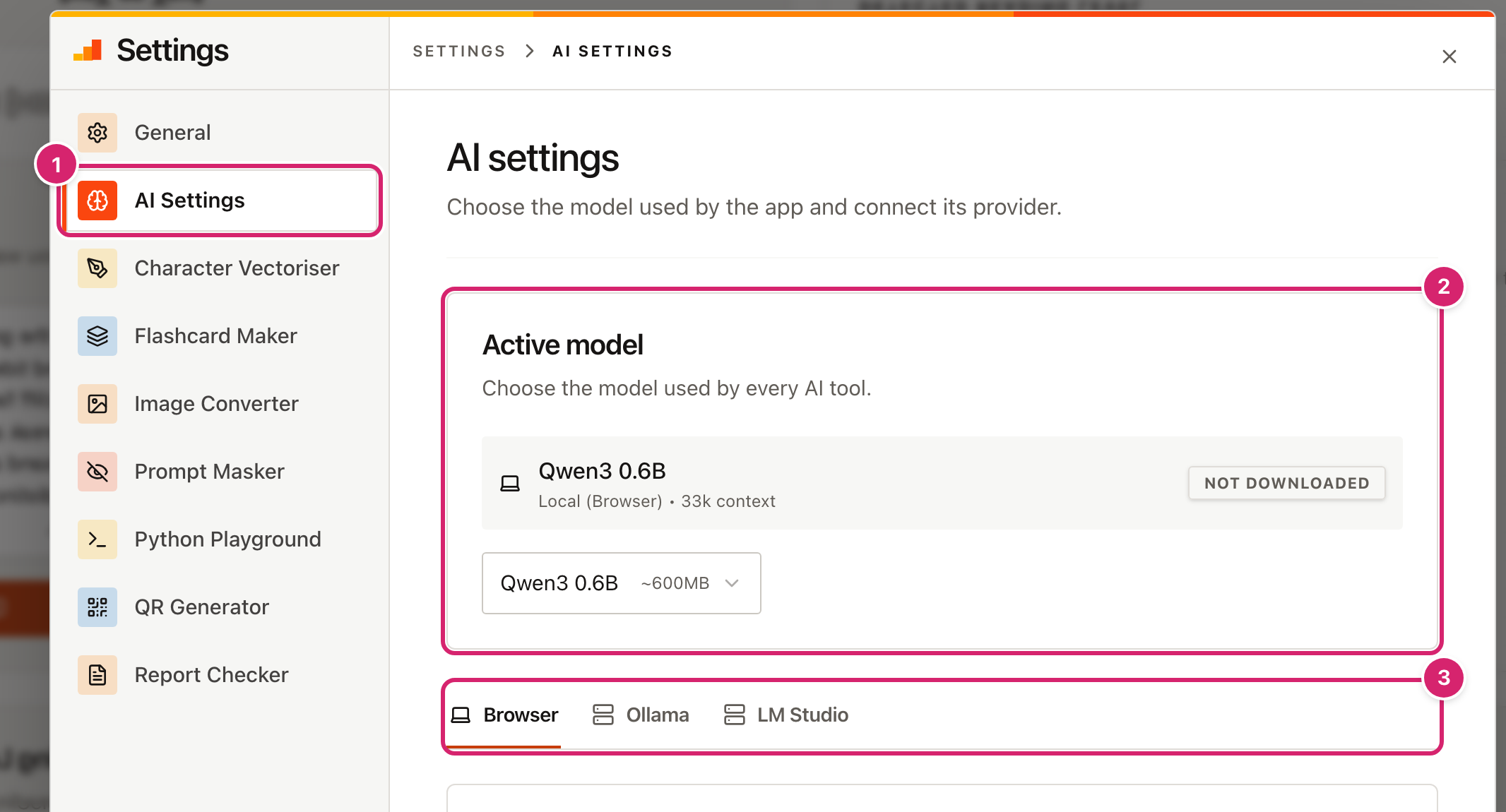
- AI Settings 1 is the second item in the list on the left, below General. On a phone, the list is a drop-down at the top of the window.
- Active model 2 shows the model in use and, for a browser model, whether it is Not downloaded or Ready. The drop-down below it lists the choices.
- The tabs 3 set up each kind of model. Browser lists the models that run in this browser, each with a Download button, its size, and an Installed label once it is saved. Ollama and LM Studio connect to programs that run models on a server.
The browser models range from about 300 MB to 2 GB. The default, Qwen3 0.6B, is about 600 MB. The larger ones take more memory and more time, so they run slowly on an older laptop or tablet.
On the LM Studio tab, Use External Service (ChatGPT, DeepSeek, etc.) lets the app talk to a service outside this device.
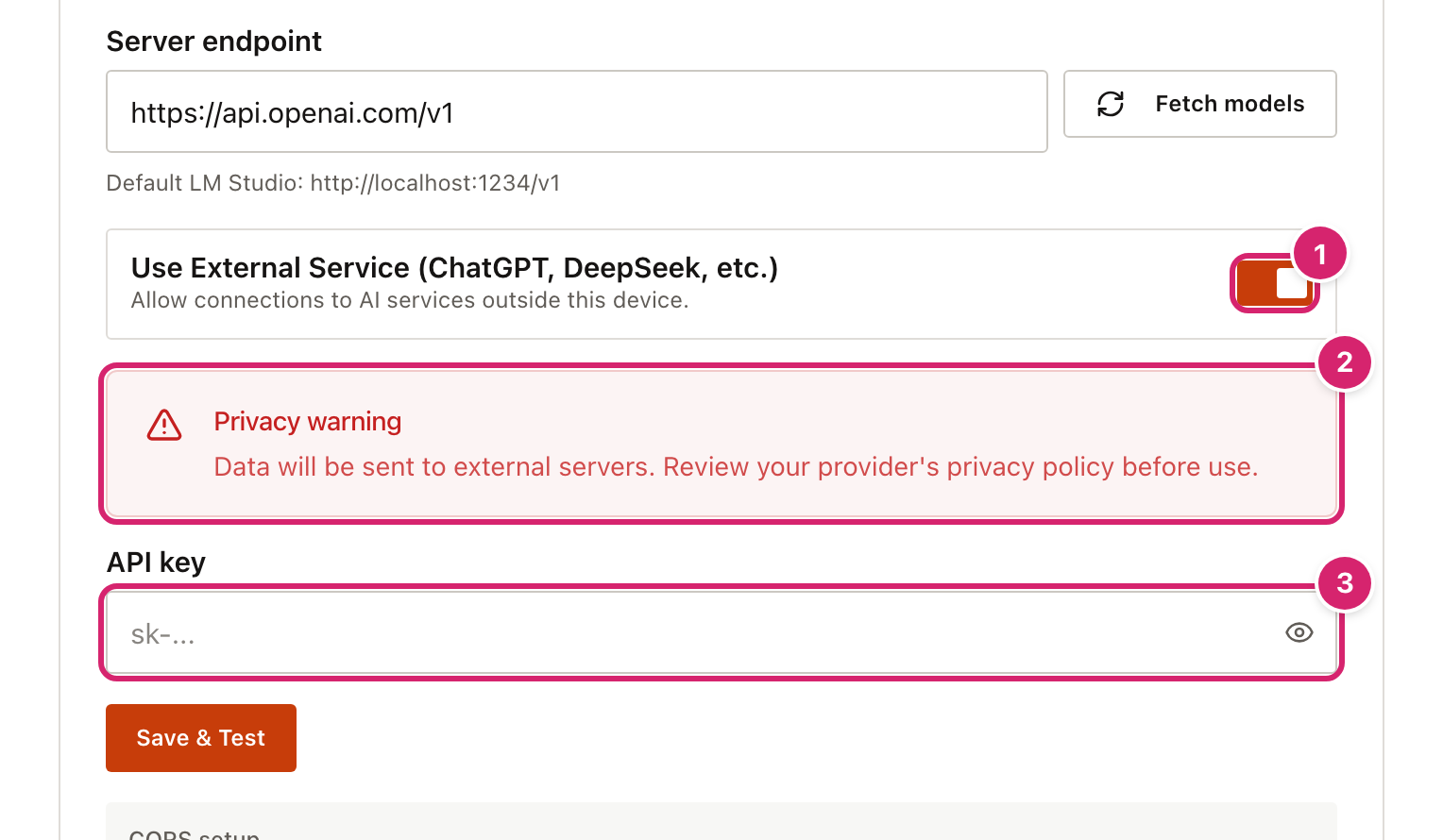
When you turn it on 1, the address changes to the OpenAI service, a red Privacy warning 2 appears, and a box for an API key 3 appears. The warning is accurate. If you save the connection, fetch its models and pick one, passages from every AI tool are sent to that service. Leave this off unless your school has approved the service for pupil work.
Get the model ready before a lesson
The first use downloads the model. While it downloads, a Downloading the AI model bar at the top of the page shows the percentage and the file being fetched. A model is made of several files, so the bar can fill, then start again for the next file. It can take several minutes on a slow connection, and the model setup gives up after five minutes.
You can also download the model ahead of time. Open Settings, then the Browser tab, and select Download on the model you want. When the label changes to Installed, the model is ready. Do this on the school network before the lesson, not in front of a class.
Tips
- Analyse first when you want a harder version. If you skip the check, the tool treats every rewrite as making the text simpler. The wording it gives the model for Secondary and Academic is then more general. After the check, it knows to aim up.
- Keep passages short. A paragraph or two works best. The model is small and the rewritten text has a size limit, so a long extract can come back cut off or thinner than the original. Split a long text and do it in pieces.
- Read every version before it reaches a pupil. A small model can leave out a detail, change a number, or get a technical term wrong. The tool is told to keep all the key information, but it is not a guarantee.
- Keep names out. Remove pupils' names and any personal details from a passage before you paste it, especially if the active model is anything other than a browser model.
- Copy before you leave. The text and the results are not saved. If you go to another page, they are gone.
Troubleshooting
Nothing happens when I select Analyse Reading Level, or the button is greyed out. The button is switched off until the Source Text box has some text in it. Spaces alone do not count.
It has said "Analysing..." for a very long time. If this is the first use, look for the Downloading the AI model bar at the top of the page. The model is downloading. Leave the page open and wait. If there is no bar and the model has already downloaded, the device may be struggling. Close other tabs and try again.
The page shows a red error such as "Transformers.js error: Worker initialization timeout". The model took more than five minutes to load, usually because the download was slow or was cut off. Check the connection and try again. If you are on a school network that blocks the Hugging Face website, the model will not download. Ask your IT team to allow it.
The error says "Generation timeout". A single reply took more than two minutes. This happens with a long passage or a large model on a slow device. Try a shorter passage, or choose a smaller model in AI Settings. The tool may try twice before it shows this error, so it can take a while.
It says "Could not parse the analysis result". The model replied, but its answer did not name a reading level. The message shows the start of what it said. Select Analyse Reading Level again. A different answer often works.
The error says it failed to connect to a server, or that an API key is required. The active model is on an Ollama or LM Studio server that is not running, or on an outside service that needs an API key. Open AI Settings, choose a model from the Browser group in the Active model drop-down, and try again. A browser model needs no server and no key.
The rewritten text is much shorter than the original. The model dropped detail. Try a shorter passage, or one level at a time. Compare it with the original before you use it.
My passage and results have disappeared. They are only held on the page. Reloading, going to another tool or closing the tab clears them. Copy each version you need before you leave.