The QR Generator turns a web link into a QR code that students can scan with a phone or tablet camera. Use it to put a reading list on a worksheet, a homework form on a slide, or a trip consent form on a letter home. You can match your school colours, add a logo, and make a whole set of codes from a spreadsheet in one go.
Where your data goes
Everything stays on this device. Your links, styles and logos are saved in this browser and are never sent anywhere. That also means they are not on your other devices, and clearing the browser's data deletes them. To keep a copy, or to move your codes to another computer, use Backup & Restore in the sidebar.
Quick start
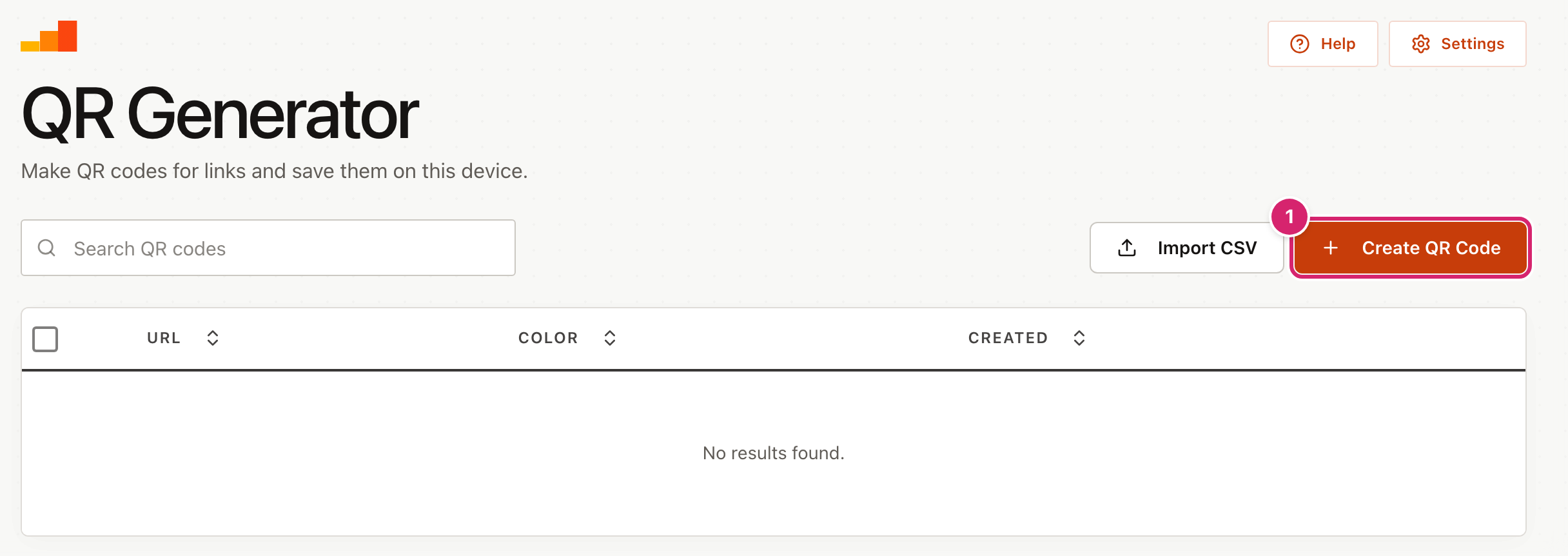
- Select Create QR Code 1.
- Paste your link into the box at the top.
- Scan the preview with your phone to check it opens the right page.
- Select Save to keep the code, or Download PNG to get the picture straight away.
Make a QR code
When you select Create QR Code, a window opens with your settings on the left and the code on the right.
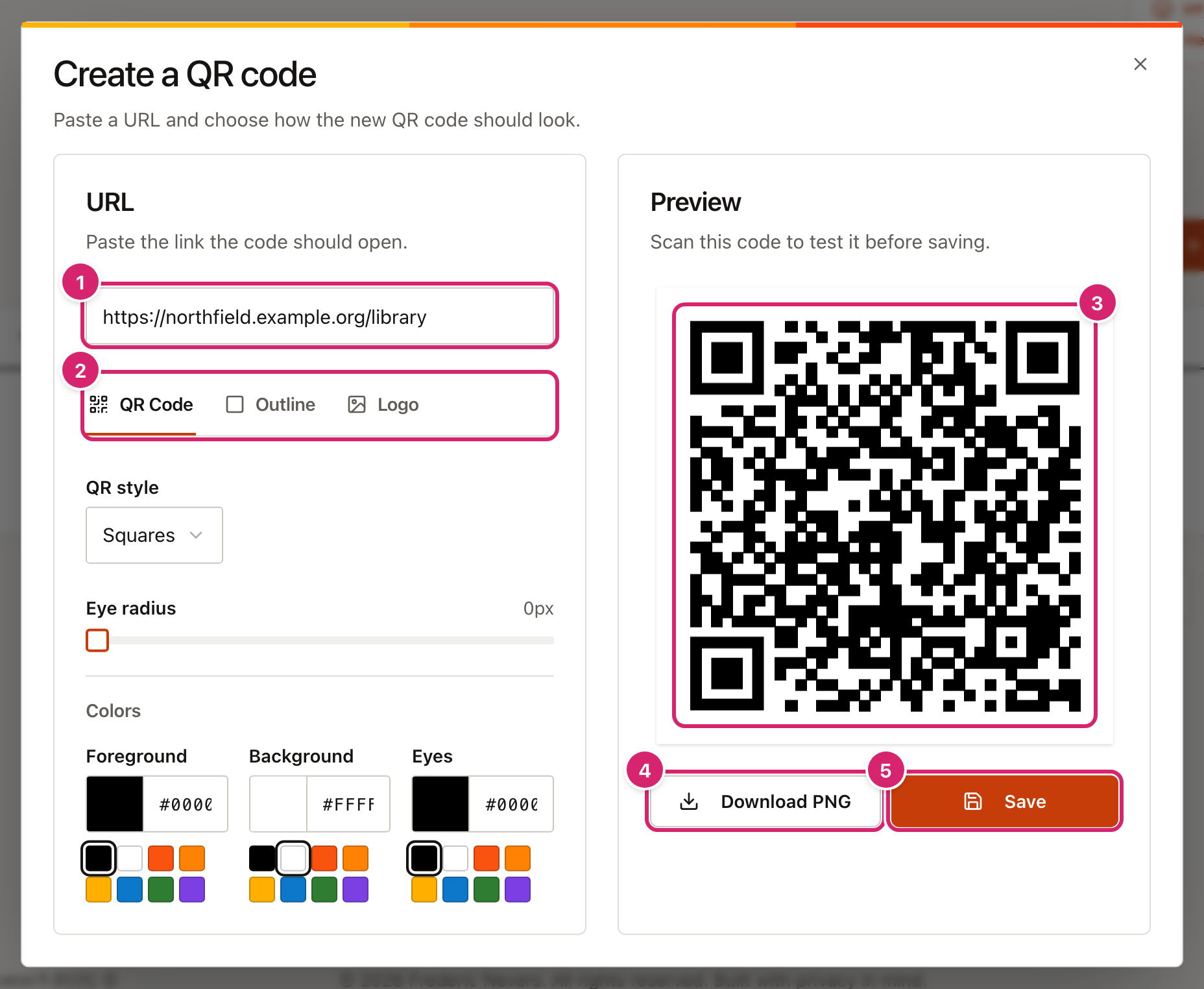
- Paste the link into the box 1. It must be a full web address starting with
https://. The box starts withhttps://www.filled in, so delete that first if your link does not use it. - Use the tabs 2 to change the colours, add an outline or add a logo. The next sections cover each one.
- Check the preview 3. It updates as you change things. Scan it with your phone before you use it with a class.
- Select Download PNG 4 to save the picture to your computer. You can then put it on a slide, in a document or on a poster. Downloading does not save the code in your list.
- Select Save 5 to add the code to your list so you can download it again later.
Change how it looks
The QR Code tab changes the pattern and its colours.
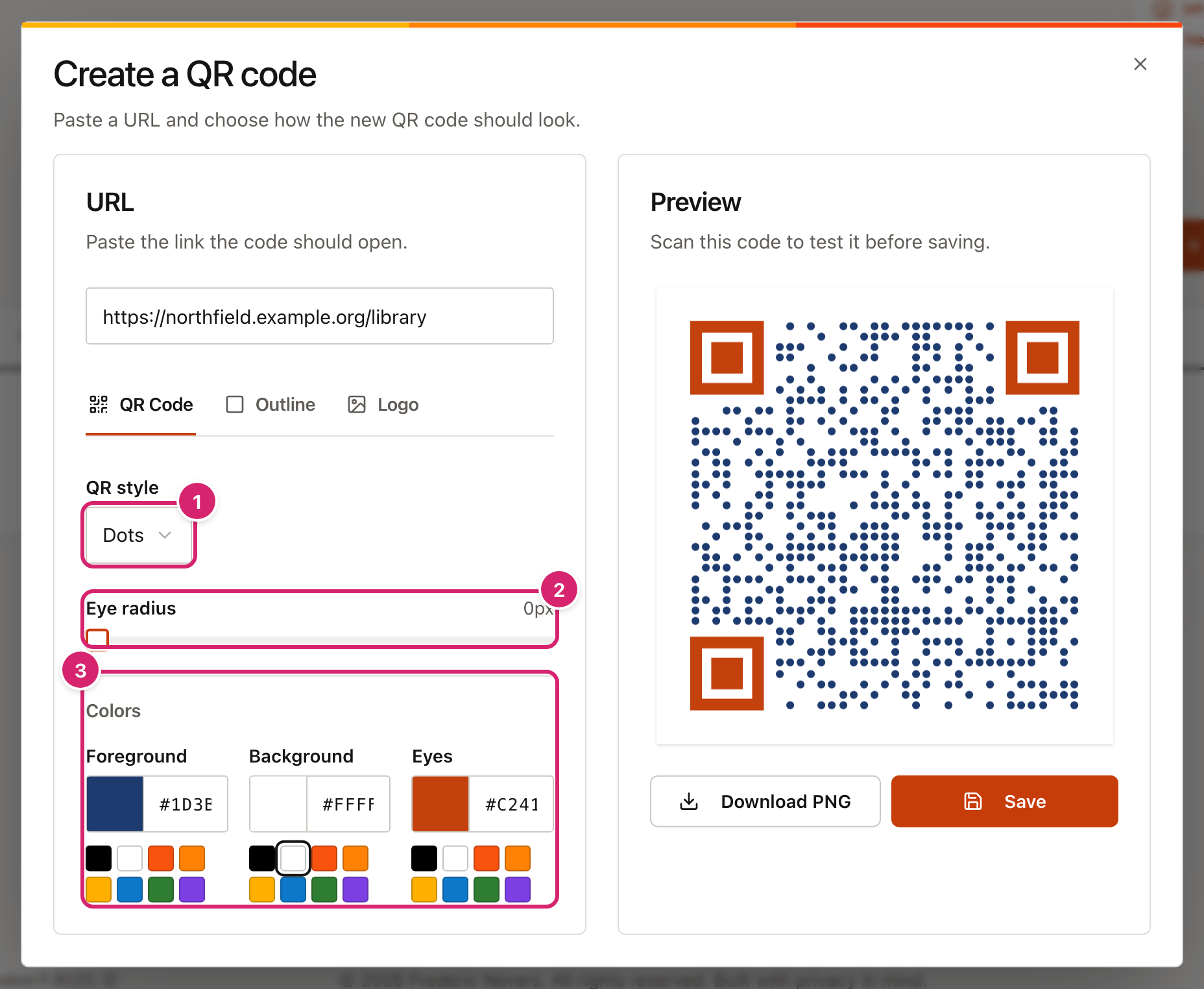
- QR style 1 draws the pattern as squares, dots or a smoother "fluid" shape. All three scan equally well.
- Eye radius 2 rounds the corners of the three large squares in the corners of the code. Phones call these the "eyes" and use them to find the code.
- Colors 3 sets the pattern (Foreground), the space behind it (Background) and the eyes. Type a colour code such as
#1D3B6F, or pick one of the swatches.
The Outline tab puts a frame around the code. Turn on Show outline, then set its Thickness, Rounded corners, the Distance between the frame and the code, and the Outline Color. A frame helps a code stand out on a busy poster.
Put your school logo in the middle
The Logo tab places a small picture in the centre of the code.
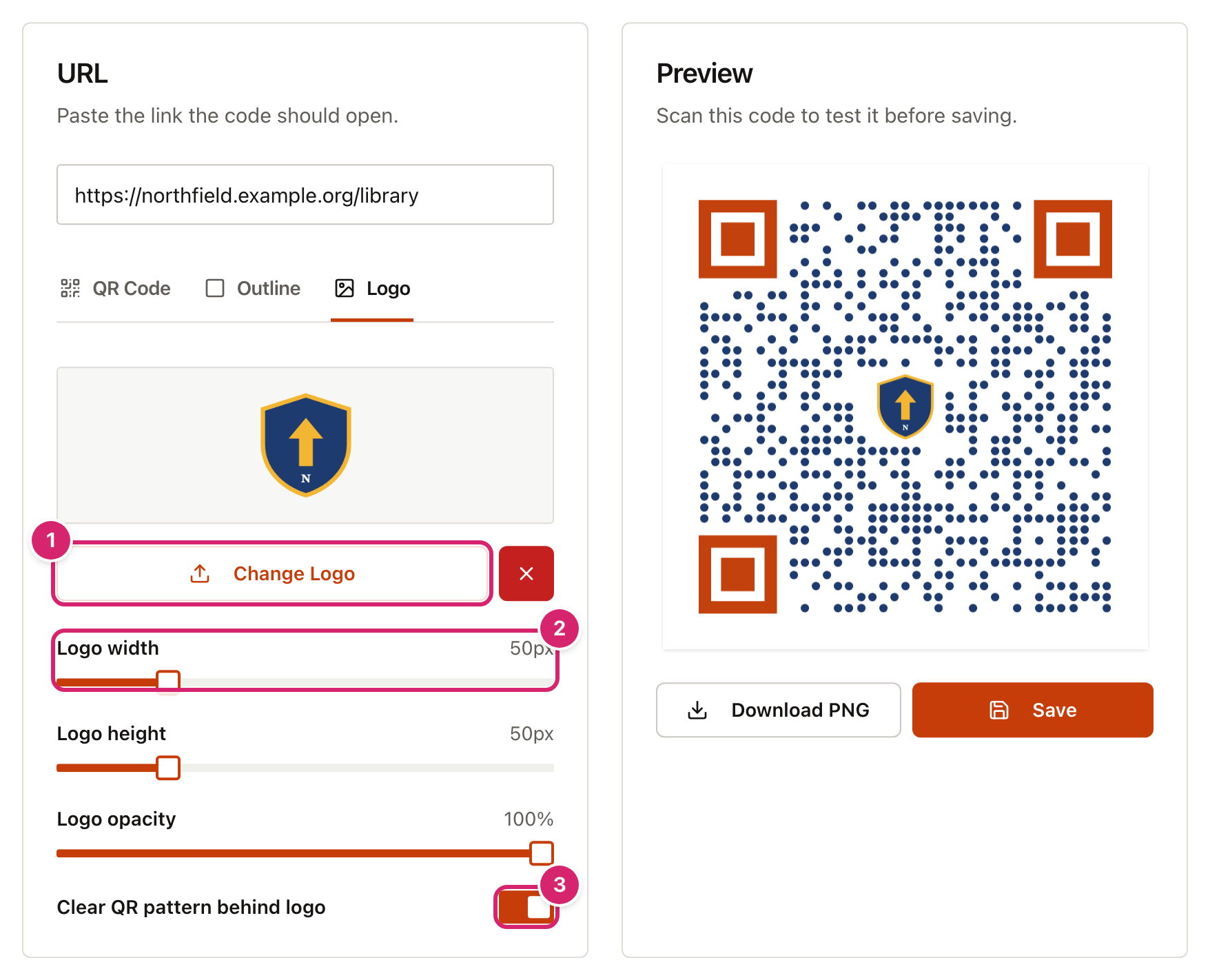
- Select Upload Logo and choose an image. Once a logo is in place, the same button reads Change Logo 1. The red × next to it removes the logo.
- Use Logo width and Logo height 2 to set its size. Keep the two numbers the same unless your logo is not square.
- Leave Clear QR pattern behind logo 3 switched on. It gives the logo a clean background, which makes it easier to see.
A QR code still works with part of it covered, but only up to a point. Keep the logo no wider than about a quarter of the code, and scan the preview each time you make it bigger.
Make lots of codes at once
If you have a list of links, such as one for each class reading list, you can make all the codes together from a CSV file (a spreadsheet saved as plain text).
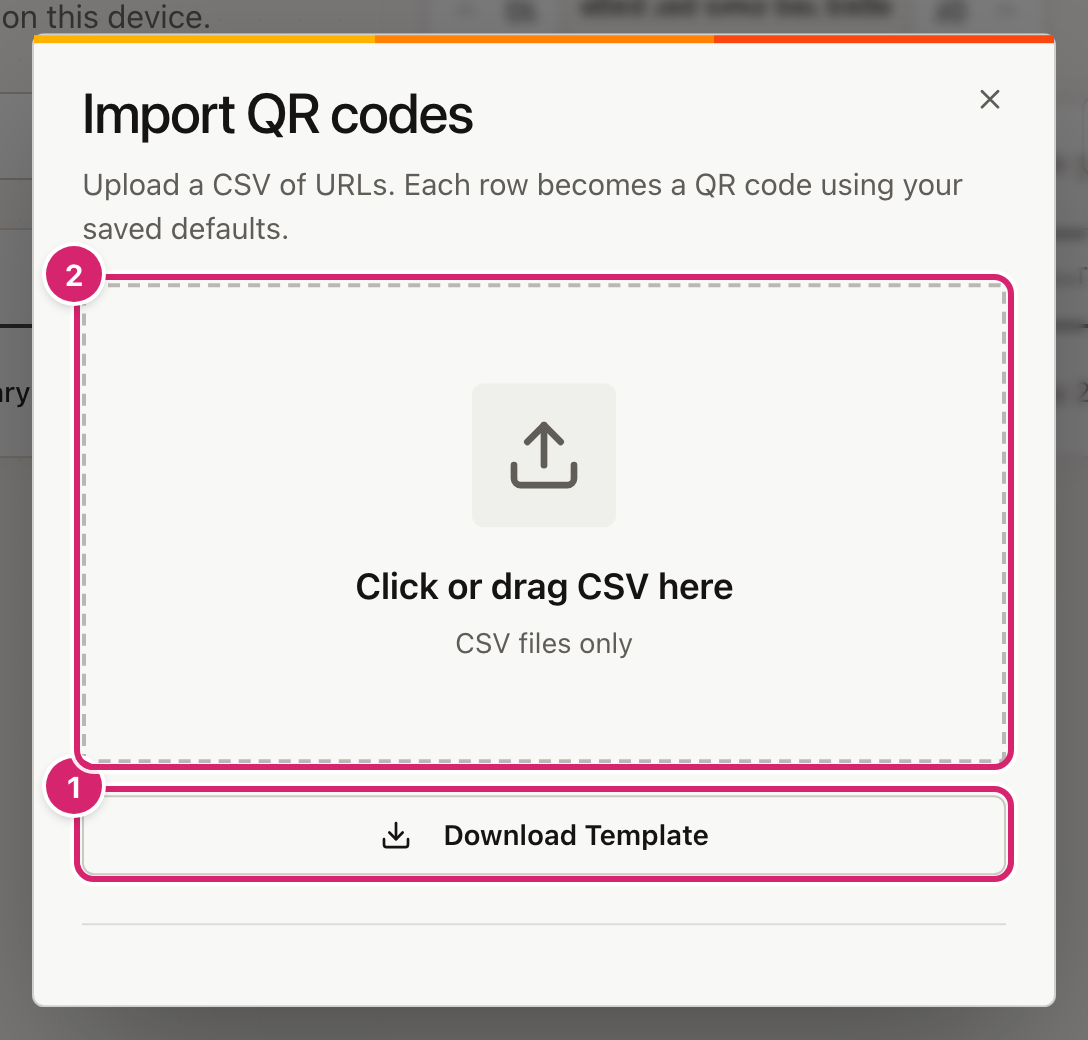
- Select Import CSV, then Download Template 1. This gives you a file with one column, called
url, and three example links. - Open the template in Excel, Numbers or Google Sheets. Replace the examples with your own links, one per row, and keep
urlas the heading. - Save it as a CSV file. In Excel, choose File > Save As and pick CSV UTF-8.
- Drag the file onto the dashed box 2, or select the box to choose the file.
- The window tells you how many rows are ready and lists any with problems. Select the Import button, which shows the number of rows, to make the codes.
Imported codes use your starting style from Settings, not the style of the last code you made. To choose that style before you import, see "Set the starting style for new codes" below.
Find, download and change saved codes
Everything you save or import appears in a list on the main page, oldest first. Select a column heading, such as Created, to sort by it.
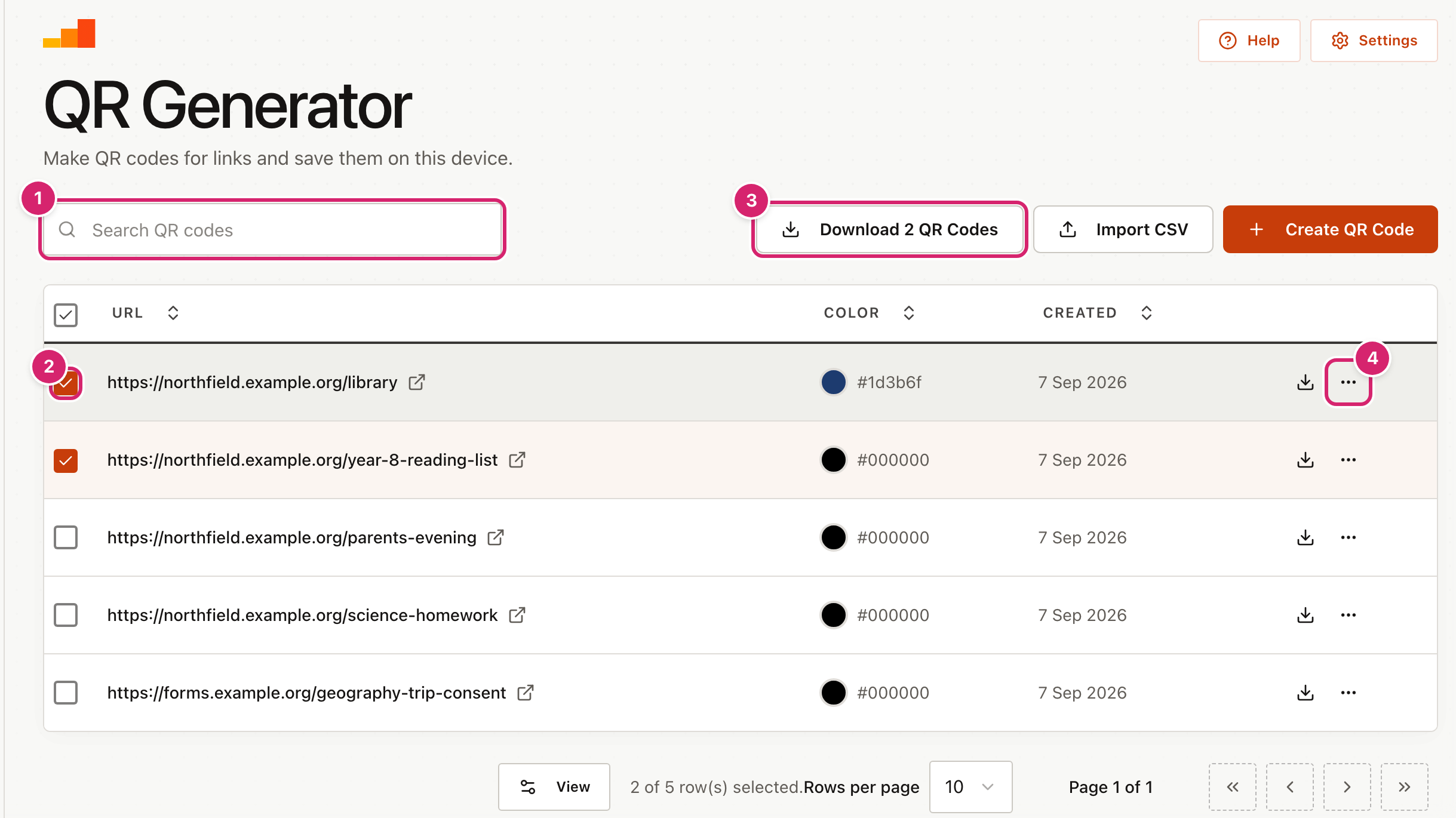
- Type part of a link into Search QR codes 1 to find it.
- Tick the box next to a code 2 to select it. The tick box in the heading row selects every code on the page.
- Select Download 2 QR Codes 3 to download every selected code. The number changes with how many you have ticked. Each code downloads as its own file.
- Select the ⋯ button 4 to Edit or Delete a code. Editing opens the same window as making one. Select Update when you are done. Deleting cannot be undone.
The download arrow on each row downloads that one code.
Set the starting style for new codes
If you always use your school colours or logo, set them once in Settings. Every new code and every import then starts with them.
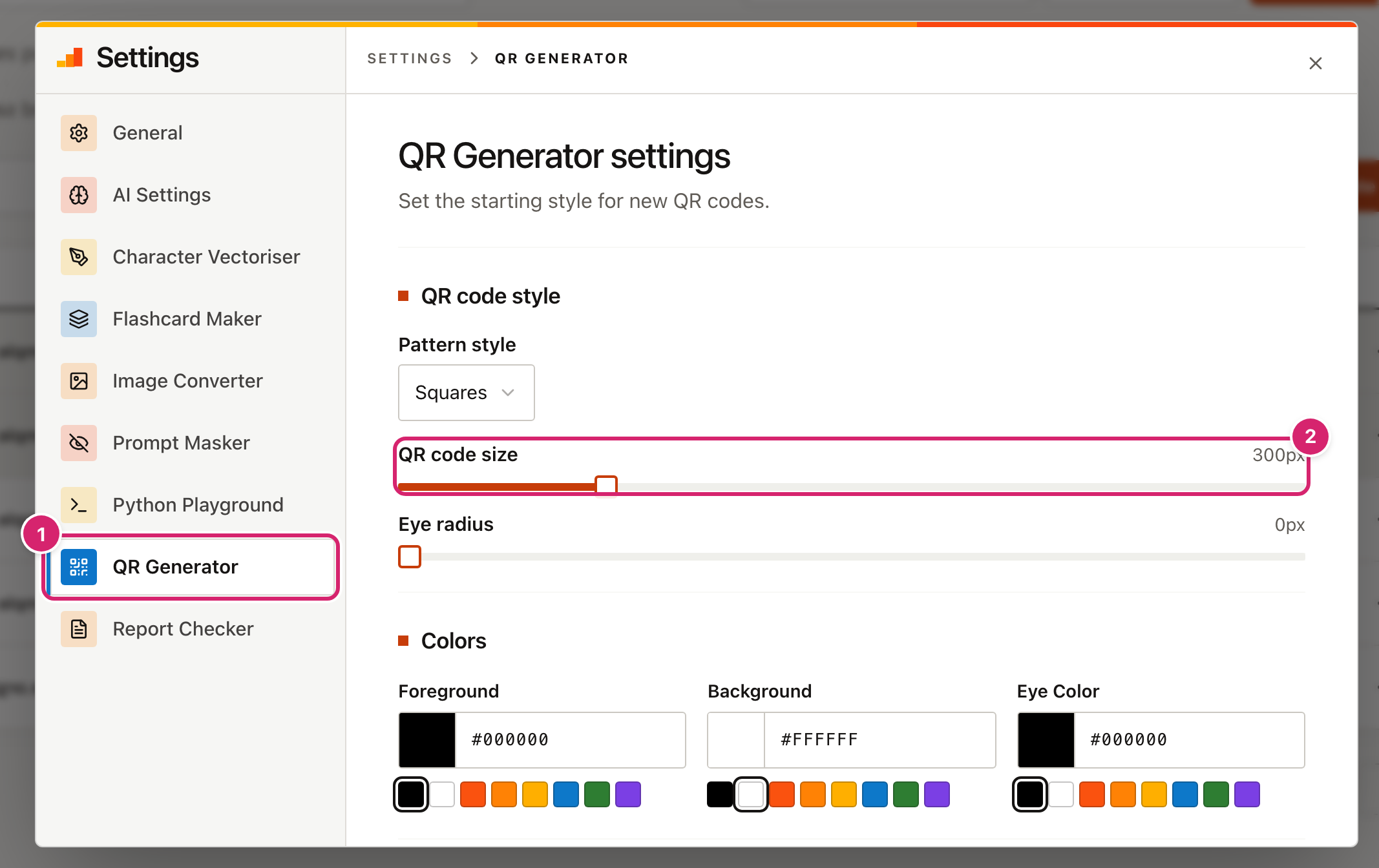
- Select Settings at the top right of the QR Generator page. The window opens at QR Generator 1.
- Choose the pattern, colours, outline and logo, as in the create window. Changes save as you make them.
- QR code size 2 sets how many pixels wide the downloaded picture is, from 100 to 1000. This option is only here, not in the create window.
Changing Settings does not change codes you have already saved. To restyle an old code, edit it.
Tips
- Test before the lesson. Scan the code from the back of the room on the screen you will use. Projectors wash out colours, so a pale pattern that scans on a laptop may not scan on the wall.
- Dark on light works best. Keep the pattern darker than the background. Some phones will not read a light pattern on a dark background.
- Short links make simpler codes. A long link makes a denser pattern, which is harder to scan from a distance. If a link is very long, shorten it first with the Link Shortener.
- For a poster, go big. Set QR code size to 600 or more in Settings, then use Download PNG in the create or edit window.
Troubleshooting
The preview says "Enter a valid URL" and there is no Save button.
The link is not a complete web address. Check that it starts with https:// and has no spaces. Copying the link straight from the browser's address bar avoids typing mistakes.
The code will not scan. Try these in order: make the logo smaller, switch Clear QR pattern behind logo on, make the pattern darker or the background lighter, and make the code bigger on the page. Scan the preview after each change.
A downloaded code is smaller than the size I set. QR code size only applies to Download PNG in the create or edit window. Downloads from the list are always 300 pixels wide. For a bigger picture, open the code with ⋯ > Edit and download it from there.
My downloads all have similar names.
Codes downloaded from the list are named after the website, for example qrcode_northfield_example_org.png, so codes for pages on the same site share a name. Your browser adds a number to tell them apart. Rename them as you file them.
Only one file downloaded when I selected several codes. Some browsers ask before a site downloads more than one file. Look for a message near the address bar and choose Allow, then try again.
My saved codes have disappeared. They are stored in this browser on this device. They will not appear in a different browser, on another computer, or after the browser's data has been cleared. If you made a backup, restore it from Backup & Restore.