The Python Playground lets you write a Python program and run it on the same page, with nothing to install. It works on a laptop and on an iPad, so a class can start coding in the first five minutes of a lesson. It has example programs to start from, friendly explanations of mistakes, and turtle drawing. Students can read this guide too: the steps below are the same for everyone.
Where your data goes
Programs run on this device. Nothing a student types is sent anywhere.
The first visit downloads Python itself, about 13 MB, from this website. Students see Downloading Python… and then Starting Python… for a moment. The browser keeps it after that, so later visits start faster. On a school network, open the page once on each iPad before the lesson so the download is done.
Your unsaved work is kept in the browser, so a program is still there after a reload. Programs you save are kept in the browser too, under Saved programs. That means they are on this device only, and clearing the browser's data deletes them. Saved programs are included in Backup & Restore, in the sidebar. To keep a program somewhere else, use Export.
Quick start
- Open the page and wait for Ready to appear next to the buttons.
- Select Run 1. A short program, which asks for a name, is already in the editor 2.
- Type an answer when asked. What the program prints appears in Output 3.
- Change the program and select Run again.
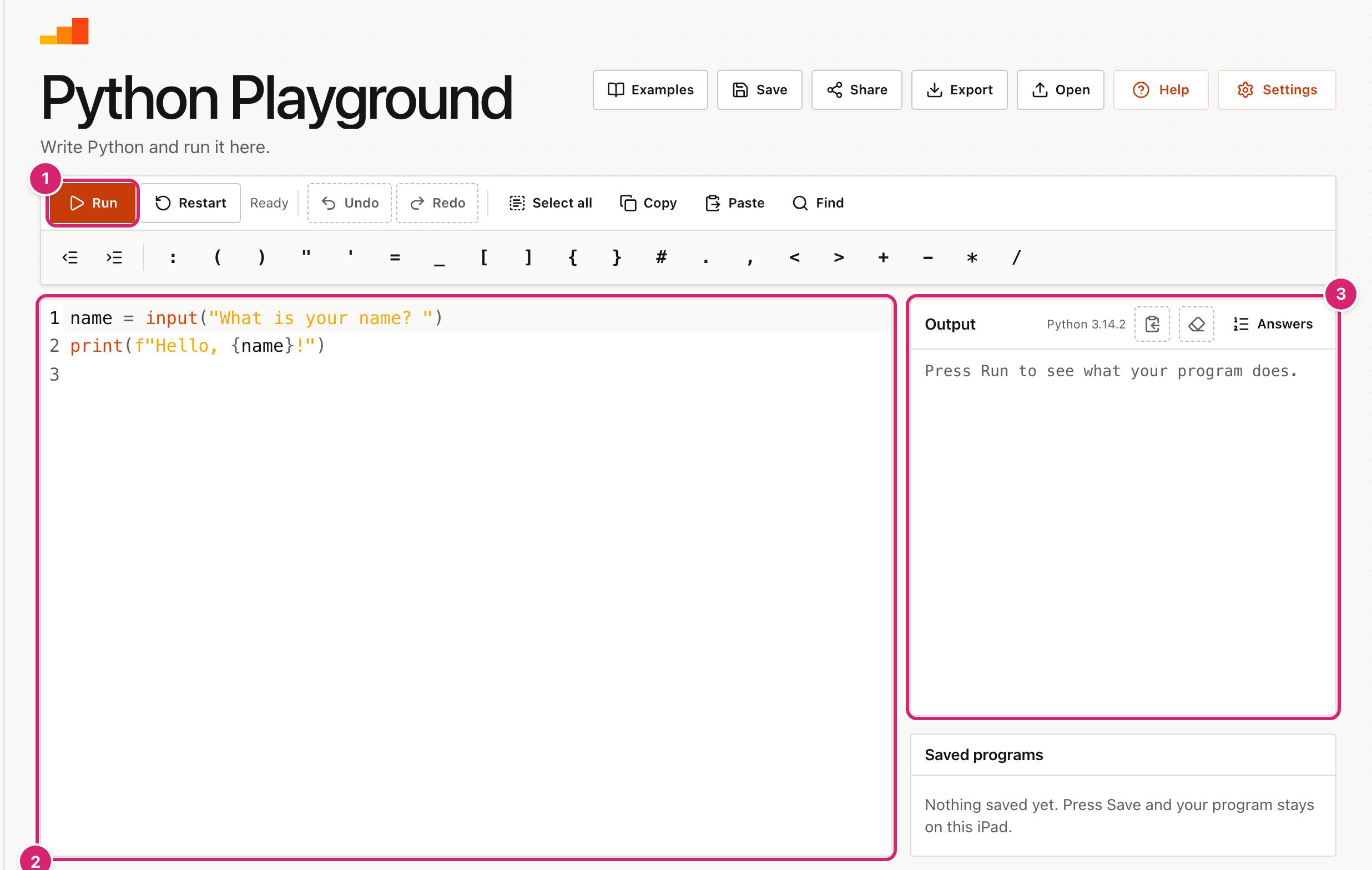
Press Command or Ctrl and Enter together to run without reaching for the button. On a narrow screen, such as an iPad held upright or a phone, the page shows one pane at a time. Choose Code, Output or Saved above the editor to switch.
Start from an example
Select Examples to open a list of short programs. Choose one to put it in the editor, then run it and change it.
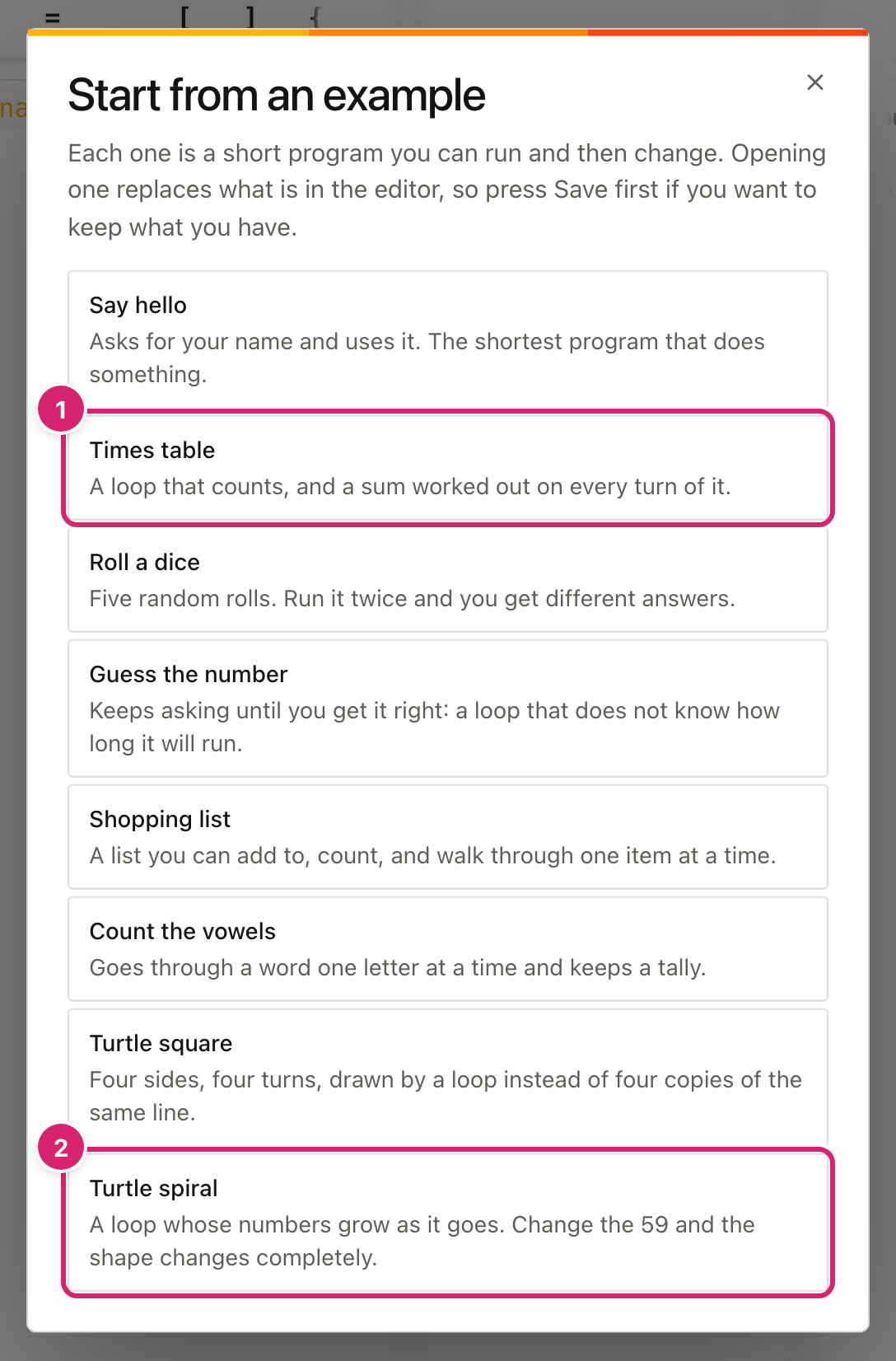
There are eight. Most, such as Times table 1, are small programs about loops, lists and input. The last two, such as Turtle spiral 2, draw pictures. Opening an example replaces what is in the editor, so select Save first if you want to keep your own program.
Programs that ask questions
When a program uses input(), it stops and asks. By default the question appears in a panel over the page.
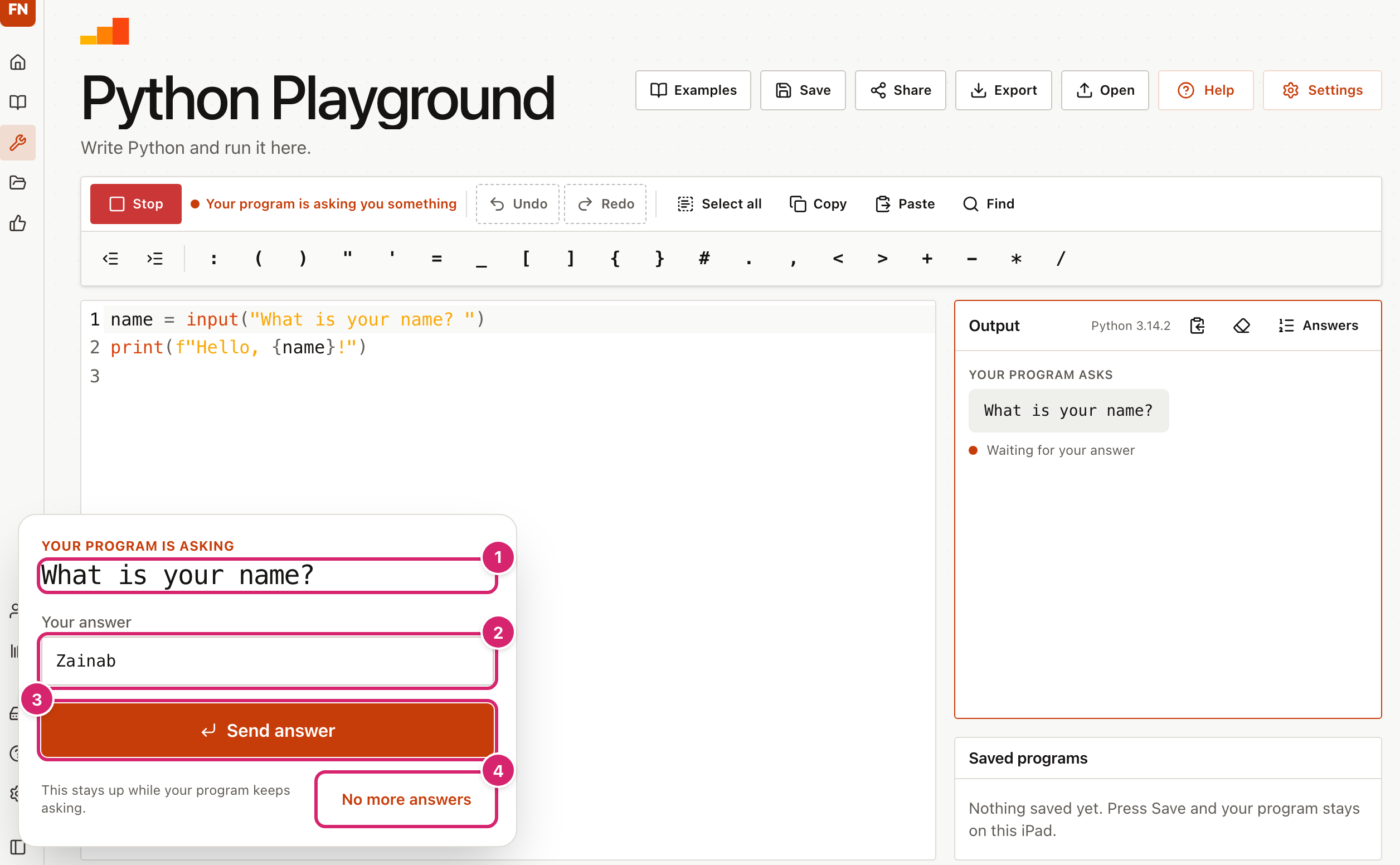
- Read the question 1. The panel also shows the last few lines the program printed.
- Type your answer in the box 2.
- Select Send answer 3, or press Enter. If the program asks again, the panel stays.
- Select No more answers 4 if you want the program to stop asking. A program that still tries to ask stops with an error.
The question and your answer are also written in Output, like a conversation.
You can give a program its answers before you run it. Select Answers above the output, type one answer per line, then select Run. The program uses those first, then asks you for any more. This is useful for testing a program again and again.
Select Stop to end a program that is running or waiting. This starts Python again, so any variables are forgotten.
Read the output and the variables
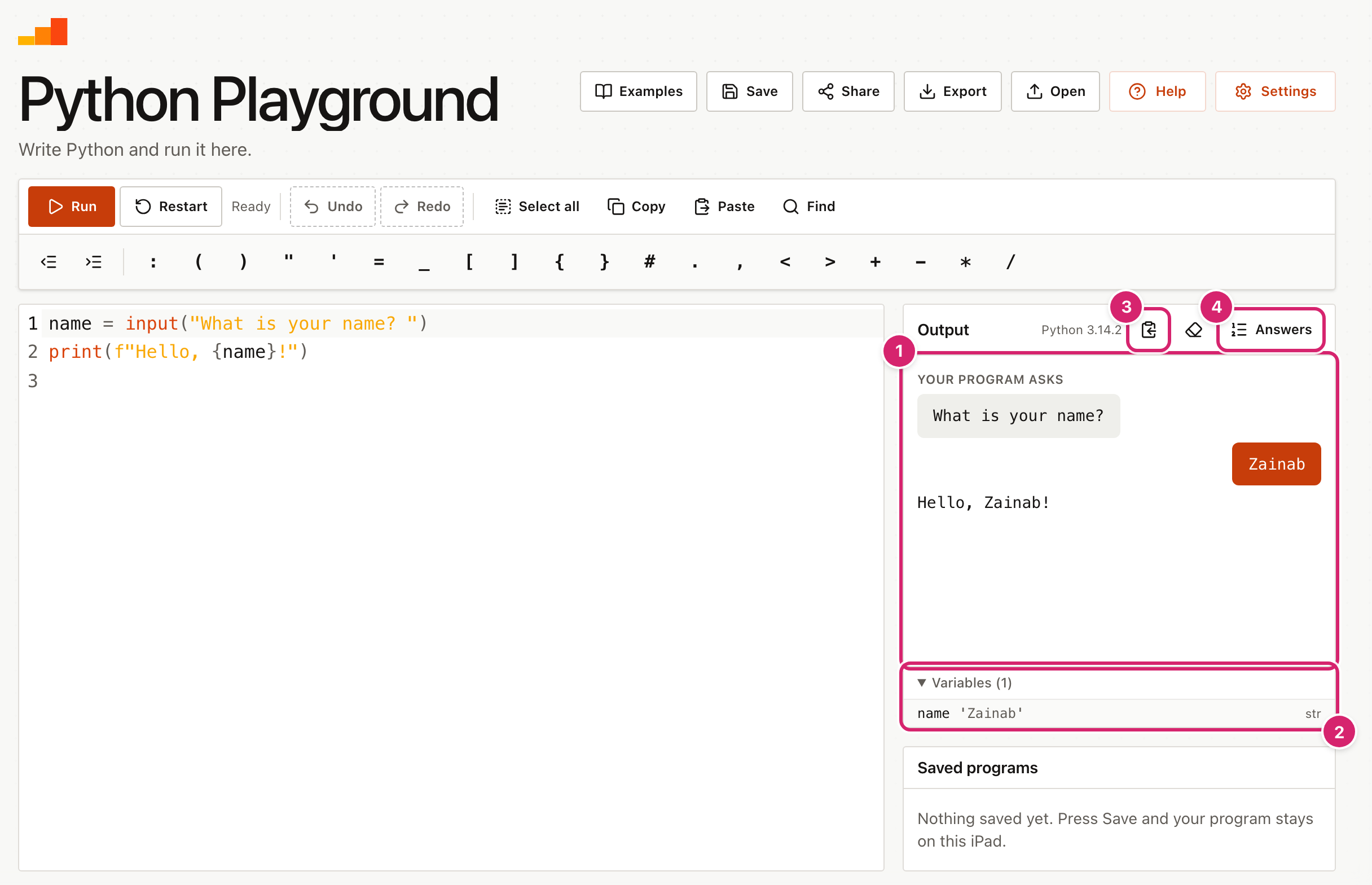
- What the program printed appears in Output 1. Select Copy the output 3 to copy it as text, for example to paste into a hand-in. Select the eraser button next to it to clear it.
- Variables 2 lists the names the program has created and what they hold. A value that is cut short ends in an ellipsis.
- Answers 4 opens the box for answers to use in advance.
Variables carry over from one run to the next. If a program behaves oddly because of something an earlier run left behind, select Restart to start Python again with nothing remembered.
The output keeps the last 2,000 lines of each stretch of printing. A program that prints a great deal is stopped altogether, with a note in the output.
Fix a mistake
When a program stops with an error, the output explains it in plain words and says what to try.
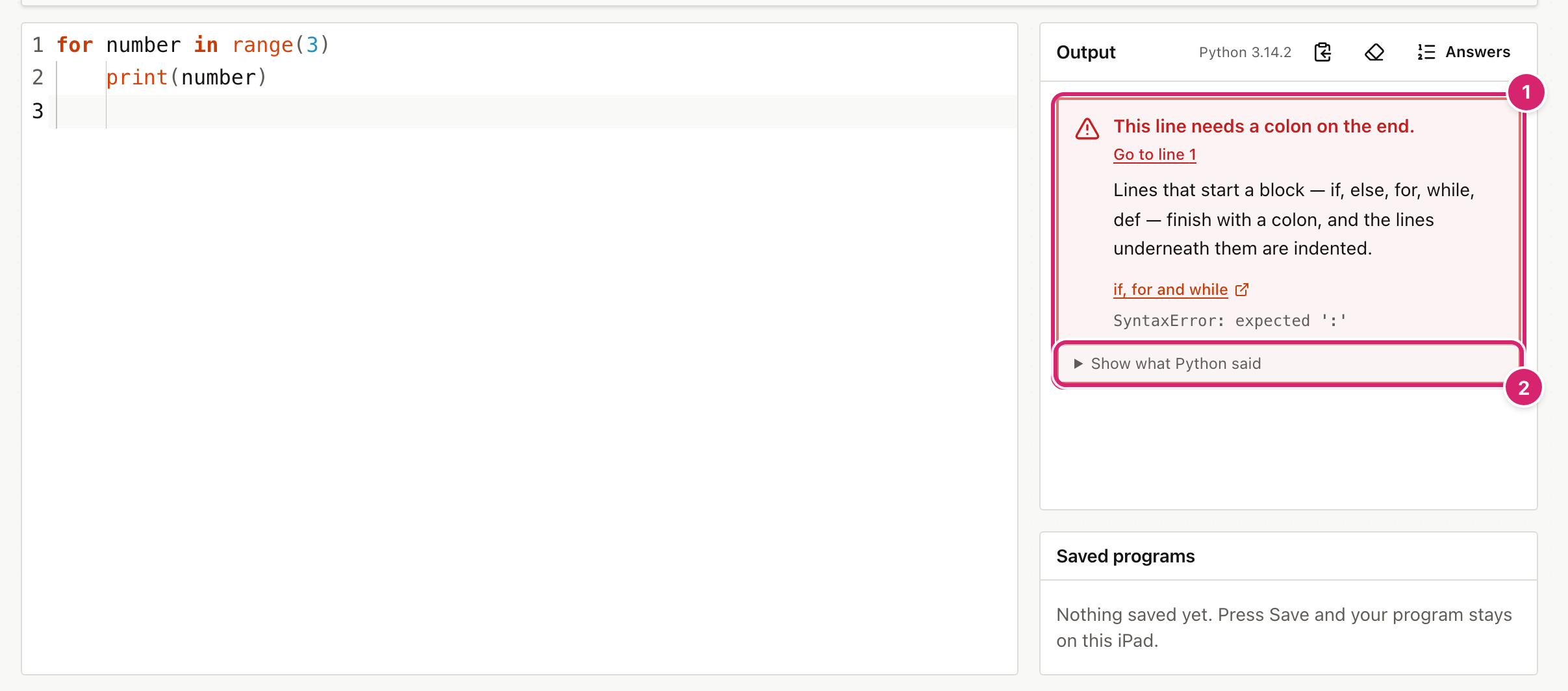
- The box 1 says what went wrong and how to fix it, with a link to a short page in Python's own tutorial.
- Select Go to line 1, or whichever line it names, to jump to that line in the editor.
- Select Show what Python said 2 for the full error message, as an experienced programmer would see it.
The playground knows about the mistakes students make most: a missing colon, a missing bracket or quote, wrong indentation, a misspelt name, mixing text and numbers, and a few more. For anything else it says Your program stopped. and shows Python's own message.
Draw with turtle
A program that starts import turtle draws on a canvas.
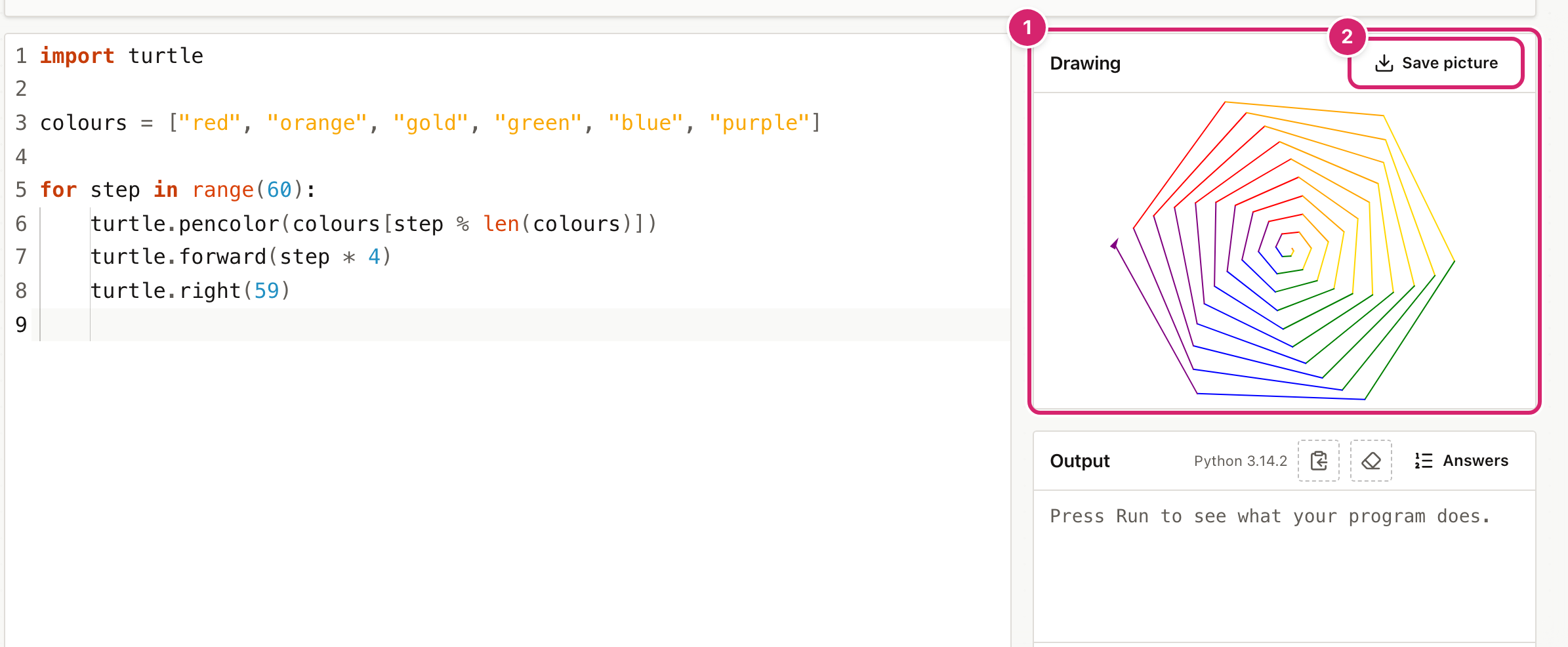
The Drawing panel 1 appears above the output. Select Save picture 2 to download it as turtle-drawing.png. The Turtle square and Turtle spiral examples are a good start.
The drawing has a limit on its height, and Output keeps a minimum height of its own, so you can see both at once. On a small screen the column may not hold the drawing, the output and Saved programs together. Scroll down inside it to reach the rest.
Save, export and share programs
Select Save, give the program a name, then select Save program. If the name is already used, the window says it will replace that program.
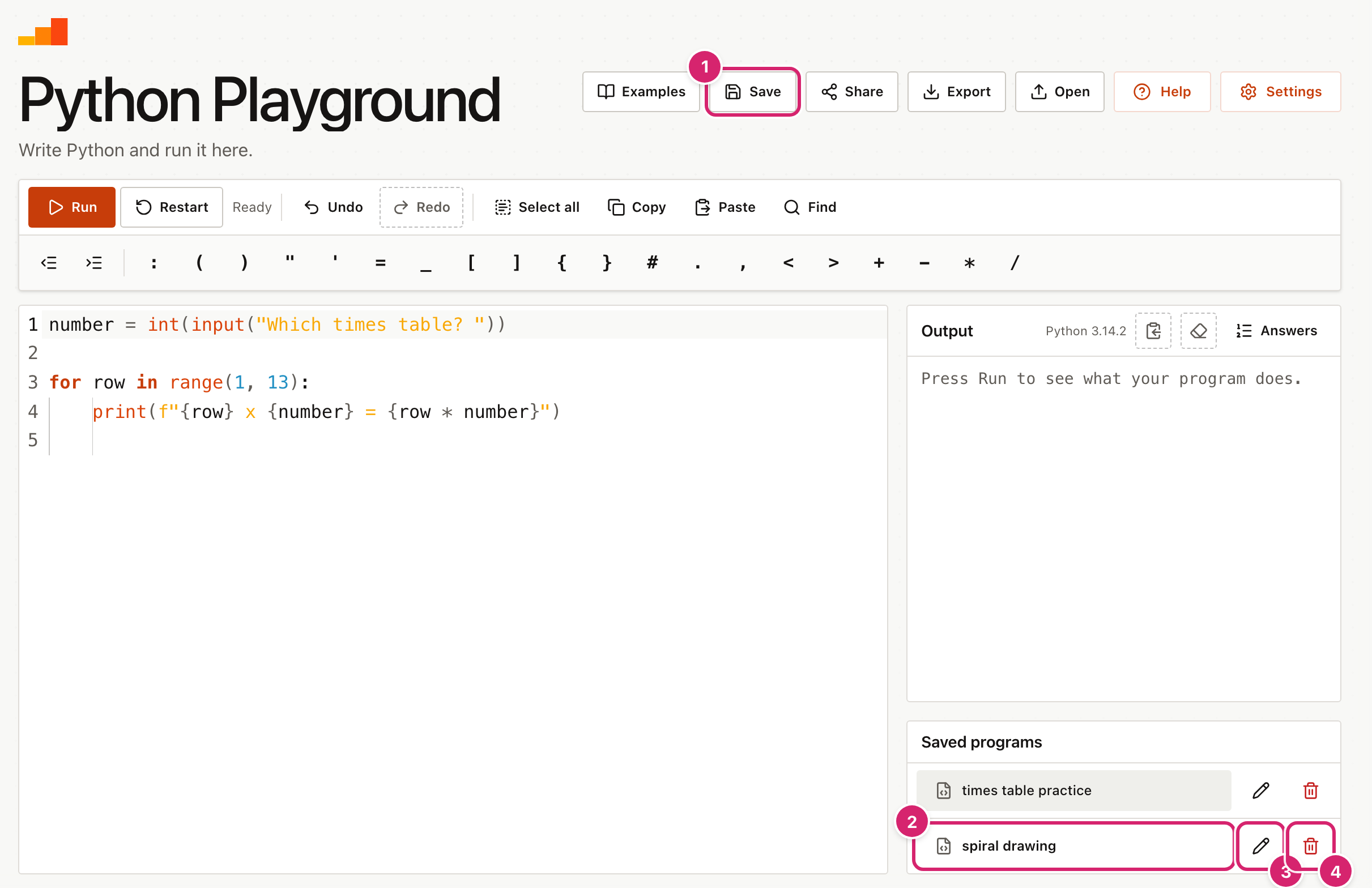
- Select Save 1 to save the program in the editor.
- Select a name in Saved programs 2 to open it. Opening replaces the editor, so save first if you have changed something.
- Select the pencil 3 to rename a program, then press Enter. Two programs cannot have the same name.
- Select the bin 4 to delete one. This cannot be undone.
The other buttons at the top move programs in and out.
- Export downloads the program as a
.pyfile, named after the program. - Open puts a
.pyor text file from the device into the editor. Files over 512 KB are refused, because a program is only a few kilobytes. - Share copies a link that contains the whole program. Anyone who opens the link gets a copy in their editor. It cannot share a very long program. Do not put names or personal details in a program you share, because they are part of the link.
A shared link that was cut short in a chat message opens the page with a message that it is incomplete.
Choose how it looks and behaves
Select Settings, which opens at Python Playground.
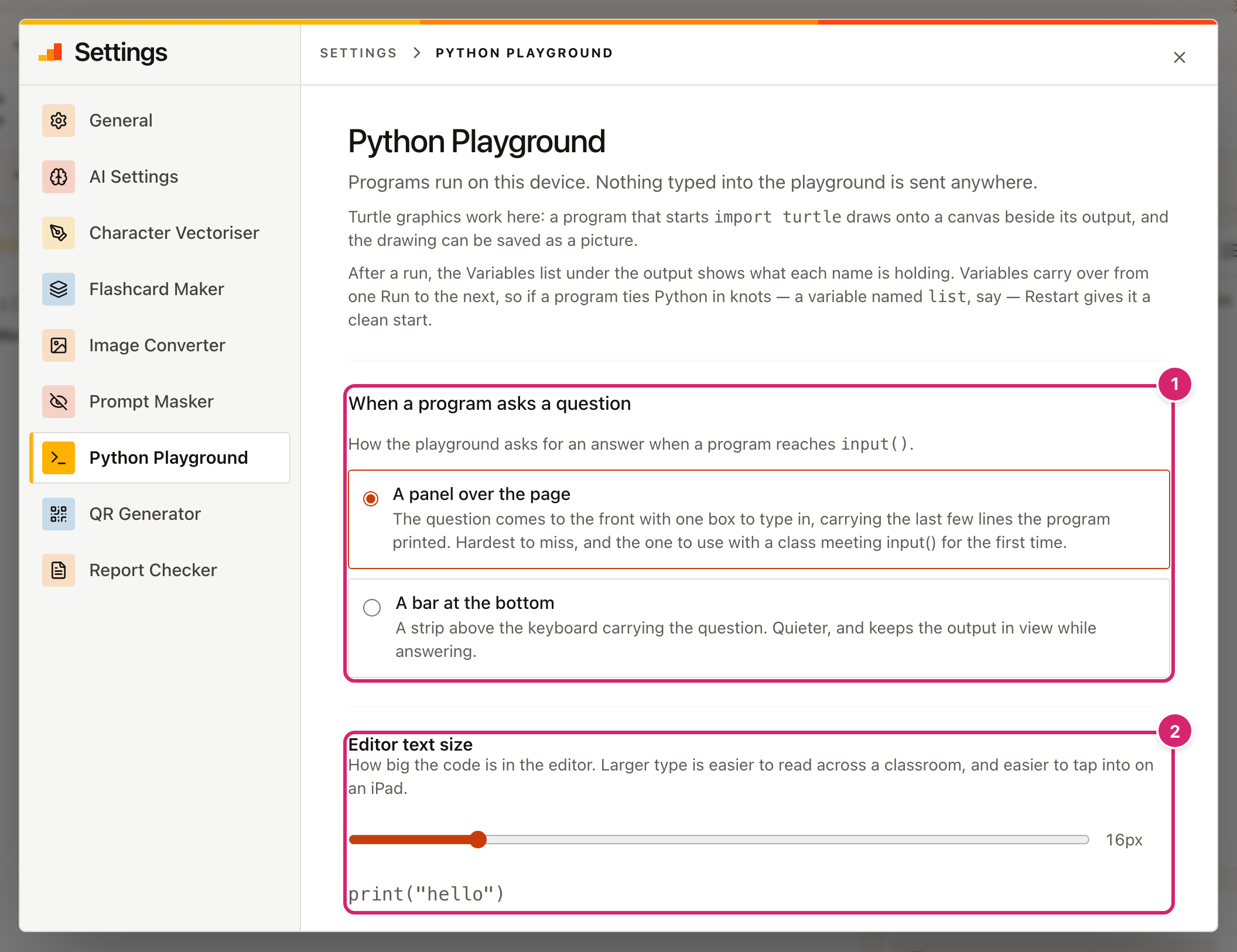
- Under When a program asks a question 1, choose A panel over the page, which is hardest to miss and best for a class meeting
input()for the first time, or A bar at the bottom, which is quieter and keeps the output in view. - Use Editor text size 2 for a bigger or smaller editor. It runs from 14 to 26 pixels, and larger text is easier to read from the back of a classroom.
Changes save as you make them.
Tips
- Open it once before the lesson. The first visit downloads Python. After that, each iPad starts sooner.
- Use the symbol row. The row under the buttons has the brackets, quotes and colons that are hard to find on a tablet keyboard. Indent line and Outdent line at its left move a line in or out, and the Tab key indents too.
- Paste from Notes or Pages. Fancy quote marks are changed to straight ones when you use the Paste button or open a file with Open, so the program still runs.
- Use examples as starters. Run one, then ask students to change a number and predict the result.
- Collect work with Share or Export. A link or a
.pyfile can be handed in through your usual route. Nothing is sent to a teacher automatically. - Only Python's built-in libraries. Programs can use what comes with Python, such as
random,mathandturtle, but nothing that needs installing.
Troubleshooting
The Run button is greyed out and says Starting Python… Python is still loading. On the first visit it downloads about 13 MB, which can take a minute on slow wifi. Wait for Ready. If it says Python could not start, reload the page. If that does not help, check that the device is online and try another browser.
input() does not stop and ask.
A message above the editor says the program runs, but input() cannot stop and ask while running. The browser could not set up the feature the question panel needs. Put the answers in the Answers box before you press Run, or reload the page. The message goes away when it works.
My program runs for ever. Select Stop. Python starts again and the variables are forgotten.
It says a library is not available. The error reads "The ... library is not available in this playground." Only the libraries that come with Python can be imported. Write the program without it.
The output stopped with "this program printed too much". A program that prints without end is stopped once it has printed about 256 KB of text, which is many thousands of lines. Look for a loop that never finishes.
A drawing stopped partway. "This drawing got too big to keep going" means the program drew more than the playground can hold, usually a loop that runs too long. Everything up to that point is kept.
Variables from an old run are still there. Variables carry over between runs. Select Restart to clear them.
Copy or Paste does not work. Some iPads and locked-down browsers will not give the page the clipboard. The page says so. Hold your finger on the code and choose Copy or Paste from the pop-up menu instead.
A saved program is missing. Saved programs live in this browser on this device. They do not appear in another browser or on another iPad, or after the browser's data is cleared. Restore them from Backup & Restore if you made a backup.
Opening a file did nothing. Files over 512 KB are too big to open. A message says so.
A shared link says it is incomplete.
The link was cut short, often by a chat app. Ask for it to be shared again, or send the program as a .py file with Export.