The Prompt Masker removes personal details from a piece of text before you paste it into an outside AI tool such as a chatbot. It swaps each name, email address and phone number for a placeholder like [STUDENT_01]. When the reply comes back, you paste it in and the real details go back where the placeholders were. Use it to draft report comments, parent emails or feedback without sending a child's name to someone else's servers.
Where your data goes
The masking happens on this device. Your class list and your custom dictionary are saved in this browser and are not sent anywhere. The prompt, the masked version and the key that links placeholders to real details exist only on the page: reloading or leaving it clears them.
The one exception is Magic Mode, described below. The first time you use it, the browser downloads an AI model from the internet. Your text is not sent with it. The model then runs on this device.
You send the masked prompt to the outside AI tool yourself, by pasting it. The Prompt Masker never does that for you.
Add your class list first
Names are masked from your student list. If the list is empty, a red message appears at the top of the page and no names are masked, even though emails and phone numbers still are.
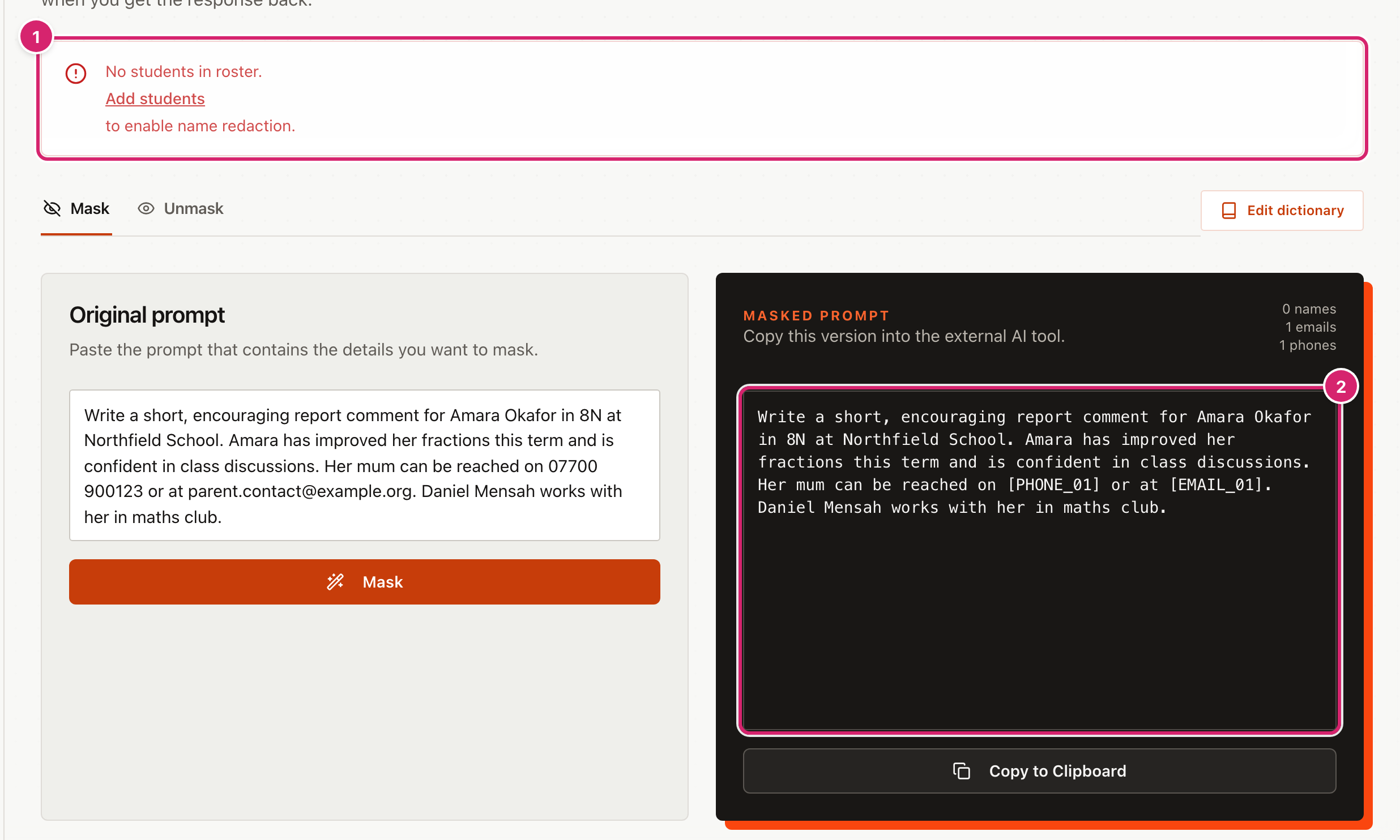
The message 1 links to the Student List, where you can add students or import a CSV (a spreadsheet saved as plain text). Check the masked prompt 2: if a child's name is still there, the name is not on your list. The masker uses every student on the list, not one class.
Quick start
- Add your students to the Student List if you have not already.
- Paste your prompt into Original prompt 1.
- Select Mask 2.
- Read Masked prompt 3 to check that every name has gone.
- Select Copy to Clipboard 4, then paste into the AI tool.
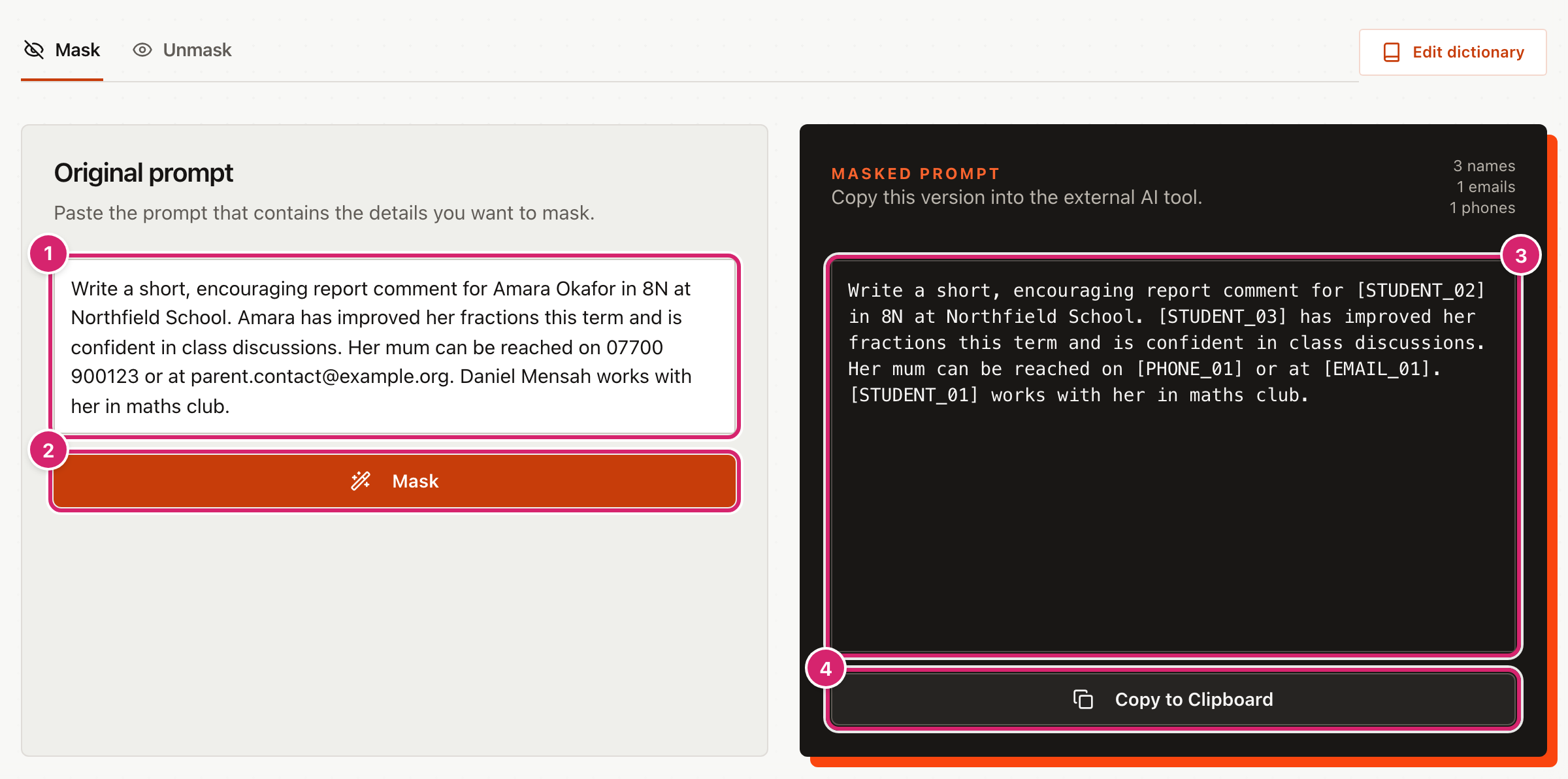
The counts above the masked prompt show how many names, emails and phone numbers were replaced. The count of names can be higher than the number of children: see "One child, several placeholders" below.
What it masks
- Names from your student list. Full names, first names and last names are all found, whatever the capitals. Only whole words match, so
Reiddoes not changeReidy. A name of one letter is ignored. - Email addresses, which become
[EMAIL_01],[EMAIL_02]and so on. An address that contains a name, such ass.okafor@example.org, is masked whole. - Phone numbers, which become
[PHONE_01]. A number counts as a phone number if it is written the way phone numbers are: UK-style, starting with0(such as07700 900123or020 7946 0958), or starting with+or00and a country code (such as+44 7700 900123). Other numbers, such as student ID numbers, are left alone. - Your own words and phrases, from the custom dictionary. See "Mask school names and staff" below.
- Other names, places and organisations, if you switch on Magic Mode.
The same detail always gets the same placeholder within one prompt, and two different details never share one.
It cannot tell what a detail is, only whether it matches. It does not know about addresses, dates of birth, nicknames or misspelt names. Always read the masked prompt before you send it.
Put the real details back
When the AI tool replies, switch to the Unmask tab.
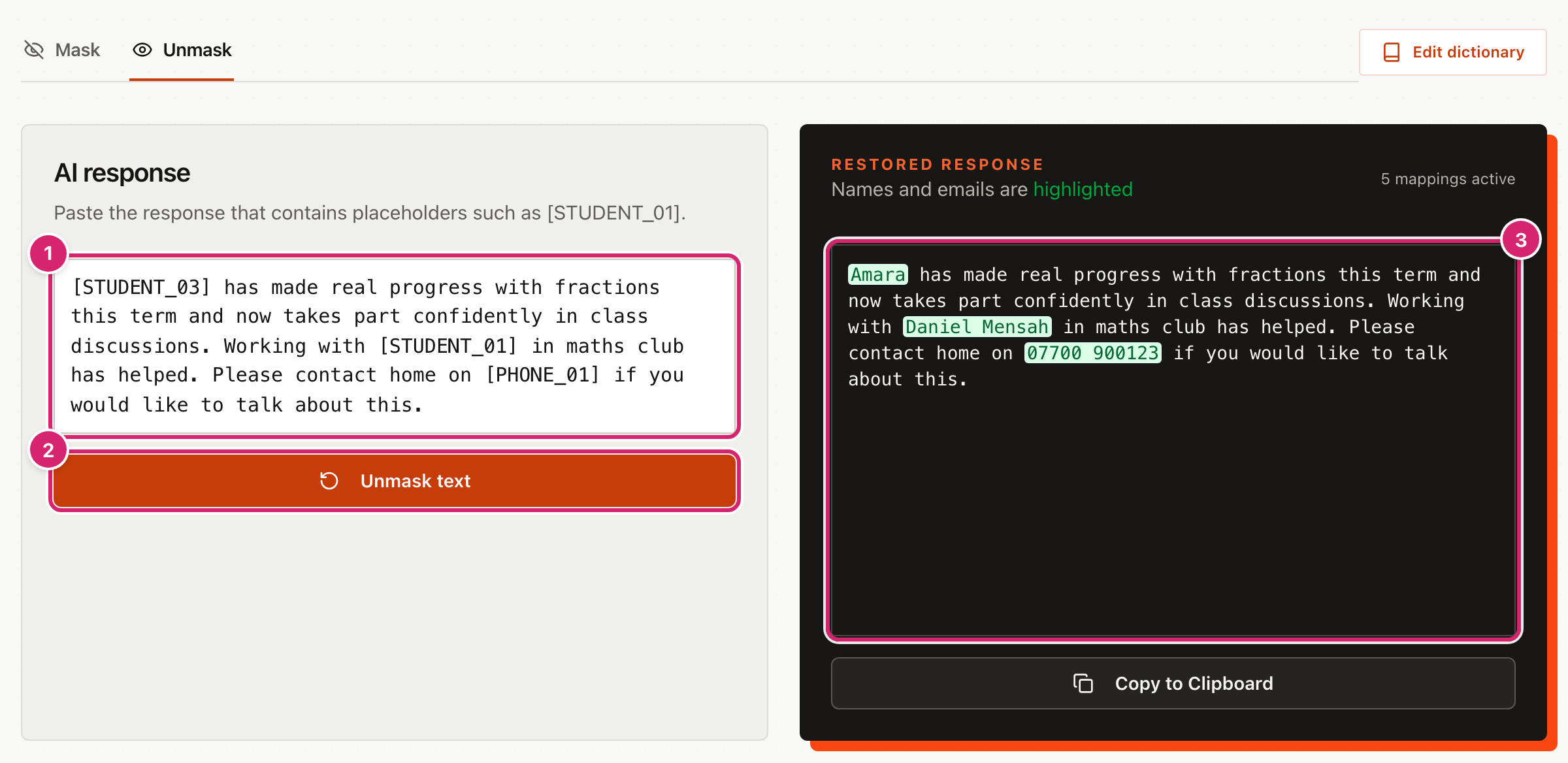
- Paste the reply into AI response 1.
- Select Unmask text 2.
- The restored text appears in Restored response 3, with the details that were put back highlighted in green. Select Copy to Clipboard to use it.
The key is only kept until you reload the page, so unmask before you leave. If you have not masked anything yet, or your prompt had nothing to mask, the tab says No active session instead.
Each time you select Mask, the key is replaced. If you mask a second prompt before you have unmasked the first reply, the first reply can no longer be restored, and the numbers start again from 01.
Mask school names and staff
The custom dictionary hides words that are not on your student list: your school's name, a staff member, a project code. Select Edit dictionary on the page to open it.
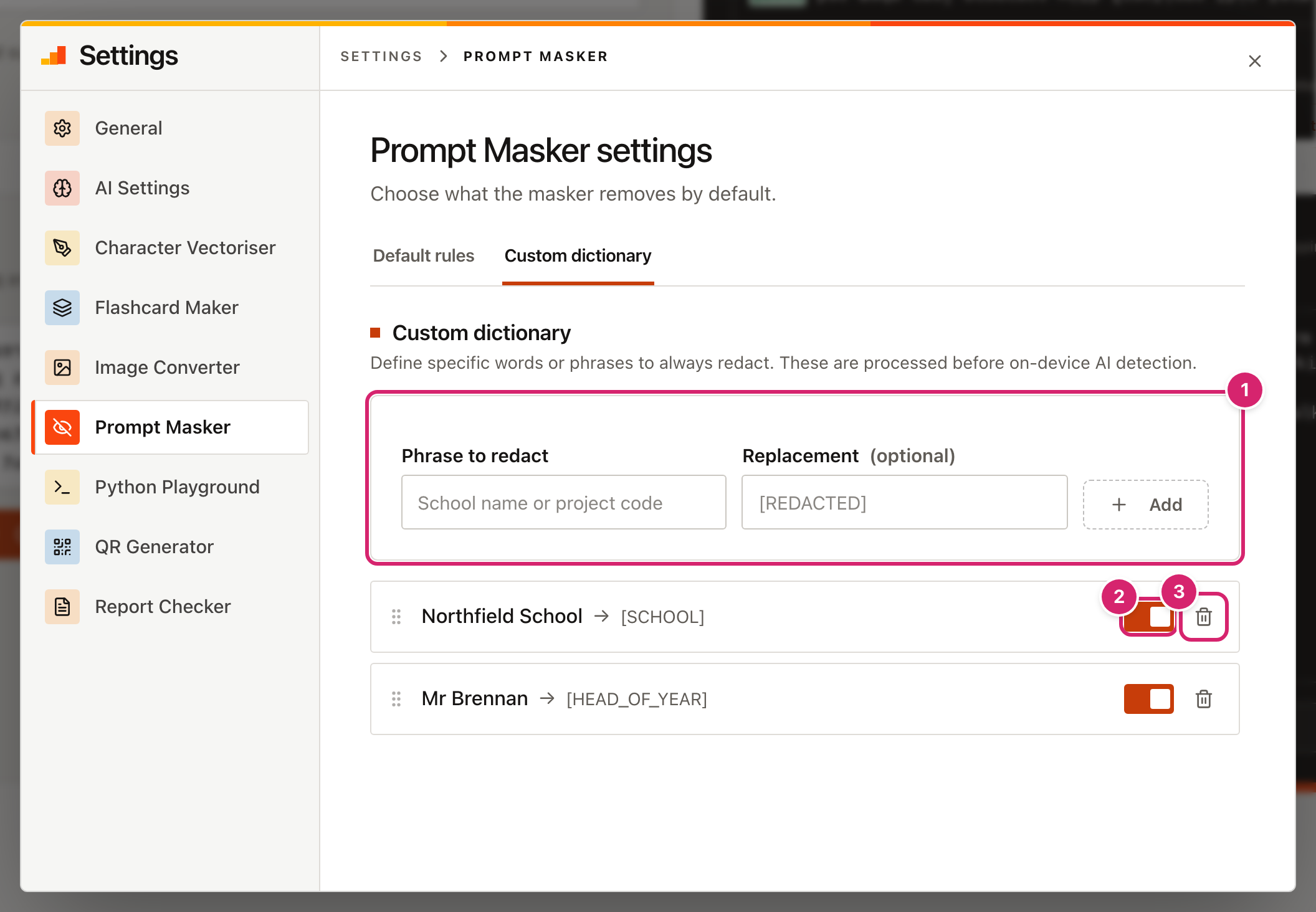
- Type the word or phrase in Phrase to redact 1.
- Type what to put in its place in Replacement (optional), such as
[SCHOOL]. - Select Add. It applies to the next prompt you mask.
- Use the switch 2 to turn a phrase off without losing it, and the bin 3 to delete it.
Phrases match whole words and ignore capitals. A longer phrase is found before a shorter one. Email addresses and phone numbers are found first, then the dictionary, then your student list.
If you leave Replacement empty, the phrase becomes [REDACTED]. When more than one phrase would get the same replacement, the later ones are numbered ([REDACTED_2], [REDACTED_3]), so each one is restored correctly.
Choose what is masked by default
Open Settings and select Default rules.
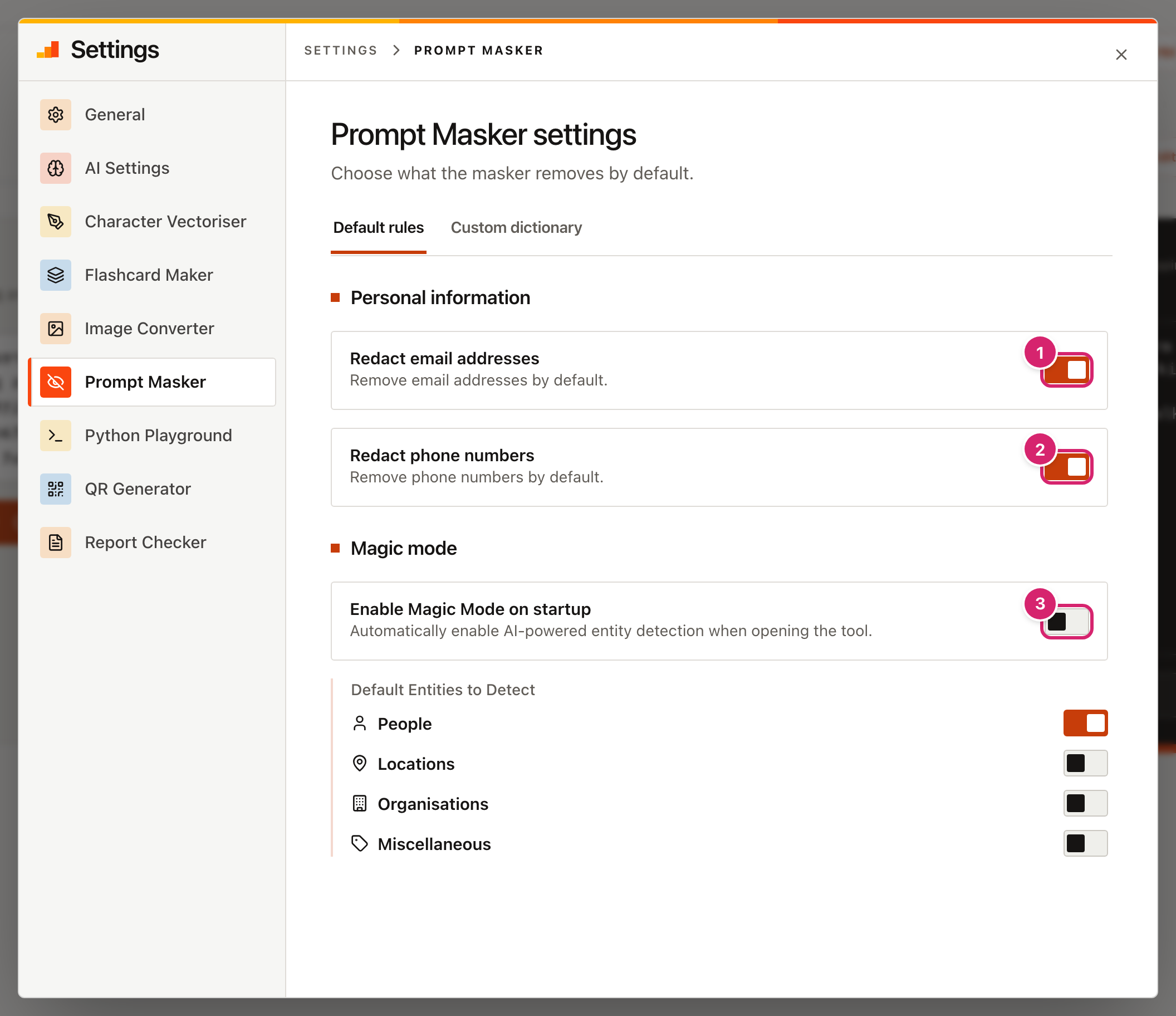
- Redact email addresses 1 and Redact phone numbers 2 are on to start with. Switch one off if you want those details left in.
- Enable Magic Mode on startup 3 uses an AI model that runs on this device to spot names that are not on your class list, such as a classmate, a relative or a teacher. Under Default Entities to Detect, choose what it looks for: People, Locations, Organisations or Miscellaneous. Only People is on to start with. Matches become placeholders such as
[UNKNOWN_PERSON_01]or[LOCATION_01].
The first time Mask runs with Magic Mode on, a Downloading AI Model bar appears and the model, around 100 MB, is fetched from the internet. This can take a few minutes on school wifi. It is then kept in the browser, so later runs start straight away. Masking is slower than without it.
If the AI step fails, Mask still gives you the basic result (class list, dictionary, emails and phone numbers) without any message. Check the output.
Tips
- Ask the AI to keep the placeholders. Add a line such as "Keep any text in square brackets exactly as written." If the reply drops the brackets or changes a placeholder, it will not be restored.
- Be consistent with names. Use either full names or first names throughout, so the AI is less likely to get confused.
- Check the masked prompt, not the original. Read what is in the right-hand box, not what you typed.
- Staff names are not on the class list. Add them to the dictionary, or use Magic Mode.
- Keep the page open. Mask, paste into the AI tool, and unmask in one sitting.
Troubleshooting
A name was not masked. Either the student is not on the Student List, or the name is written differently from the list: a nickname, a short form or a spelling mistake. Add the spelling you use to the custom dictionary, or turn on Magic Mode. Nicknames and misspellings are not matched.
One child has several placeholders.
A full name, a first name and a last name each get their own placeholder, so Amara Okafor and Amara in the same prompt become [STUDENT_02] and [STUDENT_03]. The names count can be higher than the number of children. Unmasking puts everything back correctly. To help the AI, write the same form of the name each time, or tell it that two placeholders are the same pupil.
A phone number was not masked.
Only numbers written like phone numbers are masked: UK-style with 10 or 11 digits starting with 0, or starting with + or 00 and a country code. A number without a leading 0 or +, or one with too few or too many digits, is left alone. Check for a typing slip in the digits, or add the number to the custom dictionary.
Something that is not a phone number was masked.
A long number that starts with 0 and has 10 or 11 digits looks like a UK phone number, so a reference number of that shape is masked as [PHONE_01]. Unmasking puts it back. To keep such numbers, switch off Redact phone numbers.
A word that is not a name was masked. If a student's name is also an ordinary word, such as Grace or Mark, it is masked wherever it appears. Unmasking puts it back.
The Unmask tab says "No active session". Nothing has been masked since the page opened, or the last prompt had nothing in it to mask. Switch to Mask, run it again, then come back. The key is lost on reload.
The reply did not unmask.
The placeholders in the reply must match exactly, square brackets and numbers included. If the AI wrote STUDENT_02 without brackets or changed the number, it is left as it is. Edit the reply to put the placeholders back, or ask the AI to try again.
A message says "Failed to copy to clipboard". The browser refused access to the clipboard, so the button does not change to Copied!. Select the text in the box and copy it by hand.