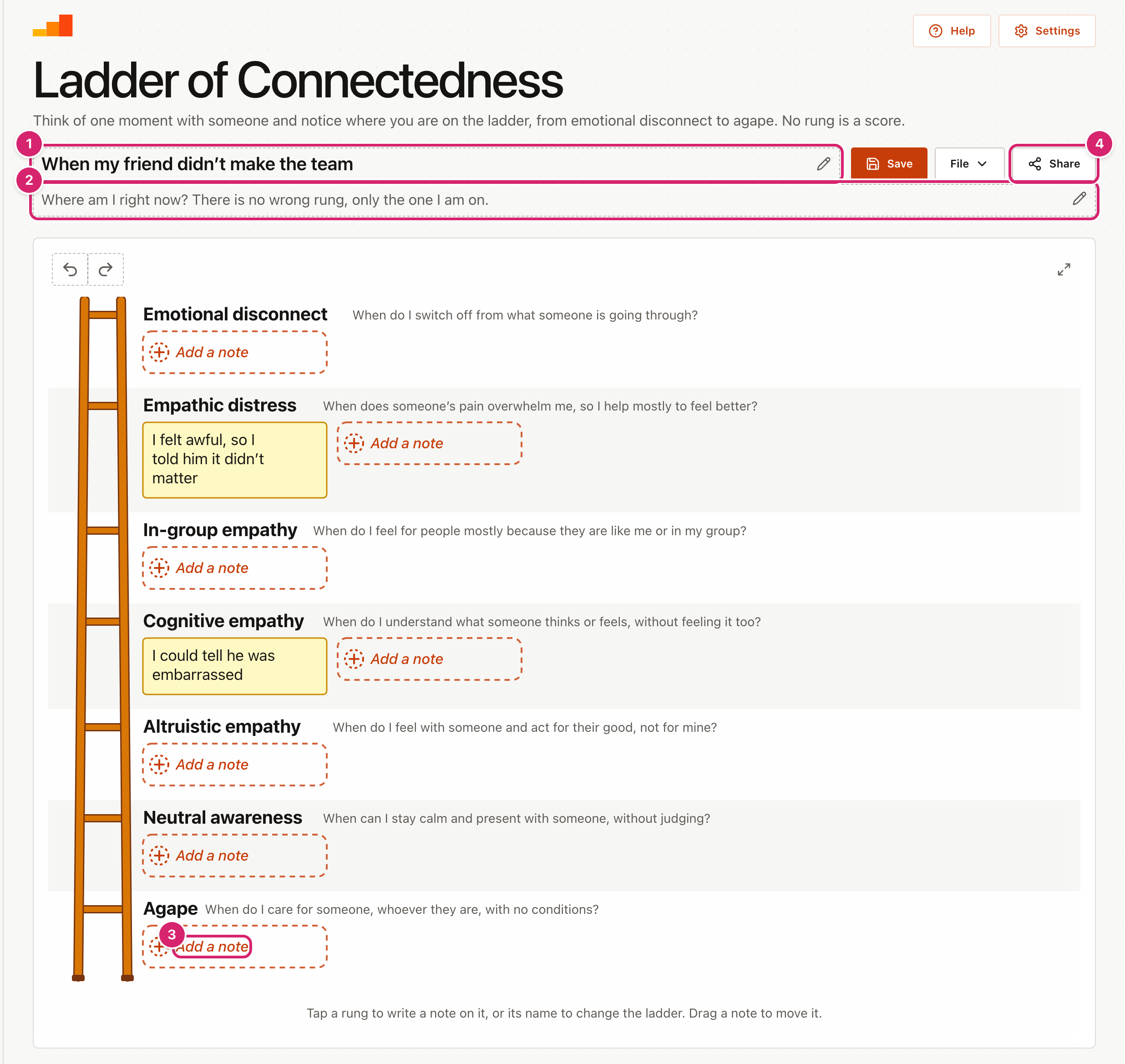
The Ladder of Connectedness, from the Compassionate Systems Framework, helps a student notice how they are relating to someone in one moment. Its seven rungs run from Emotional disconnect at the top to Agape at the foot, the same way up as the Ladder of Inference. The rungs are places to locate yourself, not steps to climb. Nobody is meant to live on one rung, and no rung is a score. A student thinking about a friend who didn't make the team might place "I felt awful, so I told him it didn't matter" on Empathic distress and "I could tell he was embarrassed" on Cognitive empathy.
Where your data goes
Your ladder is kept in this browser as you work, so it is still there when you come back. Save keeps a copy under a name you choose. Saved copies are included in Backup & Restore, and in sync if you have turned it on. A share link holds the whole ladder, so nothing is uploaded and nobody needs an account. If you clear the browser's data, you lose anything you have not backed up.
Quick start
The tool opens on a worked example, "When my friend didn't make the team", with two moments already placed.
- Open File, select New blank diagram, and confirm. Or keep the example and add to it.
- Select the title 1 and name one moment with one person, such as "When my sister was upset about her exam".
- Select the line under it 2 and write the question for the class.
- Select + Add a note on a rung, such as Agape at the foot 3, or any empty space on that rung, and write what you thought, felt or did. Press Enter to add it.
- Select Share 4 to send it to students so they can add their own.
Start from an example
Open File and select Examples for 8 ready-made examples for ages 8 to 18, in tutor time, maths, English, history, geography and PE. Each one places the same moment on every rung, from a classmate upset after a test to meeting Scrooge in A Christmas Carol. Each one shows its age range and its question, and many add a note for teachers, such as how to run it. Select a subject to narrow the list, then Open to use one. It replaces what is on screen, and Undo brings your work back.
The rungs
From the top of the ladder down, these are the seven states in the CSF ladder, each with a question.
- Emotional disconnect: When do I switch off from what someone is going through?
- Empathic distress: When does someone's pain overwhelm me, so I help mostly to feel better?
- In-group empathy: When do I feel for people mostly because they are like me or in my group?
- Cognitive empathy: When do I understand what someone thinks or feels, without feeling it too?
- Altruistic empathy: When do I feel with someone and act for their good, not for mine?
- Neutral awareness: When can I stay calm and present with someone, without judging?
- Agape: When do I care for someone, whoever they are, with no conditions?
The questions start with "When do I", so students write about themselves in a moment, not labels for other people. "I changed the subject because I didn't know what to say" belongs on the ladder. "Jo is unfriendly" does not.
If your CSF training used different wording, rename the rungs to match it before you share the ladder. For a younger class you can use simpler names, but keep the order and keep the three empathy rungs separate.
Change the rungs
Select a rung's name to open its toolbar. From left to right, the buttons rename the rung, add a new rung above it, add one below it, and remove it. A new rung opens ready for its name. You can also use the round buttons on the ladder itself. They appear when you point at the ladder, and they are always there on a tablet. A + on a rung puts a new rung there, and a − between two rungs removes the rung above it. Removing a rung that has notes on it asks first, because the notes go with it. Select a rung's question to reword it, or + Add a question on a rung that has none.
Use this to match the wording your school uses, to make the ladder simpler for a younger class, or to add a rung your class needs. A ladder holds up to 10 rungs. Your changes travel with any link you share, and in a starter they are locked, so every student sees the same ladder.
Write and change notes
- After you press Enter, a new note opens on the same rung so you can keep writing. Press Enter on an empty note to stop. A rung holds up to 8 notes.
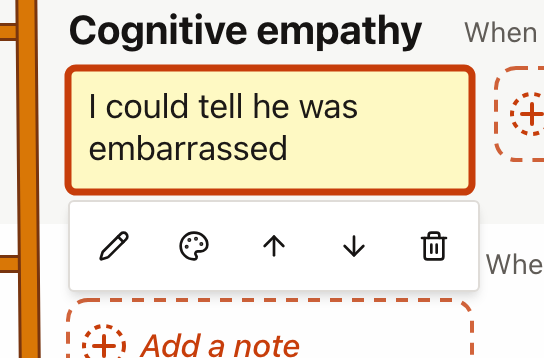
- Select a note to show its toolbar. From left to right the buttons edit the note, colour it, move it up a rung, move it down a rung, and remove it.
- Colours help you group ideas, or show who wrote what. There are six, plus no colour.
- Once a note has a colour, a key appears under the board. Select What does red mean? (or whichever colour) and type what that colour stands for, such as "My ideas" or "Facts we checked". The key travels with the link and the download, and a starter keeps any meanings you gave.
- Drag a note onto another rung to move it, or to another place on its own rung. The rung it will land on lights up while you drag. The arrow buttons do the same without dragging.
Share, save and download
- Share offers two kinds of link. A starter for students locks your title, question, rung names and any notes already written; students add their own. An exact copy shares the ladder as it is.
- Save keeps a copy on this device under a name you choose. It reads Saved while the screen matches a saved copy. To find it again, open File and select Open a saved diagram. You can rename or delete saved copies there too, and deleting asks first.
- To download the drawing, open File and select Picture (PNG), for slides or Drawing (SVG), to edit or print large.
- Full screen is the button with two arrows in the top-right corner of the drawing. The tool then fills the screen, which suits the board. Press Esc, or select it again, to go back.
- Undo and Redo are the two curved arrows at the top left of the drawing. Undo takes back your last change, and Redo puts it back. A whole drag counts as one change, and so does a word typed in one go. With a keyboard, press Ctrl+Z (⌘Z on a Mac) to undo, and Ctrl+Y (⇧⌘Z) to redo. In a box you are typing in, those keys undo the typing instead.
- To start again, open File and select New blank diagram. It asks first. If you change your mind, select Undo.
Tips
- One person, one moment. The ladder works best for a single situation. A whole term or a whole group blurs the moments into an average.
- Locate, don't judge. Ask "Where am I right now?" rather than "Where should I be?" Everyone moves between rungs, often within one conversation.
- Keep it private if students want. A student can work on their own device and never share the link.
Troubleshooting
I removed something by mistake. Select Undo straight away, as many times as you need. It works back through every change since the page opened, including starting a new one.
Selecting a rung does nothing. The rung may already have 8 notes. If a note is selected, the first tap only closes its toolbar.
Students cannot change the rungs. They opened a starter link, which locks the rungs. Selecting a rung's name does nothing for them.
My ladder has gone. It is kept in this browser only. Another browser or device will not have it unless you saved it and turned on sync, or restored a backup there.