The Daily Journal gives you one page for every day. Use it for a quick reflection after a lesson, a list of things to follow up, or a note to yourself before a parents' evening. Entries save as you type, and you can look back through them by date or by searching for a word.
Where your data goes
Everything stays on this device. Your entries are saved in this browser and are never sent anywhere. That also means they are not on your other devices, and clearing the browser's data deletes them. To keep a copy, or to move your journal to another computer, use Backup & Restore in the sidebar.
While you type, the browser also keeps a spare copy of the text you have not saved yet. If the tab closes in the middle of a sentence, the text comes back the next time you open that day.
Quick start
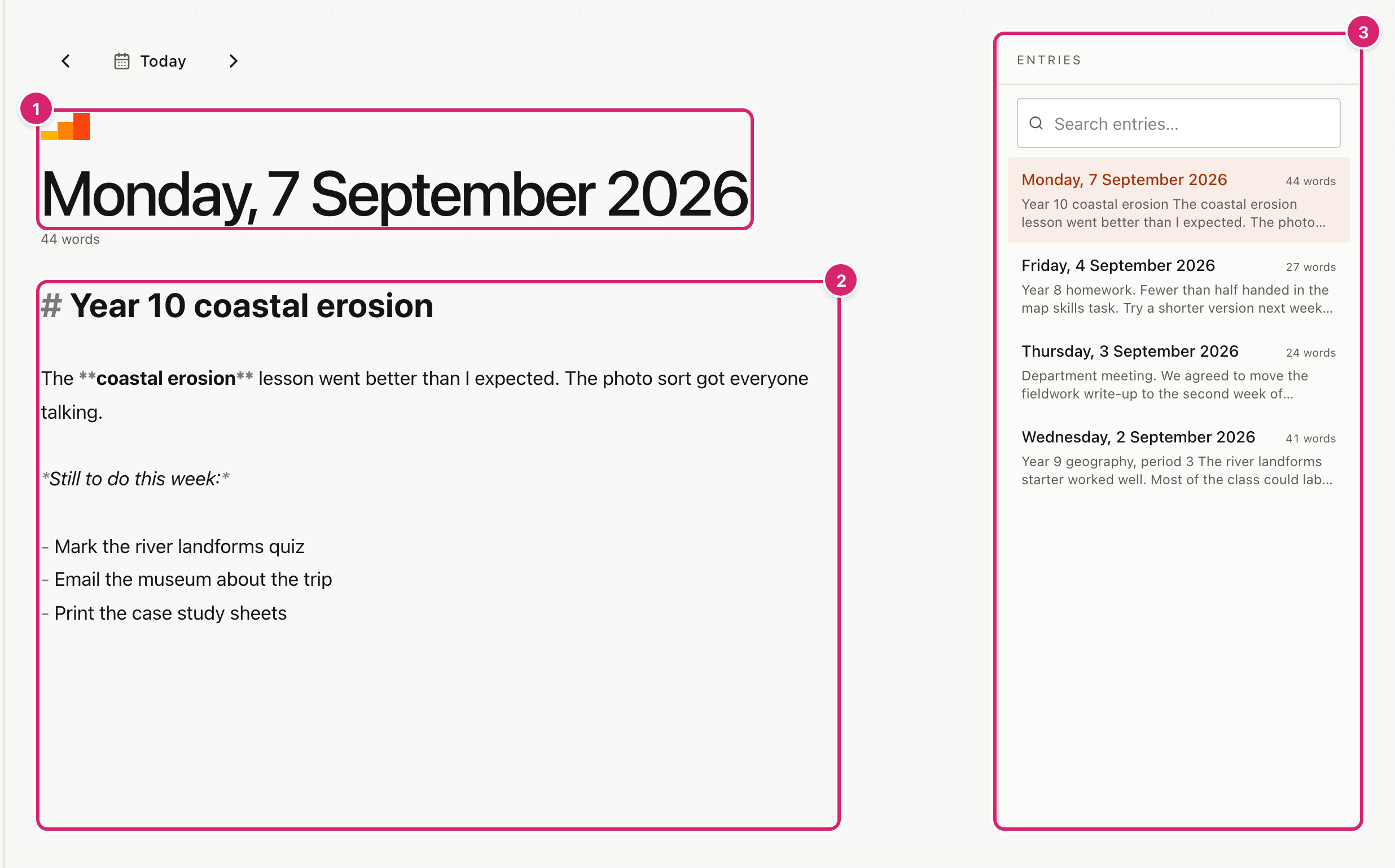
- Select Tools in the sidebar, then Daily Journal. The journal opens at today's page 1.
- Select the writing area 2 and start typing.
- Stop typing. About a second later the entry saves itself, and a small Saved appears at the top right of the page for a moment.
- Look at the list on the right 3. Today's entry is there, with its date, word count and the first few words.
There is no Save button. If you want to be sure, wait for Saved before you close the tab. If the entry cannot be saved, the top right of the page says Not saved in red and a message appears. See Troubleshooting below.
Write an entry
The journal understands Markdown, a way of formatting text by typing a few symbols. You do not have to use it. Plain sentences work fine.
The formatting shows as you type, and the symbols stay on screen in a lighter grey so you can see what you typed.
| Type this | You get |
|---|---|
# Heading | A large heading. Use ## or ### for smaller ones. |
**bold** | Bold text. |
*italic* | Italic text. |
~~struck out~~ | Text with a line through it. |
- item | A bulleted list. Press Enter to start the next item. |
1. item | A numbered list. |
> quote | A quotation, in italics. |
`code` | A short piece of code. |
Press Enter twice at the end of a list to finish it.
The word count under the date counts every chunk of text separated by a space. A # or a - at the start of a line counts as a word.
Move between days
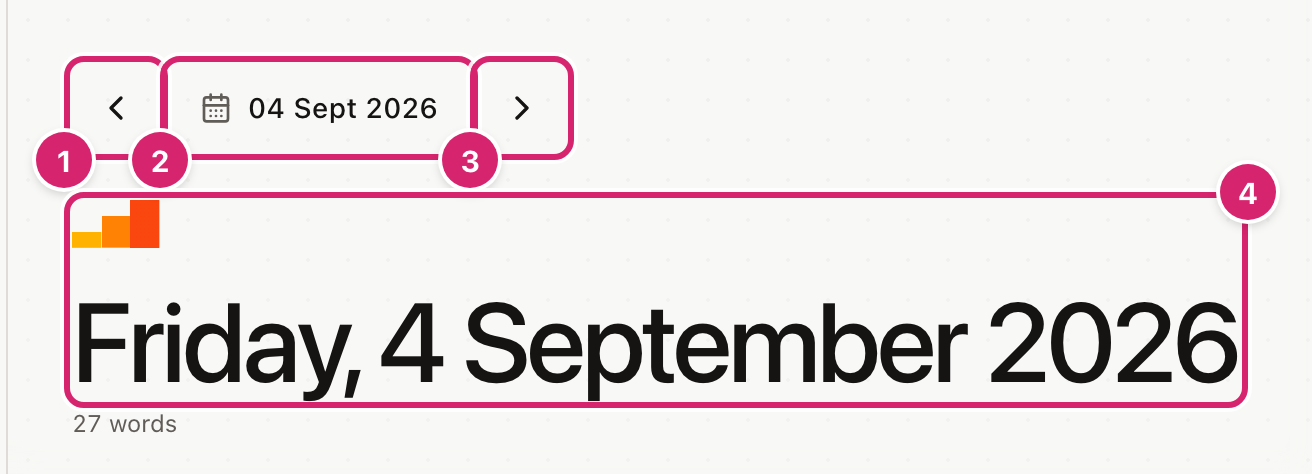
- Select the left arrow 1 for the day before, or the right arrow 3 for the day after. The arrows keep going whether or not there is an entry, so you can write on a future date, such as a note for the first day back.
- Select the calendar button 2 to choose a date from your browser's date picker. The button reads Today when you are on today's page and shows the date on any other day.
- Selecting the large date 4 opens the same date picker.
Your entry saves when you move to another day, even if the automatic save has not fired yet.
Find an earlier entry
On a laptop or a large screen, the Entries list is always on the right of the page. It shows every day that has something written, newest first. Select an entry to open that day. The one you are on is highlighted.
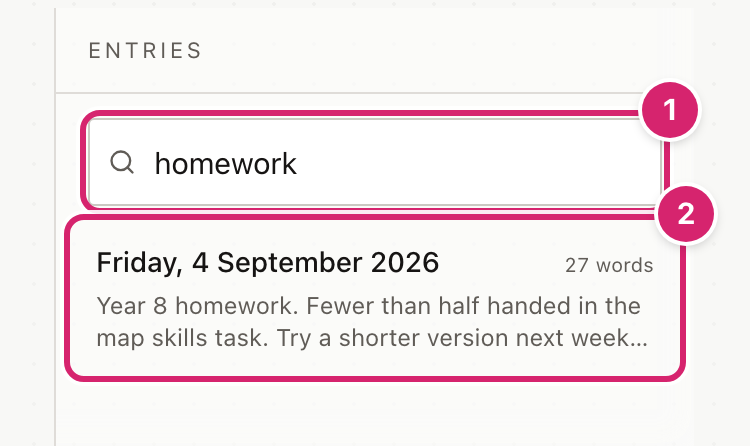
Type in Search entries… 1 to narrow the list. It looks through the whole text of every entry, not only the preview. It also matches the date written as year, month and day, so 2026-09 finds everything from September 2026. Select a result 2 to open it.
If nothing matches, the list says No entries match.
On a smaller screen, such as an iPad held upright, the list is hidden to leave room for writing. Select the list button at the top right of the page to show it. It covers the whole screen. Select an entry, or the × in its top corner, to return to your writing.
Clear an entry
Select all the text in the entry and delete it. A moment later the empty page is saved, and the day no longer appears in the Entries list. Nothing asks first, because the journal cannot tell a deliberate clear-out from a pause in the middle of rewriting. While the page is still open, Command or Ctrl and Z together bring the text back. Once you leave the day, the old text is gone.
Tips
- Start the entry with a heading. The list shows the first words of each entry, so a heading such as
# Year 9, period 3makes the list easy to scan. - Put the same word in related entries. A word like
triporfollow-upmakes the search find them all at once. - Keep it off shared computers. The journal has no password of its own. Anyone who can open this browser on this device can read it.
- Back up before a long break. Use Backup & Restore before you clear the browser or move to a new device.
Troubleshooting
The page is blank and I cannot type. The page loads the day's entry before it lets you write, so it can look empty for a moment. Wait a second, then select the writing area and try again.
The Entries list is not there. The list only shows beside the page on a wide screen. On a narrower window, or a tablet held upright, select the list button at the top right. If you are using a laptop, make the browser window wider.
A day I wrote on is not in the list.
An entry with no text is not shown. If you cleared the page, the day drops out of the list. Check that you are looking for the right date. Search for the date in the form 2026-09-04 or for a word you remember.
It says "Not saved" and a message says the entry could not be saved. The entry could not be written to the browser's storage. Your text is still on the page, and the spare copy is still in the browser. Copy the text somewhere safe, then reload the page. If the text comes back, it was recovered. The journal tries again each time you type, and Not saved changes to Saved when a save works. If this keeps happening, the browser may be in a private window or short of storage.
I typed a date in the address bar and the journal shows today.
Dates in the address bar must be written as year, month and day, for example 2026-09-04, and the date has to exist. Anything else opens today's page.
My entries have disappeared. They are stored in this browser on this device. They will not appear in a different browser, on another computer, or after the browser's data has been cleared. If you made a backup, restore it from Backup & Restore.