The Image Converter changes the file type and size of pictures. Use it when a student's iPhone photo (a HEIC file, which Windows and many school systems cannot open) needs to become a PNG, or when a set of trip photos is too big to attach to an email or upload to the learning platform. You can convert a whole batch at once and download the results together.
Where your data goes
Everything stays on this device. The pictures are changed inside your browser and are never uploaded, so photos of students are safe to use here. Nothing is kept afterwards either: the list of pictures is cleared when you leave the page or reload it, so download what you need first. Only your size, quality and file type choices are remembered. They are saved in this browser, which means they are not on your other devices.
Quick start
- Drag your pictures onto the dashed box 1, or select the box to choose them from your files. You can pick several at once.
- Select Convert. The button shows how many pictures are waiting.
- When every card says Done, select Download on a card for one picture, or Download ZIP for all of them.
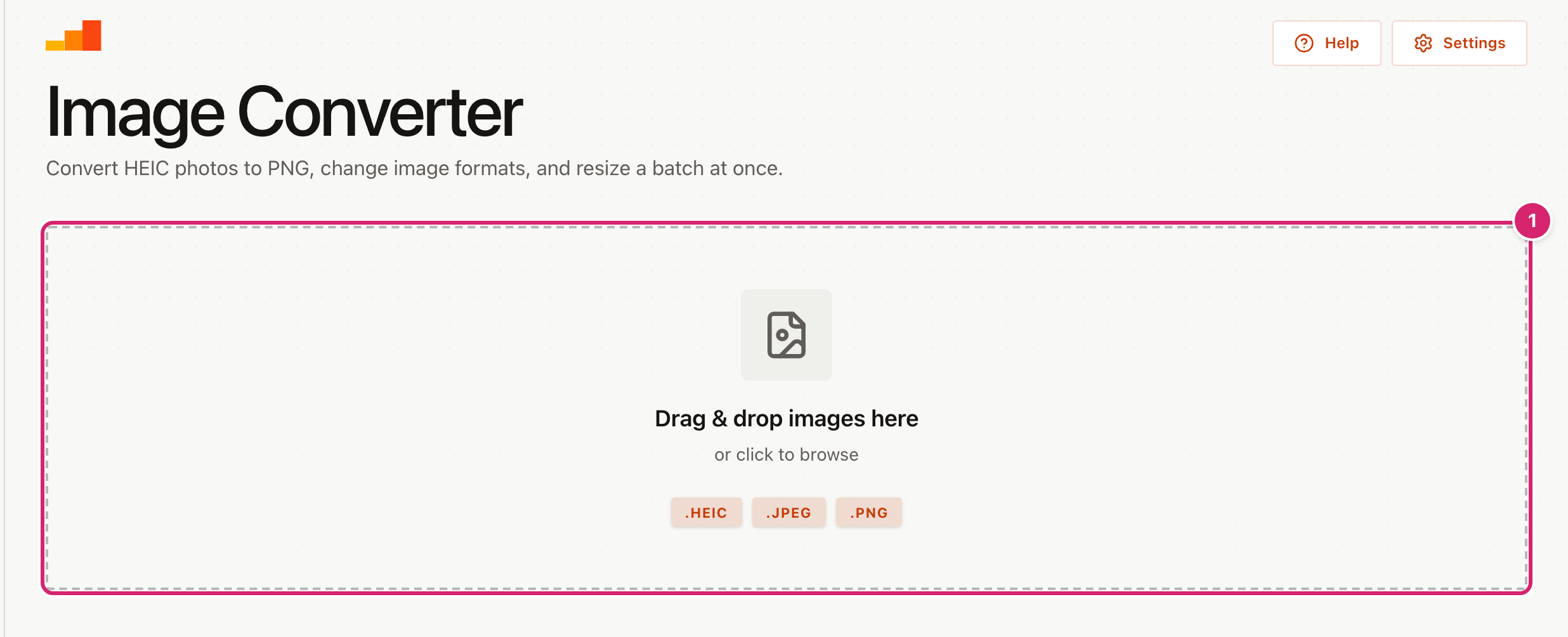
With the starting settings, a JPEG stays a JPEG, a PNG stays a PNG and nothing is shrunk. A HEIC photo always becomes a PNG. To change the size, quality or file type, see "Choose the size, quality and file type" below.
Convert a batch of pictures
Each picture you add appears as a card with a small preview.
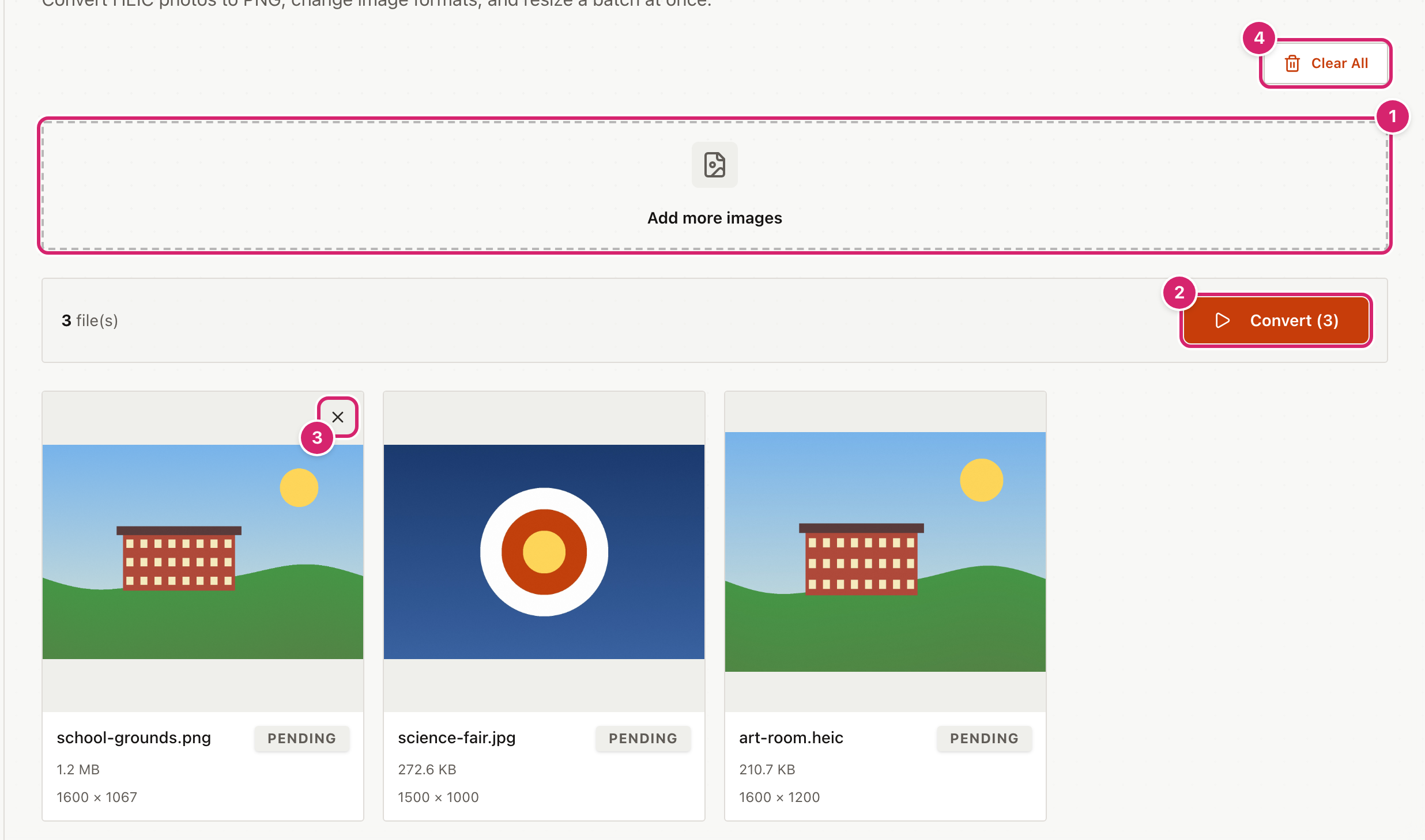
- Add more pictures at any time by dropping them on the smaller box 1. They join the list.
- Select Convert (3) 2. The number is how many pictures are still waiting. Each card shows Processing while it works, then Done. A HEIC photo takes longer than a JPEG or PNG.
- To remove one picture, point at it and select the cross 3 that appears in its top right corner. On a touch screen, tap the top right corner of the picture.
- Select Clear All 4 to empty the list and start again.
You cannot add pictures or select Clear All while a conversion is running.
Download your pictures
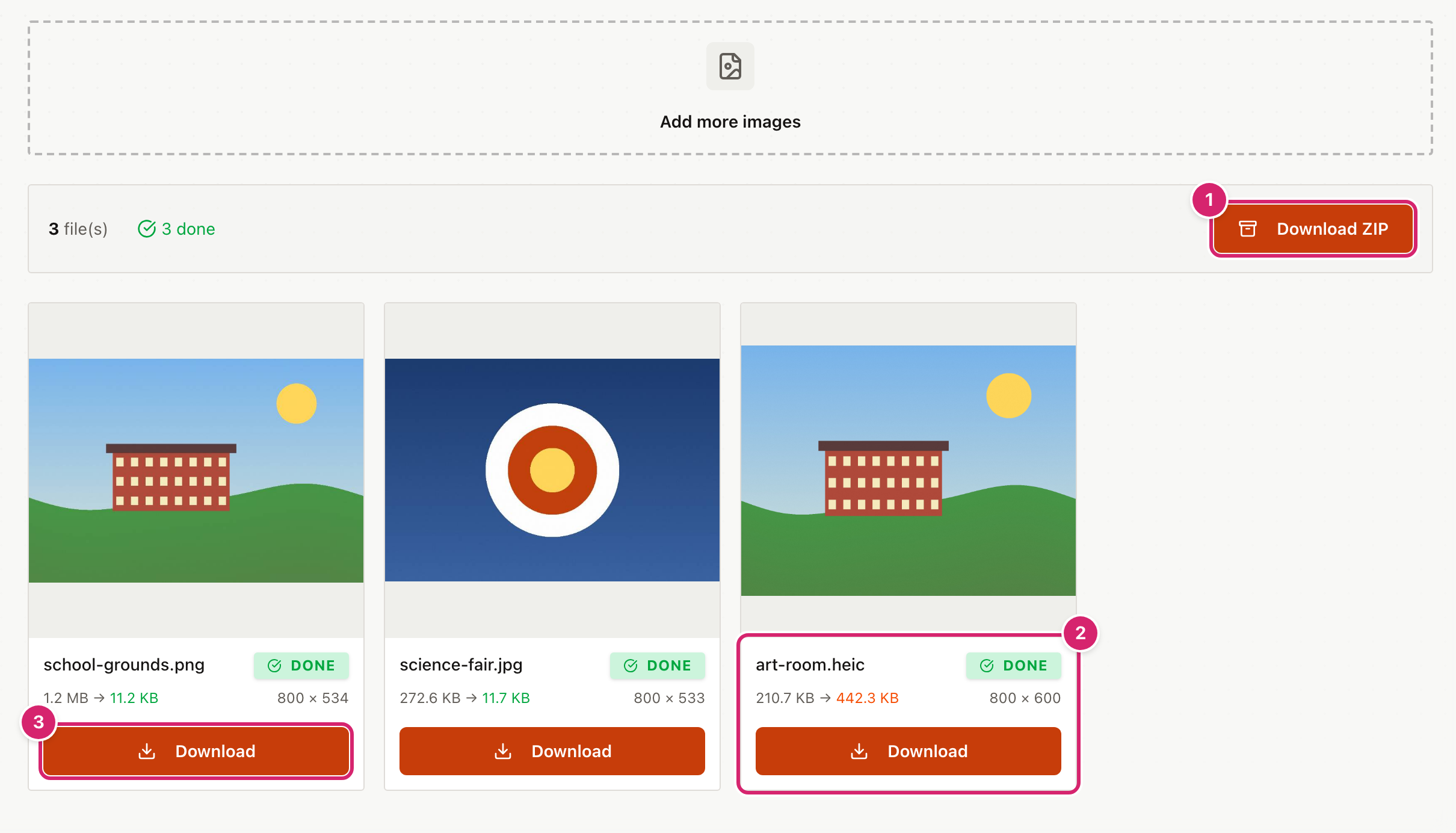
- Select Download ZIP 1 to get every finished picture in one file called
converted-images.zip. Open it on your computer to get the pictures out. - Select Download 3 on a card to get only that picture.
- Each card shows the size before and after, and the new width and height 2. A green size means the file got smaller. An orange one means it got bigger.
Downloaded pictures keep their original name with the new ending, so art-room.heic becomes art-room.png and school-grounds.png becomes school-grounds.jpg if you converted it to JPEG.
If two pictures would end up with the same name in the ZIP, the second is numbered so neither is lost. For example, photo.png and photo.jpeg converted to JPEG become photo.jpg and photo (2).jpg.
If you add more pictures after converting, only the new ones are waiting. Download ZIP still includes everything that is Done.
Choose the size, quality and file type
These choices live in Settings at the top right of the page, not on the page itself.
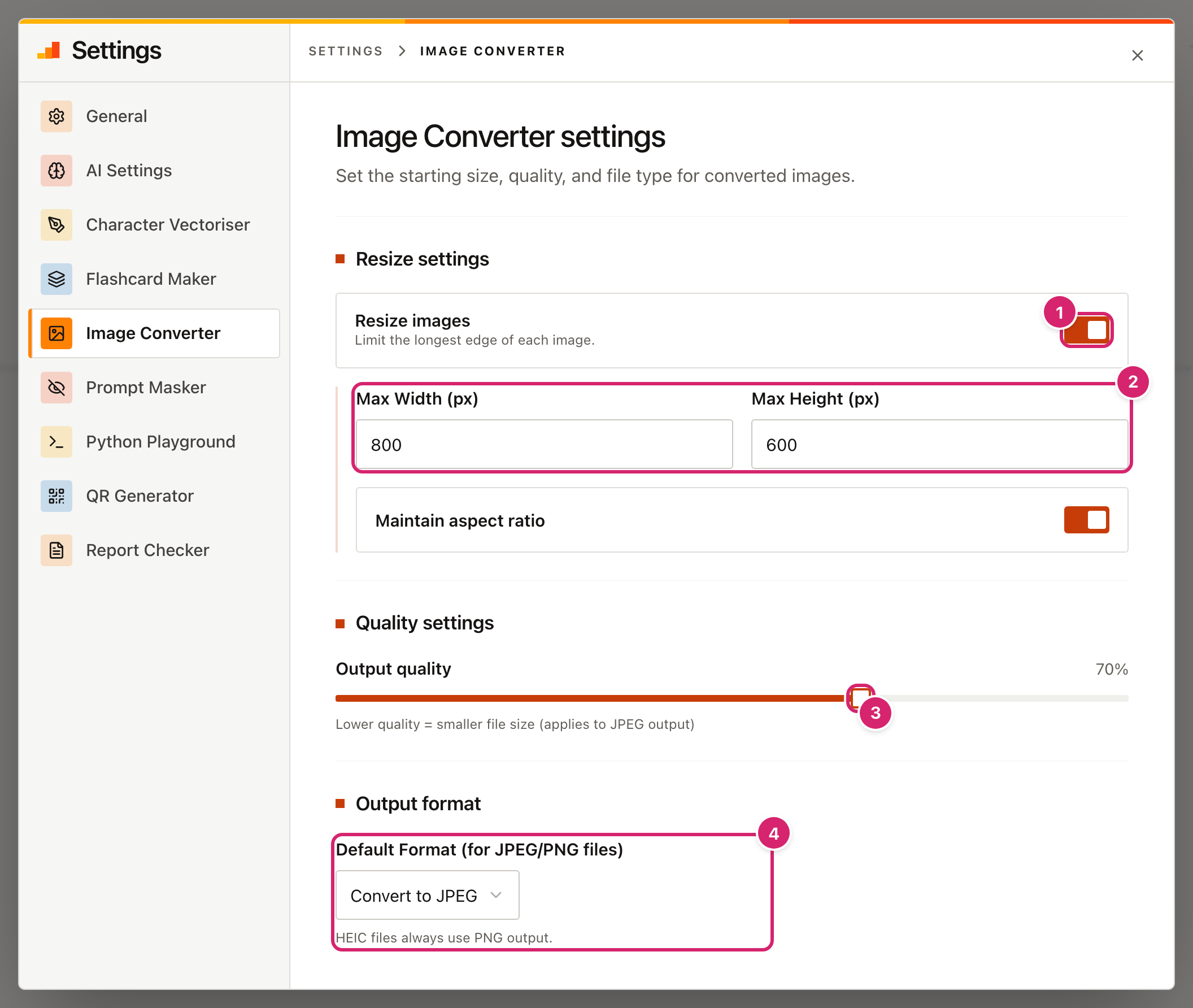
- Switch Resize images on 1 to make large pictures smaller.
- Set the largest Max Width (px) and Max Height (px) 2 a picture may have. Each can be between 100 and 10,000. A picture that is already smaller is left alone, and pictures are never enlarged. Keep Maintain aspect ratio on so nothing is squashed. If you switch it off, each side is limited separately and a picture can come out stretched.
- Drag Output quality 3 down for smaller files. It only affects JPEG pictures. PNG pictures do not lose quality, whatever this says. 70 to 85 per cent is a good range for photos.
- Choose a file type 4. Keep original leaves JPEGs and PNGs as they are. Convert to JPEG or Convert to PNG changes every JPEG and PNG in the batch. HEIC photos always become PNG, whatever you choose.
Changes save as you make them, and the Image Converter uses them straight away. You can change a setting with pictures already in the list and select Convert again. Settings do not change pictures that are already Done.
For the smallest files from phone photos, use a maximum width and height of 1600, quality 80 and Convert to JPEG.
Tips
- Convert to JPEG for photos, PNG for screenshots and diagrams. A JPEG of a photograph is far smaller than a PNG of it. A PNG keeps the sharp edges of text and drawings.
- A converted HEIC can be bigger than the original. HEIC is a very compact format, and PNG is not. If the size matters, switch on Resize images so the PNG is smaller too.
- Try a few first. Convert two or three pictures with your settings and look at the result before you do a whole class set.
- Check before a lesson. Some school systems limit upload size. Aim for under 1 MB per picture.
Troubleshooting
My settings did not change a picture. Pictures already marked Done keep the settings they were converted with. Settings apply to pictures that are still waiting, and to pictures you add afterwards. To redo a finished picture, remove it with the cross, add it again and select Convert.
A card says Error and shows "Failed to load image".
The file is damaged, or it is not really a picture, for example a file that was renamed to end in .png. Remove it with the cross and try the original again. The other pictures are not affected. Once the problem is fixed, Convert will try an errored file again.
A card has no preview, or the preview is slow to appear. Very large pictures and HEIC photos take a few seconds to prepare. If a picture never shows a preview but converts, that is fine. If it will not convert, see the item above.
The ZIP has fewer pictures than I added.
Download ZIP only includes pictures marked Done. Check that every card says Done, and that none says Error. Two pictures that end up with the same name both stay in the ZIP, and the second has (2) added to its name.
A transparent PNG has a black background after converting to JPEG. JPEG cannot be see-through. Leave the file type on Keep original or choose Convert to PNG for pictures with transparent areas.
The file got bigger. This happens when a small, already-compressed picture is saved at a higher quality, and when a HEIC photo becomes a PNG. Lower the Output quality, turn on Resize images, or choose Convert to JPEG.
My pictures disappeared. The list is not saved. Reloading the page, or leaving it, clears it. Download your pictures before you go.
I dropped a file and nothing happened.
Drag it onto the dashed box itself, not next to it. The tool accepts .heic, .heif, .jpg, .jpeg and .png files. On an iPad, select the box and choose from Photos or Files instead.