The Discussion Web records who speaks during a whole-class discussion, such as a Harkness table or a Socratic seminar. Each time someone starts speaking, you tap their name and a line joins them to the person before. By the end, the web shows how the talk moved round the room: who led it, who joined in, who was not heard, and how often it came back through you.
The tool describes what happened. It does not grade anyone, and a student who did not speak is shown with a dashed outline, never in red.
The method comes from Alexis Wiggins's spider web discussion, which she describes in The Best Class You Never Taught (ASCD, 2017).
Where your data goes
Everything stays on this device. Your classes come from the Student List. Each discussion, where everyone sits, and your settings are saved in this browser and never sent anywhere. That also means they are not on your other devices, and clearing the browser's data deletes them. To keep a copy, or to move your data to another computer, use Backup & Restore in the sidebar.
Quick start
- Add your class to the Student List (under Data Sources in the sidebar), with a class for each student.
- Open the Discussion Web and choose your class 1.
- Add a title or focus question if you like 2. The date is filled in for you.
- On the plan below, tap any student who is away. They fade out and are left off the web.
- Select Start discussion, at the bottom of the screen.
- Tap each student as they start speaking.
- Select End discussion when you finish, then End discussion again to confirm.

Past discussions 3 opens the History for the class. Select Back to set up to return.
Who is here, and where they sit
Step 2 shows the whole class on a plan. You mark who is away and move people to where they sit in the same place.
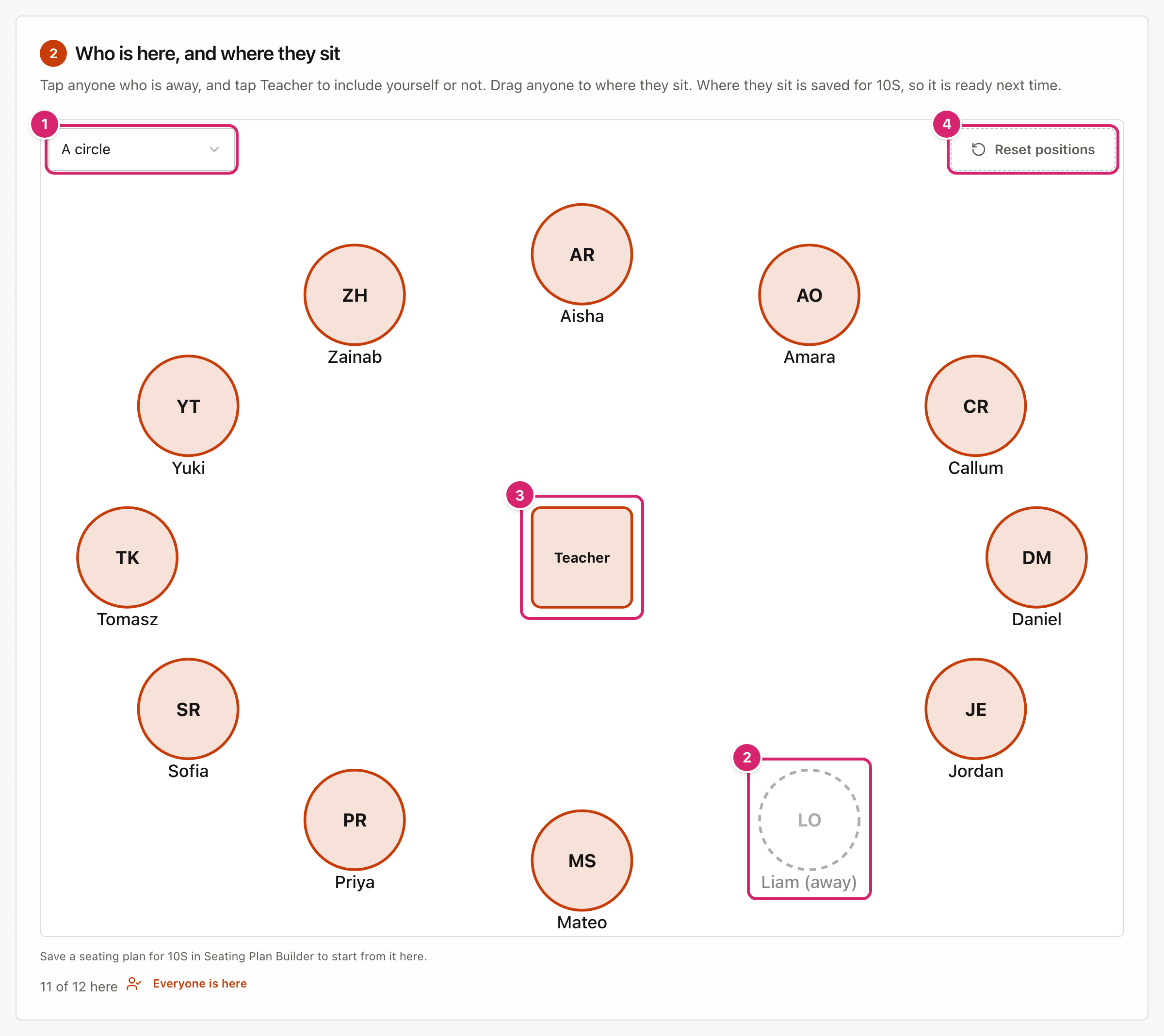
- Start from 1 chooses the starting layout. A circle spaces everyone round an oval. If you have saved a seating plan for this class in Seating Plan Builder, you can choose it here instead, and everyone starts in their seat.
- Tap a student who is away 2. They fade, get a dashed outline and are left off the web, and their history shows them as absent rather than not heard. Tap them again if they arrive. Everyone is here, under the plan, brings everyone back.
- Tap the Teacher square 3 to include yourself. Your contributions are counted separately, and lines to you are fainter, so you can see when the discussion keeps coming back through you. Tap it again to leave yourself out.
- Drag any student to move them. With a keyboard, select a student and use the arrow keys; Enter or Space marks them away.
- Reset positions 4 puts everyone back where the layout placed them.
Where everyone sits, and whether you include yourself, is saved for each class, so it is ready next time. Who is away is for today only.
Record the discussion
Once you start, the web fills the screen. The timer waits for the first speaker, then starts when you tap them.
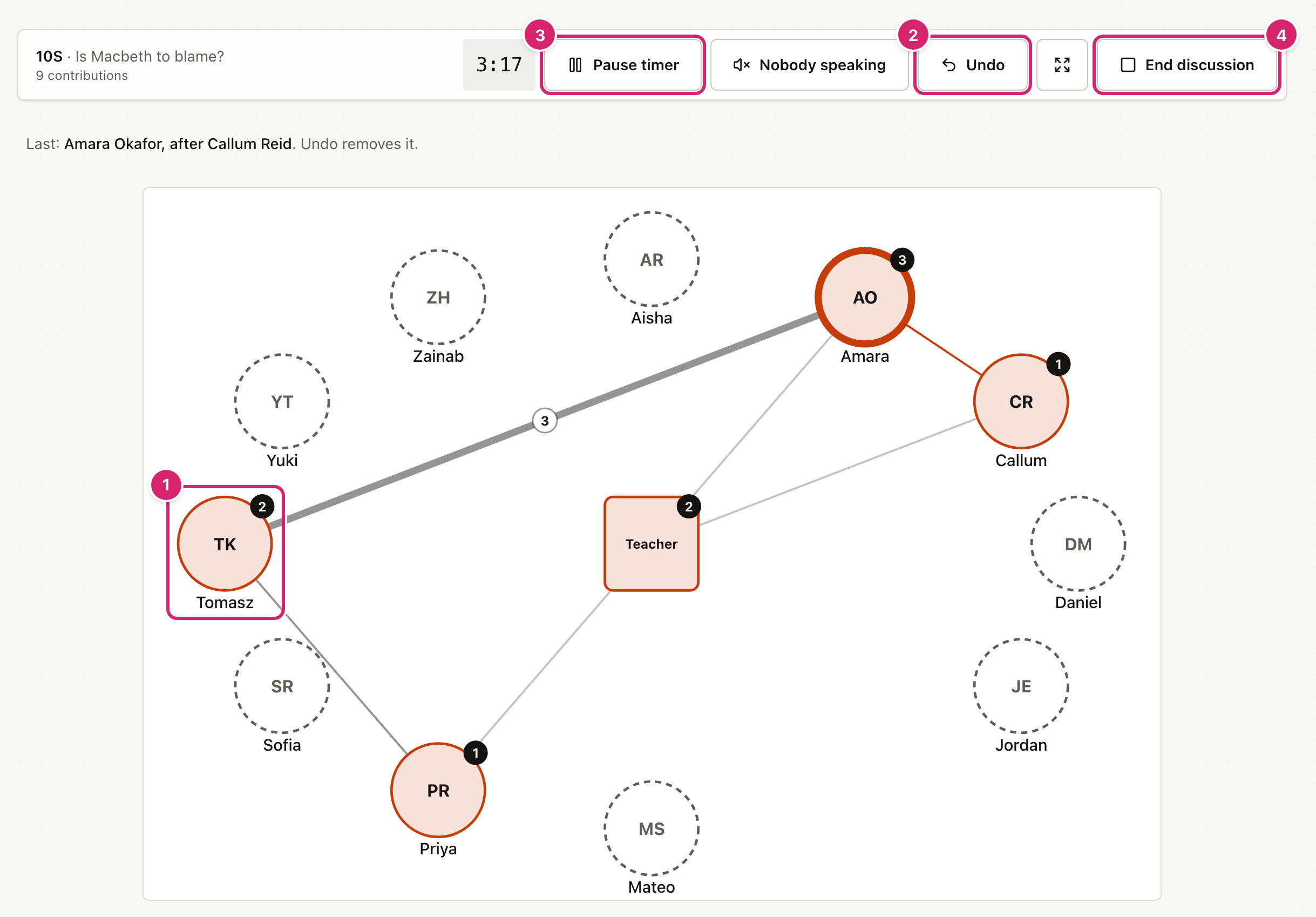
- Tap a student 1 when they start speaking. The number on each student shows how many times they have spoken. The person speaking now has a thick ring.
- When the same two people speak one after the other again, their line gets thicker and shows a count.
- Undo 2 takes back the last tap. The line under the bar shows who it will remove. Select it again to go further back.
- Pause timer 3 stops the timer. Tapping a student starts it again.
- End discussion 4 stops the timer and shows the summary. It asks you to confirm first.
Tapping the student who is already speaking does not count as a new contribution, because they have not handed over. To count it instead, open Settings and switch on Count a second tap on the same person.
The discussion is saved after every tap. If the page reloads or the iPad goes to sleep, open the Discussion Web again and it carries on where you left off. Where the browser allows it, the screen stays on while you record.
Tags and talk time
Open Settings to switch on two extras. The bar with Start discussion shows which are on, with a Change in Settings link.
- Tag contributions shows a row of tags for a few seconds after each tap, such as Question or Uses the text / evidence. Tap one, or ignore it and it goes away. Tagged turns show a small letter on the web. To change the tags, open Settings.
- Time each turn gives a rough talk time for each person. Each tap ends the last turn. A Nobody speaking button ends a turn when nobody picks up, so the silence is not added to anyone's talk time.
Look back at the web
When you end the discussion, you see the whole web, a summary and space for your own notes.
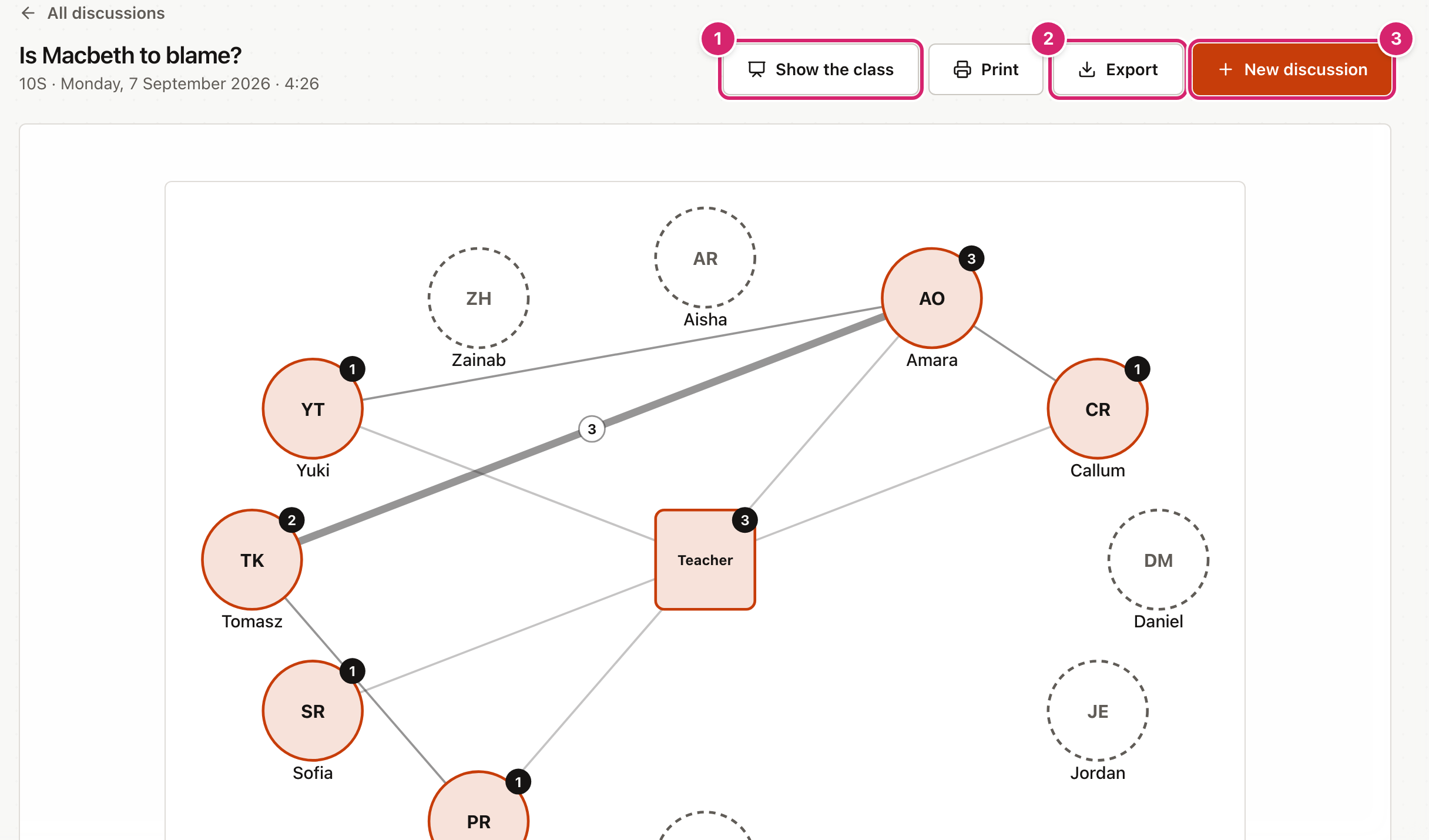
- Show the class 1 opens the web full screen with initials or numbers instead of names, so you can put it on the board without singling anyone out. The summary there uses them too. Select Close, or press Escape, to go back.
- Replay, under the web, rebuilds the web one turn at a time. Select Replay to play it, use the arrows to step through, or drag the slider.
- Print puts the web and summary on one A4 page. Choose landscape or portrait.
- Export 2 saves the web as a PNG or SVG image, or the turns as a CSV file (a spreadsheet saved as plain text). For images without names, export from Show the class.
- New discussion 3 takes you back to set up the next one. All discussions goes to the History for this class.
The summary counts the contributions, how many students spoke out of those present, how much of the student talk came from the quarter of the class who spoke most, and your share if you used the Teacher node. It also names who was not heard, anyone who only spoke straight after you, and pairs who went back and forth. Questions for the class gives you prompts for talking about the web together. Select Edit to change them.
See who has been heard over time
Select Past discussions to see every discussion saved for a class.
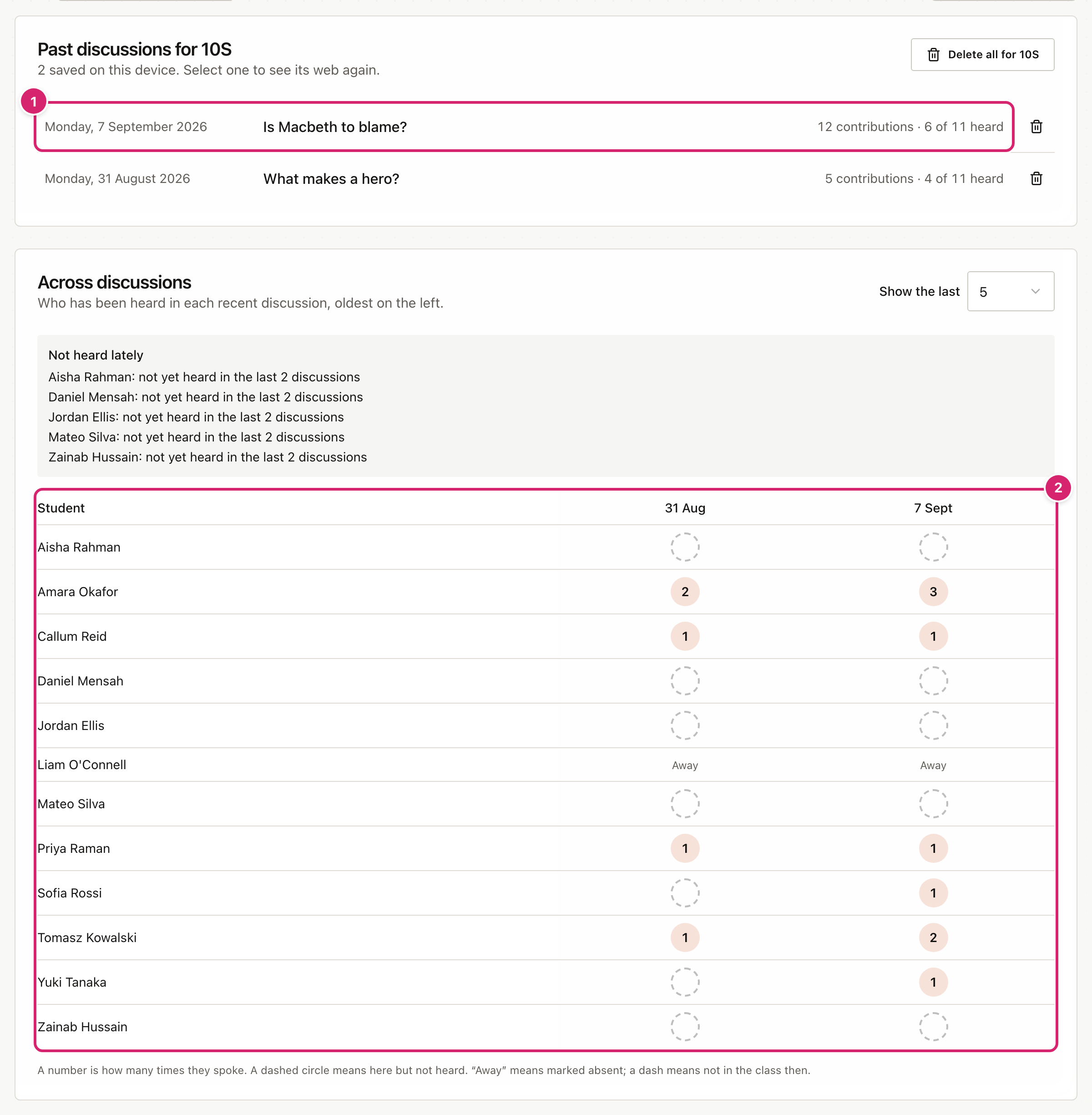
- Select a discussion 1 to see its web and summary again.
- Across discussions 2 shows who has spoken in each of the last few discussions. Choose how many with Show the last.
- Students who have not been heard in two or more discussions in a row are listed under Not heard lately. Absences are skipped, so a student who was away is not counted as quiet.
- Select the bin beside a discussion to delete it, or Delete all for followed by the class name to delete every discussion for that class. Both ask you to confirm.
Students who have left the Student List still appear in the discussions they were part of.
Tips
- Hold the iPad in landscape. The web is wider than it is tall, so the names are bigger that way. Select the full screen button for even more room.
- Set up before the lesson. Arrange the class and choose your options while students come in, then select Start discussion when the talk begins.
- Select Show the class before you share your screen. Then nobody's name goes up on the board.
- Keep tags for one thing at a time. Tagging every turn while following a discussion is hard. Try tagging only questions for a few weeks.
- Use the web with the class. Show it with Show the class and ask what they notice before you say anything.
Troubleshooting
The class list says "No classes yet." The Discussion Web gets its classes from the Student List. Add your students there first, with a class for each one.
Start discussion is greyed out. A discussion needs at least two students who are here. Check that you have not marked everyone as away on the plan.
I tapped the wrong student. Select Undo. Each time you select it, it takes back one more tap.
Tapping a student twice did nothing. Two taps on the same student close together are taken as one, so a double tap is not counted twice. Tapping the student who is already speaking does not add a contribution unless you switch on Count a second tap on the same person in Settings.
My seating plan is not in Start from. Only seating plans saved for this class appear. Open Seating Plan Builder and check the plan's class matches the class here.
The screen went to sleep during the discussion. Some browsers do not let a page keep the screen on, or stop doing so on low battery. Nothing is lost: open the Discussion Web again and the discussion is still running.
My discussions have gone. They are stored in this browser. They will not be in a different browser or on another computer, or after the browser's data has been cleared.