The Character Vectoriser turns any character or short word into an SVG file (a drawing made of outlines rather than pixels). The size is set in millimetres, so the shape arrives in Tinkercad at the size you asked for. Use it for name keyrings, door labels, cookie cutters, stamps, or a Greek letter for a maths display. Students can also use it to make a symbol for a design and technology project.
Where your data goes
The shape is worked out on this device. What you type is not saved anywhere and is gone when you leave the page. The settings you choose, such as font and height, are saved in this browser so they are still there next time.
Most characters never leave the device. The fonts for Latin, Greek and Cyrillic letters, and for many symbols, maths signs and emoji, come built into the site. They load from this site like the rest of the page.
One case is different. If you type a character that none of the built-in fonts has, such as Chinese, Japanese, Korean, Arabic, Hebrew, Hindi or Thai characters, the tool needs a font that does. Here is exactly what happens:
- Your browser sends only those characters, and the name of the font family that covers them, to this site's own server. Letters from the built-in fonts that you typed alongside them are not sent. At most 64 characters are sent in one go.
- The server asks Google Fonts for a small font file containing only those characters, and passes it back to your browser. Your browser does not contact Google itself.
- The server may keep that small font file for up to 30 days, so the next request for the same characters is faster. The file is filed under the characters it holds.
- The tool shows a notice beside the preview saying that only the characters the built-in fonts lack were passed through this site's server to Google Fonts, to fetch a matching font. The notice appears whenever this happens.
Nothing else you type is sent, and the finished SVG is made on the device.
Quick start
- Type a character or a short word into Character or word 1. You can paste in a character you cannot type, and it will still work.
- Check the preview 2. It shows the shape as it will import.
- Check the Size 3 under the preview. It is the width and height in millimetres. The default height is 20 mm.
- Select Download SVG 4. The file is named after what you typed and its height, for example
Ava_20mm.svg.
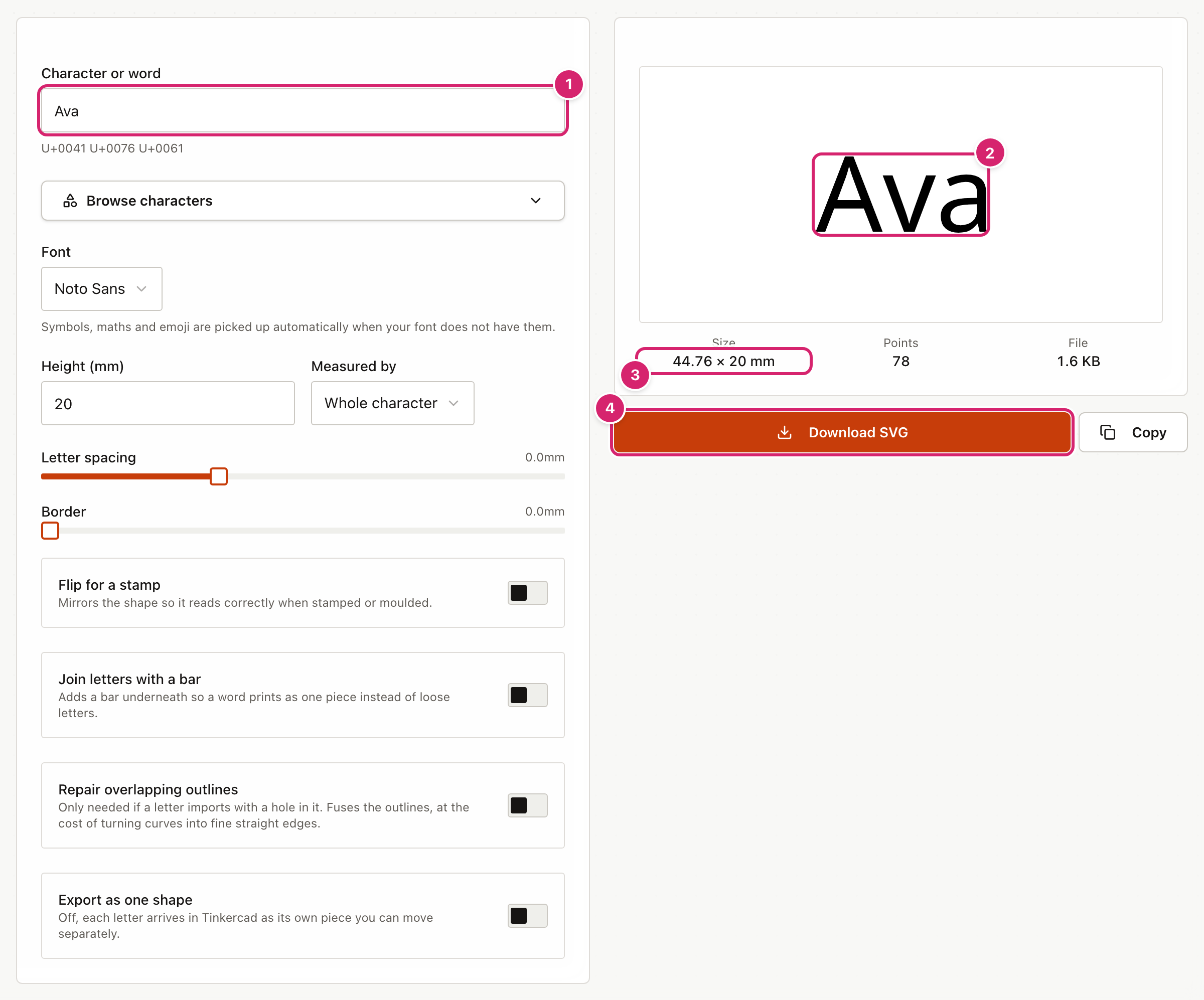
Copy puts the SVG's text on the clipboard instead of saving a file. Use Download SVG if you are working on an iPad, because some browsers will not allow copying.
Choose the font, size and spacing
The controls on the left change the shape. The preview updates a moment after each change.
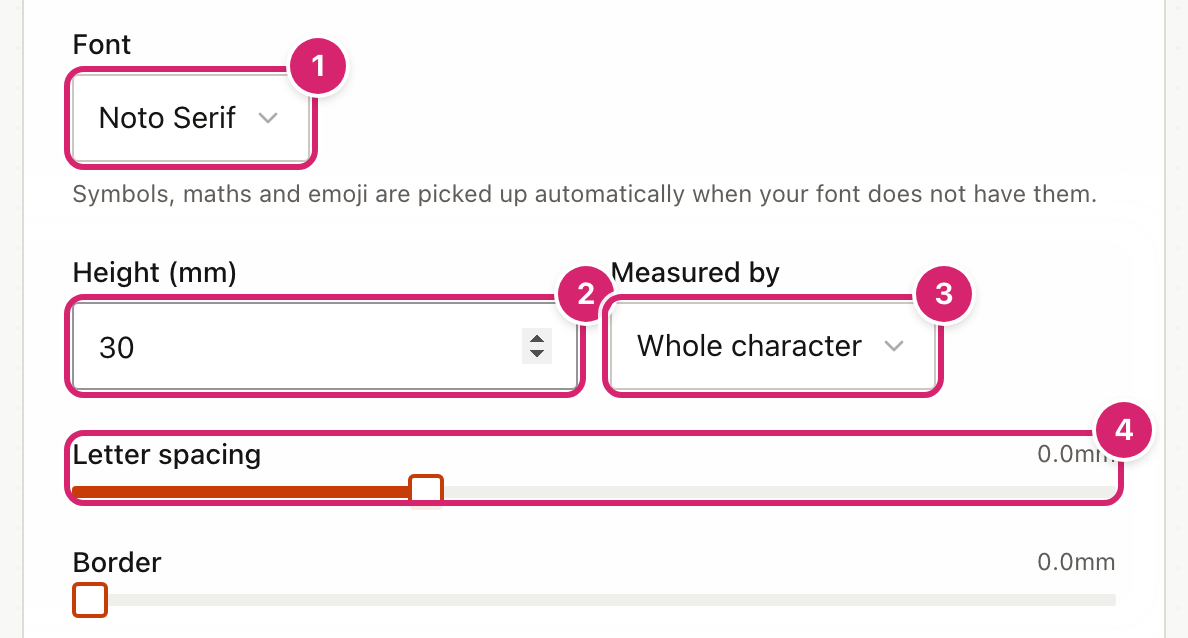
- Font 1 chooses between Noto Sans (plain letters) and Noto Serif (letters with small feet). Symbols, maths and emoji come from other built-in fonts automatically when your font does not have them. The tool tells you when it has swapped a font.
- Height (mm) 2 is how tall the shape should be, from 1 to 300. A typed number outside that range is changed to the nearest limit. Above 150 mm the tool warns that Tinkercad may shrink the shape when you import it.
- Measured by 3 decides what "height" means. Whole character makes the shape exactly the height you typed, so a word with a tall letter and a hanging letter fills it. Same across letters measures the capital letters, so "20 mm" gives the same capital height whichever word you type. Use that for a set of labels that should match. Font size uses the size of the font itself.
- Letter spacing 4 moves letters apart, or closer together if you drag below zero, from -5 to 10 mm. A tight word prints more strongly because the letters touch.
- Border adds space around the shape, from 0 to 10 mm.
Add symbols and characters you cannot type
Select Browse characters to open a palette of characters that are known to work. Choose a category, then select a character to add it to the end of the box. It is the easiest way to find a Greek letter, an arrow, a chess piece or a dice face.
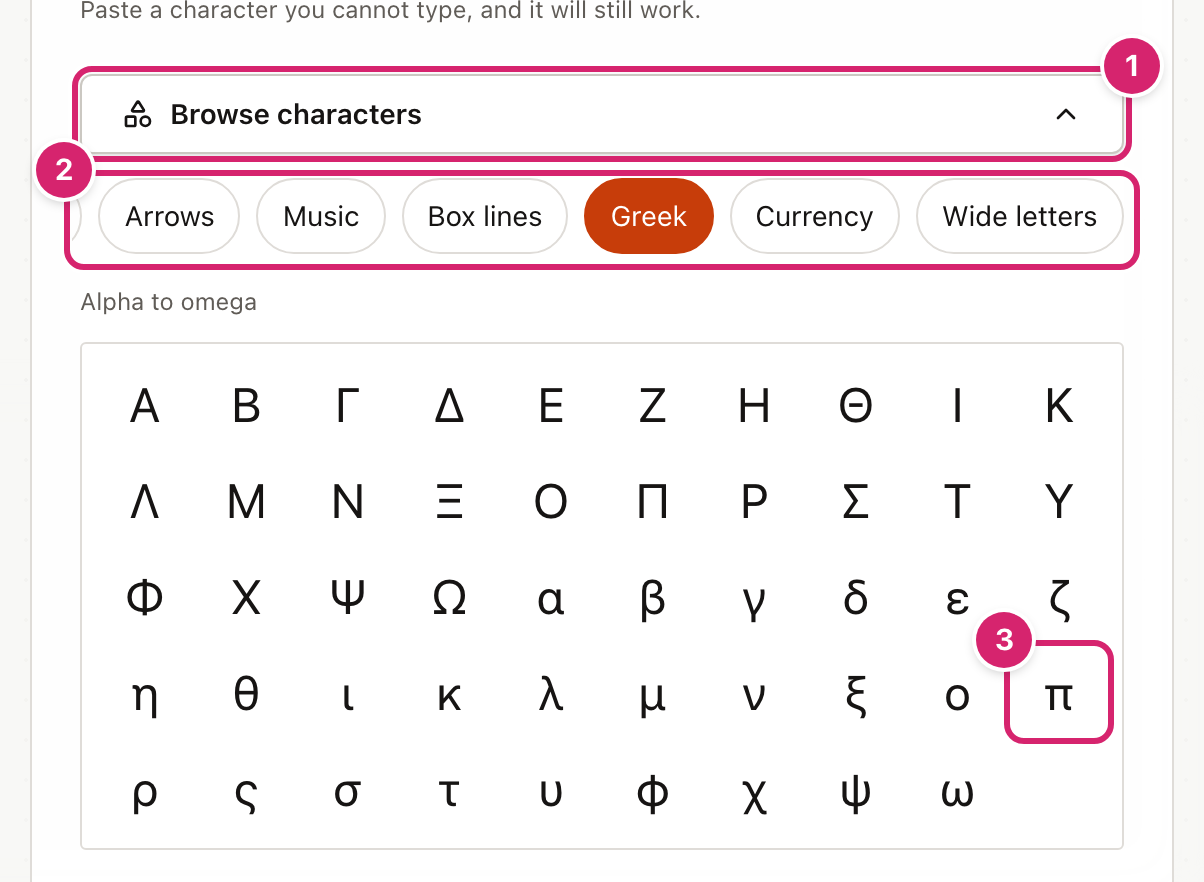
- Select Browse characters 1.
- Choose a category 2. The row scrolls sideways. The categories are Fancy letters, Flowers & stars, Signs & symbols, Alchemy & planets, Runes & Ogham, Games, Braille, Shapes, Arrows, Music, Box lines, Greek, Currency and Wide letters.
- Select a character 3. It is added to the box and the preview updates. Select more to build a word.
Every character in the palette was checked against the built-in fonts, so each one produces a shape.
Emoji come out as a plain one-colour outline, not as the coloured picture. You can type or paste an emoji straight into the box.
Join a word into one piece
When you print a name, each letter is a separate piece unless something joins them. These switches change that.
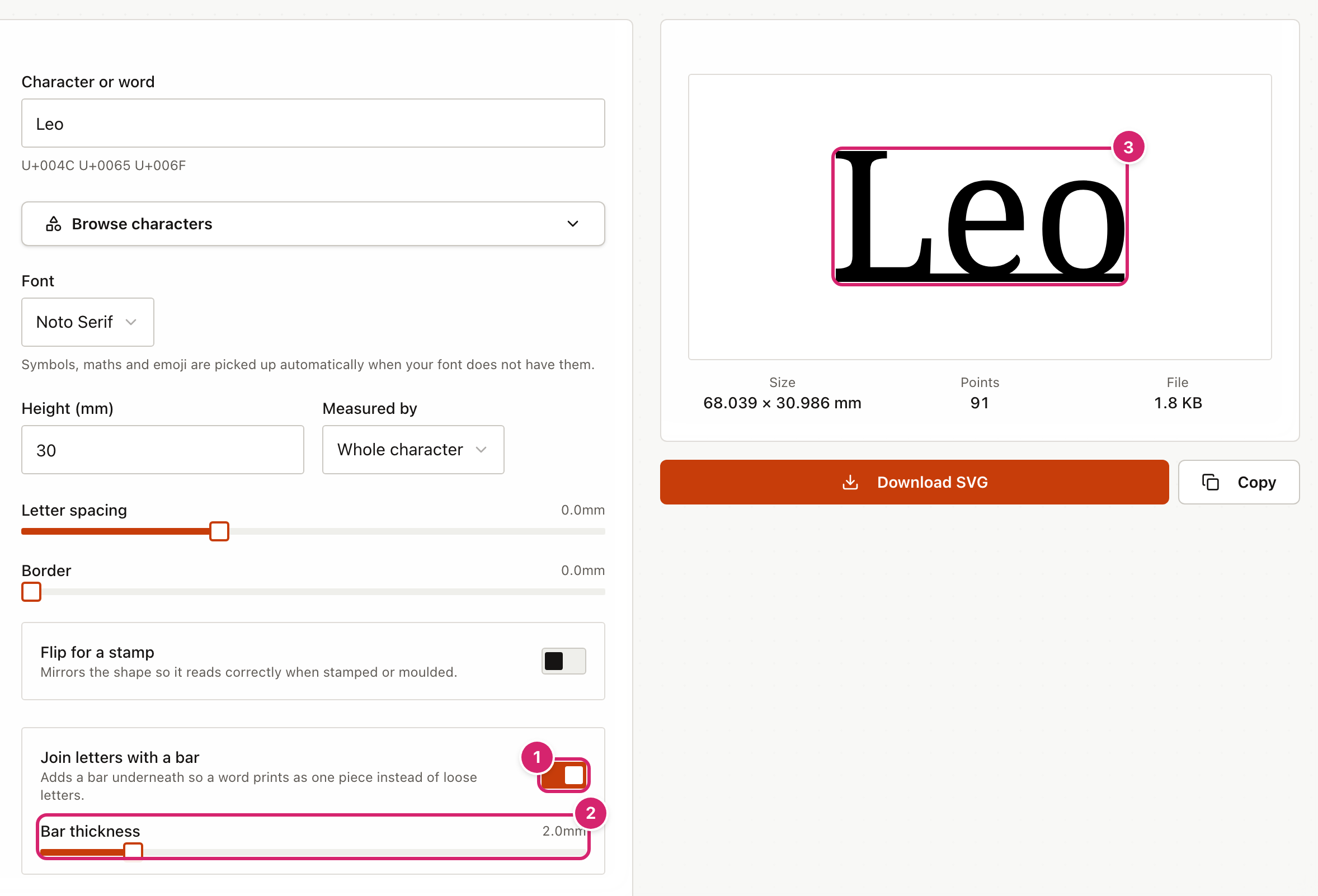
- Join letters with a bar 1 adds a bar underneath the word so it prints as one piece. Bar thickness 2 sets how deep it is, from 0.5 to 10 mm, starting at 2 mm. The bar is added below the letters, so the height you chose stays the height of the letters. The bar may grow deeper than you asked so it reaches a letter that hangs below the line, and the tool says so. If it still cannot reach a letter, a notice says which one will print loose.
- Check the preview 3 to see the bar.
- Export as one shape controls how the word arrives in Tinkercad. Off, each letter comes in as its own piece that you can move. On, the whole word comes in as a single shape. It is treated as on whenever you use the bar.
- Repair overlapping outlines is only for when a letter imports into Tinkercad with a hole in it. It fuses the outlines, but turns curves into very small straight edges. Leave it off unless you need it.
- Flip for a stamp mirrors the shape, so it reads correctly when you press it into clay or use it as a mould.
If you set Letter spacing low enough that letters overlap, the tool says so. Overlapping letters import as one joined piece.
Type characters from other writing systems
Chinese, Japanese, Korean, Arabic, Hebrew, Hindi, Thai and many other scripts are not built in. The tool fetches a font for them as described under "Where your data goes". This needs an internet connection and takes a moment longer.
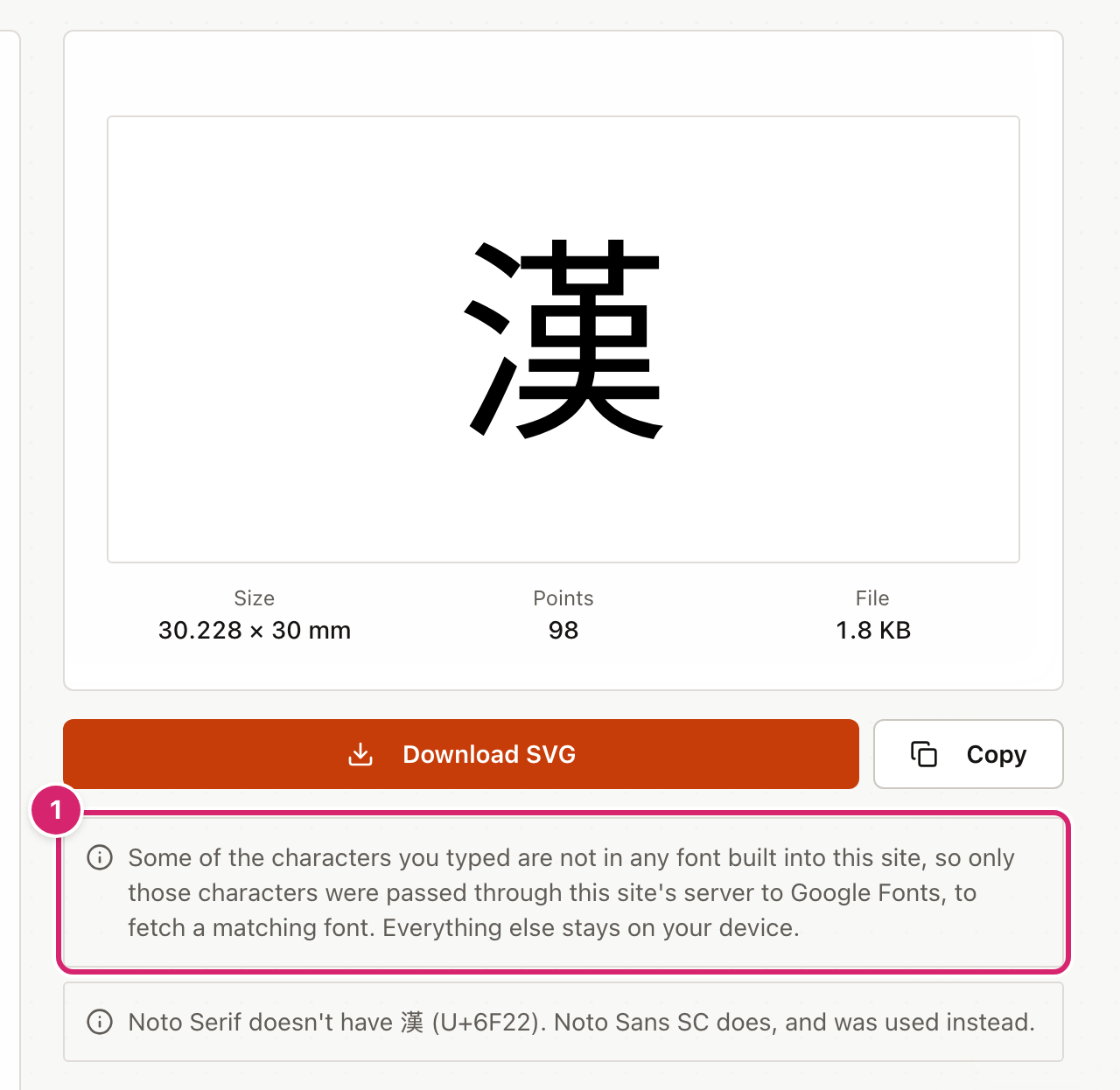
- Type or paste the characters. Use a few at a time. Each new set of characters is a new request.
- Wait for the preview. A notice 1 tells you which characters were passed on to fetch a font, and a second notice names the font that was used.
- Download as usual.
Single characters from these scripts come out correctly. Whole words in scripts that join their letters or read right to left, such as Arabic, Hebrew and Hindi, do not. The tool cannot join and reorder the letters, so it warns you. Make each character separately and arrange them in Tinkercad.
Bring the shape into Tinkercad
- Download the file with Download SVG.
- In Tinkercad, open your design and select Import.
- Choose the SVG file you downloaded, or drag it onto the window.
- Check the size Tinkercad shows against the Size in the tool, then select Import.
- The shape arrives flat. Raise it with the height handle to give it thickness before you print.
The file uses millimetres, which is what Tinkercad works in, so the shape should arrive at the size you chose. If the two sizes differ, check the units in Tinkercad's import window before you print.
Change the starting settings
If you always make the same kind of thing, set the font and size once.
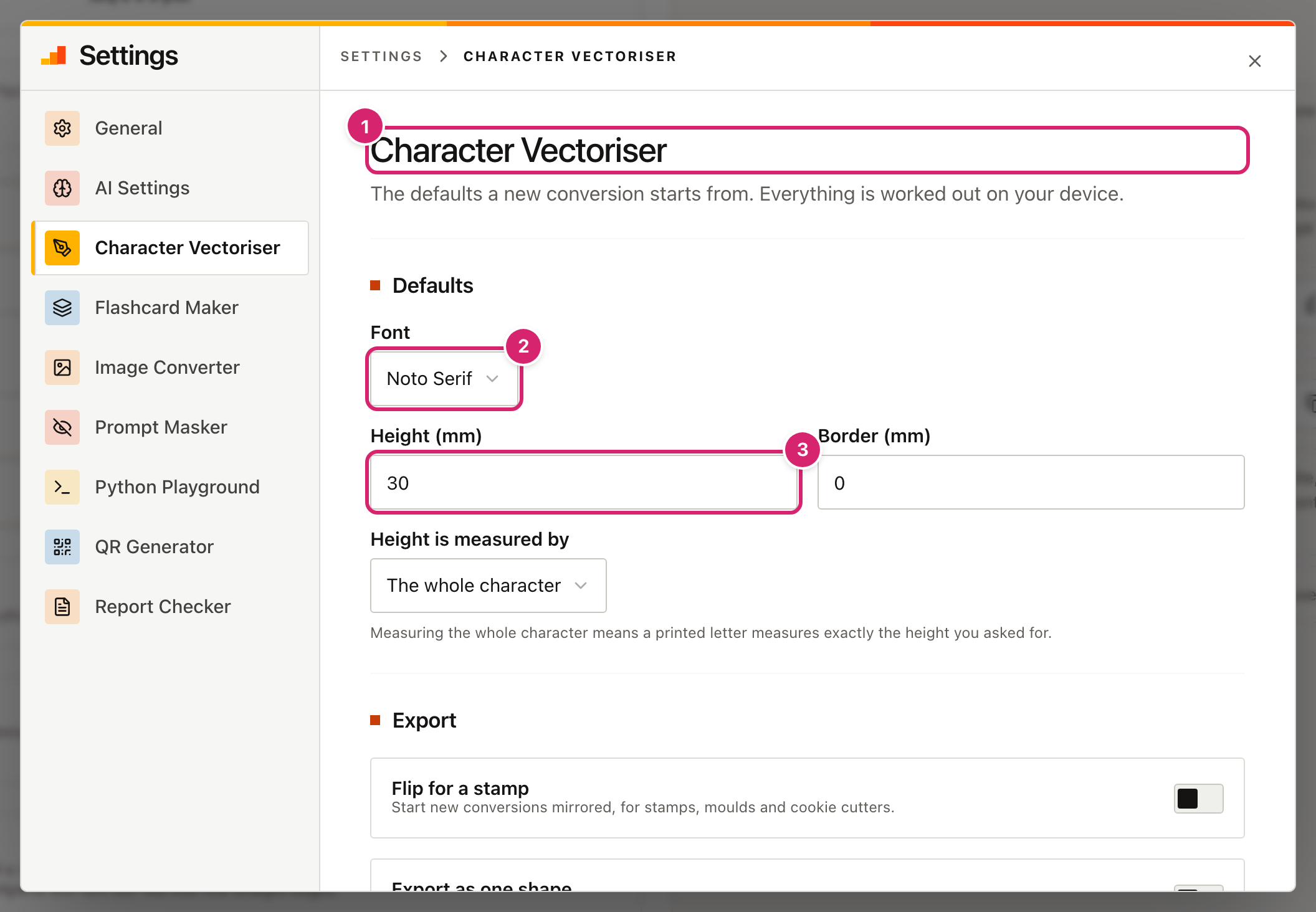
- Select Settings at the top right of the page. The window opens at Character Vectoriser 1.
- Choose the Font 2 and Height (mm) 3 that new conversions start with. The other controls in the window work the same way as on the page.
- Changes save as you make them.
Tips
- Thin letters can snap. If a small piece of printed text looks fragile, make it taller or join the letters with a bar.
- Keep names short. A long name makes a long, fragile piece. The tool also warns if the file would be too detailed for Tinkercad.
- Use a bar for names. The bar keeps the whole name in one piece, so nothing prints loose.
- One style per class set. Choose Same across letters and the same height, so every name has the same capital height.
- Check the preview. It shows the real outline that will import, so if a letter looks wrong there, it will be wrong in Tinkercad too.
Troubleshooting
"There is no shape to draw for that yet." The box is empty, holds only spaces, or holds characters with no outline. Type a letter or choose one from Browse characters.
A message says no available font has a character, and it was left out. None of the built-in fonts, and none of the fonts the tool can fetch, has that character. Choose a different character from Browse characters.
A message says the file is too detailed or too large for Tinkercad. The shape has more than 20,000 points, or the file is bigger than 4 MB. Try a simpler font, fewer characters or no Repair overlapping outlines.
A caution message says a font could not be downloaded. The tool could not reach Google Fonts through the site. Check the internet connection and retype the characters. The characters from built-in fonts are still drawn.
An accent comes out as a separate piece. A mark such as an accent or tilde that is typed as a separate character cannot be placed over its letter. Use the letter with the accent already combined, which you can find in Browse characters or by pasting it from a document.
A letter has a hole in it in Tinkercad. Turn on Repair overlapping outlines. It fuses the overlapping outlines.
The Copy button says the clipboard is not available. The browser will not allow copying here, which is common on iPads. Use Download SVG instead.
The shape is the wrong size in Tinkercad. Check Measured by. Whole character gives the height of everything drawn, so a word with a hanging letter such as "g" has a smaller capital height than one without. Use Same across letters for matching sets. Over 150 mm, Tinkercad may shrink the shape on import.