The Resource Library is a place to keep the links you find while planning. Save the video for next week's lesson, the library's reading list, or the practical's risk assessment. Add a note about why it is useful and a few tags, such as the subject and year group, so you can pull up everything for Year 9 Geography in one go.
Where your data goes
Everything stays on this device. Your links, notes and tags are saved in this browser and are never sent anywhere. The library does not visit the links you save. It only opens them when you select them. Your saved resources are not on your other devices, and clearing the browser's data deletes them. To keep a copy, or to move your library to another computer, use Backup & Restore in the sidebar.
Quick start
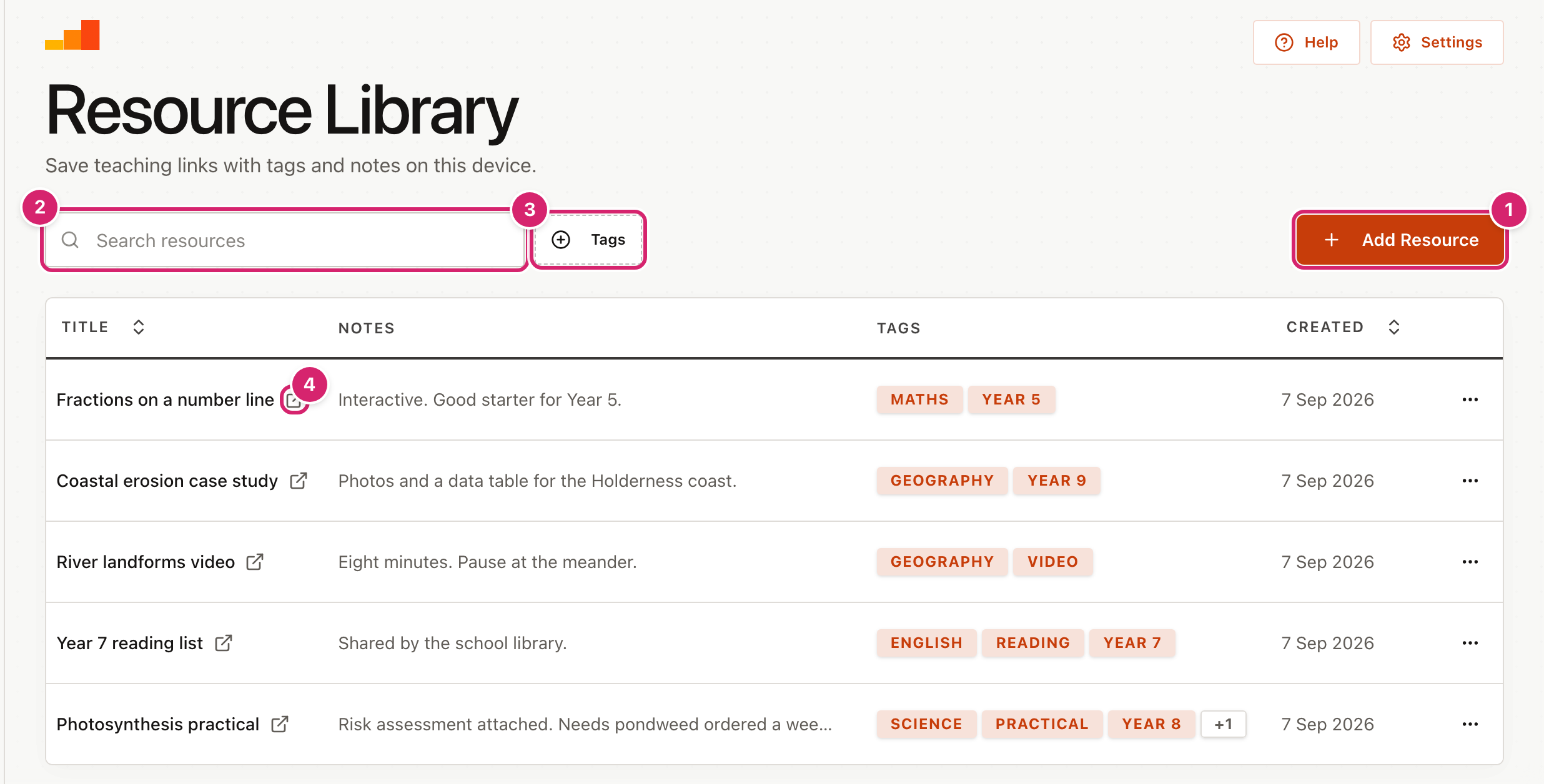
- Select Add Resource 1.
- Paste the link, give it a title, and select Save Resource.
- Your resource appears in the list. Once you have a few, use the search box 2 to find one by its title, or Tags 3 to show one topic.
- Select the small arrow beside a title 4 to open that link in a new tab.
Add a resource
When you select Add Resource, a window opens with four boxes.
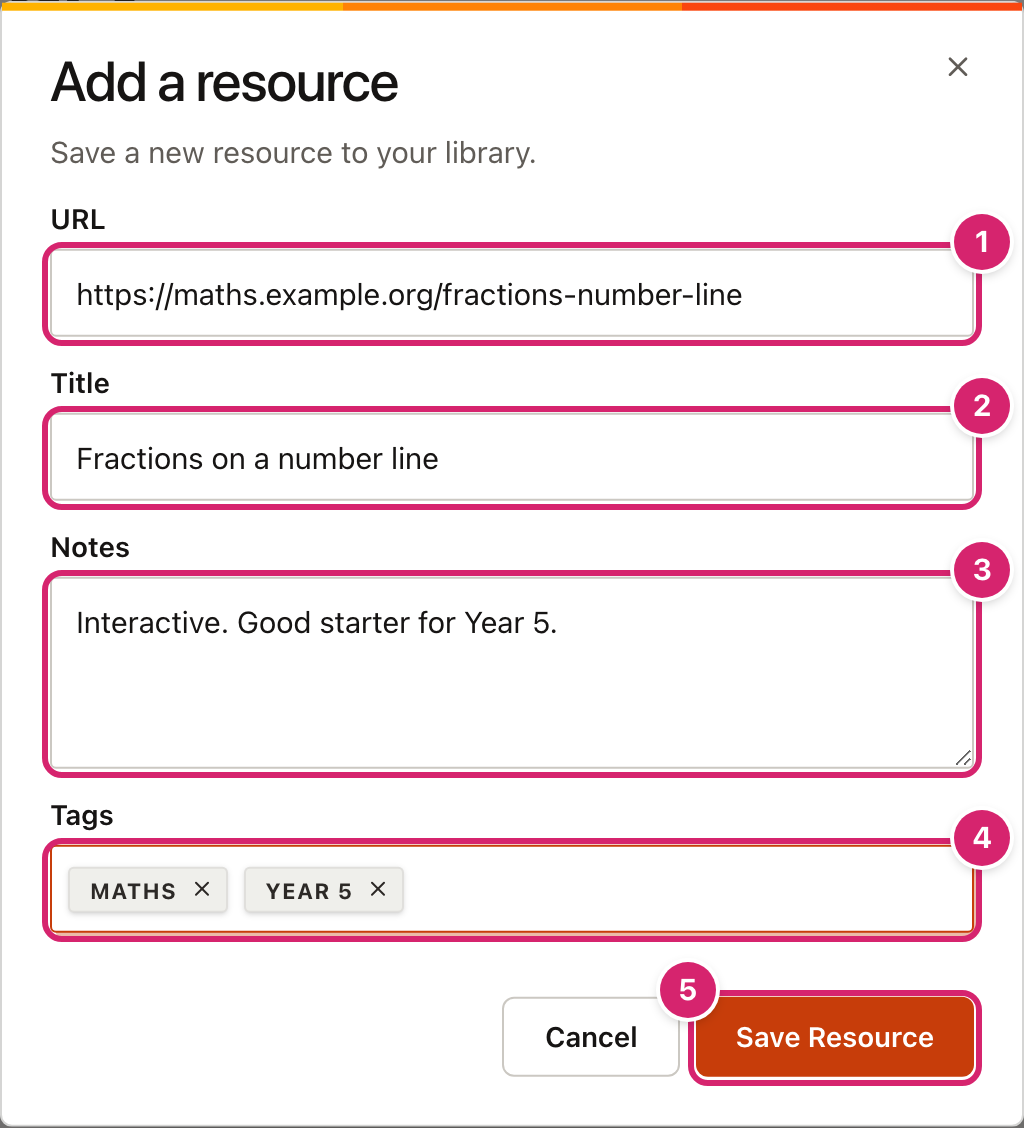
- Paste the link into URL 1. It must be a full web address starting with
https://orhttp://, with the name of a site in it. The box starts withhttps://www.filled in. Delete that first if your link does not begin that way. If you leave onlyhttps://www.there, the library will not save it. - Type a Title 2. This is the name you will see in the list.
- Use Notes 3 for anything you will want to remember, such as why you saved it or which lesson it belongs to. This box is optional.
- Type a tag in Tags 4 and press Enter. A comma works too. Each tag becomes a small label with a × to remove it. Tags are optional.
- Select Save Resource 5. The window closes and the resource joins the list.
A tag is only added once, even if you type it again with different capitals. The list and this window show tags in capital letters, but the tag filter shows them as you typed them.
The window does not close when you select outside it. Select Cancel or the × in the corner to leave without saving.
If a box is wrong, a red message appears under it: Enter a valid URL or Title is required. The resource will not save until both are fixed.
Find a resource
The list shows your newest resources first. It shows ten at a time. Use the page buttons below it to see more, or change Rows per page.
- Type in Search resources to narrow the list. It looks at the title, the notes, the tags and the link, and it ignores capital letters. Searching for
fractionsfinds a resource titled "Fractions on a number line", and also one that only mentions fractions in its notes. Searching forbbc.co.ukfinds every resource saved from that site. - Select Title or Created in the heading row to sort by that column. Select it again to reverse the order.
- Select Tags to show only the resources with a tag.
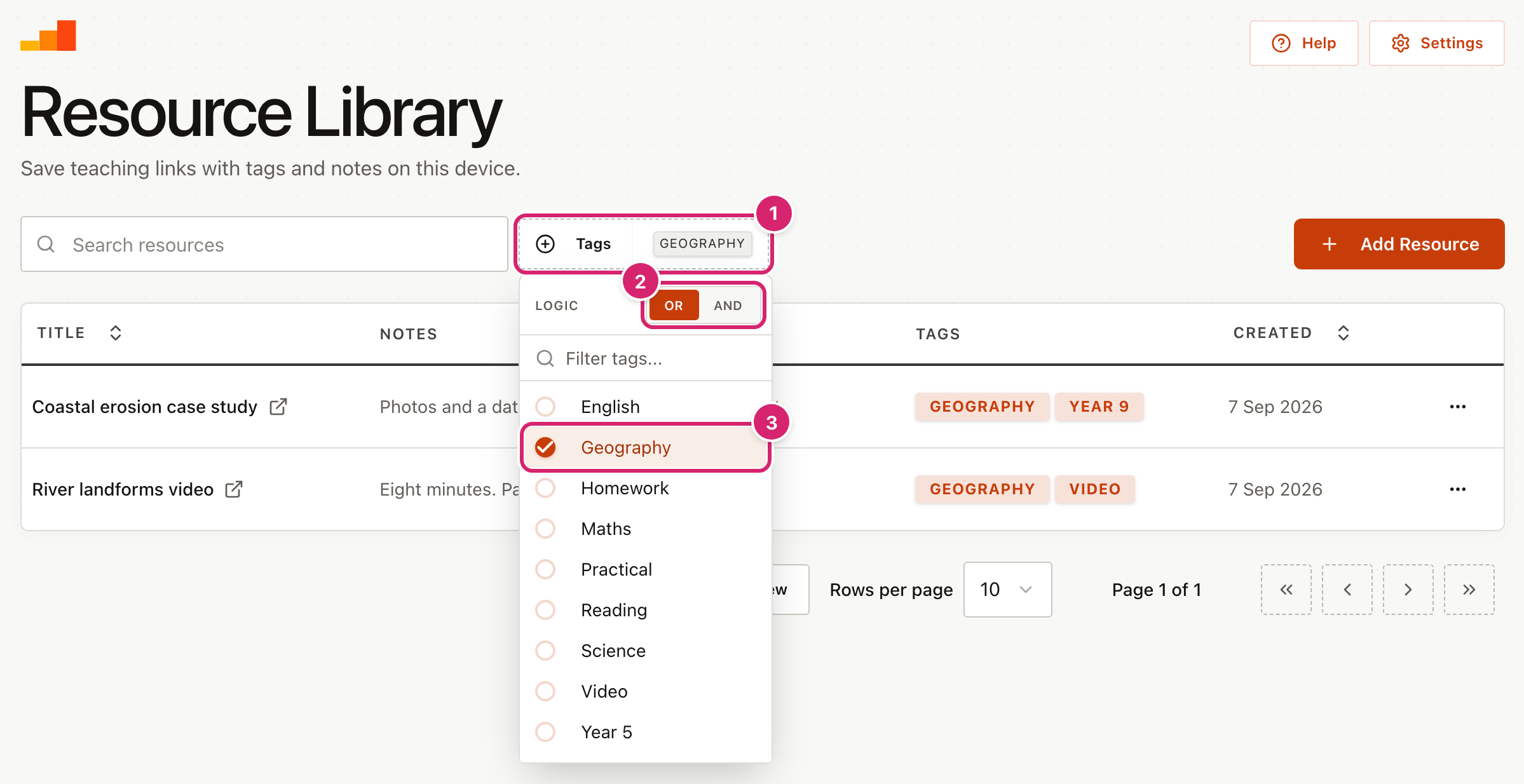
The Tags button 1 only appears once at least one resource has a tag. Select it to open a menu of every tag you have used, in alphabetical order. Type in Filter tags... to shorten a long list.
Select a tag 3 to turn it on. A tick shows it is active, and the table shows only matching resources. Select it again to turn it off. At the bottom of the menu, Clear filters turns them all off.
If you pick more than one tag, the switch at the top 2 decides how they combine.
- OR shows a resource if it has any of the tags you picked. Choose Geography and Science to see both subjects together.
- AND shows a resource only if it has all of them. Choose Geography and Year 9 to see only the Year 9 Geography resources.
The filter and the search work together. A resource must pass both to show. The filter resets when you leave the page.
Edit or delete a resource

Select the ⋯ button at the end of a row 1, then:
- Edit 2 opens the same window as adding, with the resource's details in it. Change what you need and select Save Resource.
- Delete 3 asks you to confirm in a window called Delete Item. Select Continue to remove the resource, or Cancel to keep it. Deleting cannot be undone.
There is no way to select several resources at once, so each one is deleted separately.
Tips
- Tag by subject and year group. Two or three tags per resource is plenty. Use the same spelling each time, because
Year 9andYr 9become two different tags. - Put the topic in the title. A clear title is easier to scan in the list, so "Coastal erosion case study" is better than "Case study".
- Save the link when you find it. Add it between lessons while it is open in another tab. The notes box is a good place for the date and class you plan to use it with.
- Check the link once. Select the arrow beside the title after saving. It takes a second and shows a mistyped link straight away.
- Back up each term. Use Backup & Restore before you clear the browser or change computer.
Troubleshooting
The Tags button is missing. It appears only when at least one saved resource has a tag. Edit a resource and add a tag.
The list is empty after I picked a tag. With AND, a resource needs every tag you picked. Choose fewer tags, switch to OR, or select Clear filters. The list also stays empty when the search box and the tag filter together match nothing. Clear the search box and try again. The table says No results found.
Search cannot find a resource I know I saved. Search looks at the title, notes, tags and link, so check the spelling. A tag filter may also be hiding it, because the search and the tag filter work together. Select Clear filters in the Tags menu and try again.
The link I saved goes to the wrong place. Check the link by selecting the arrow beside the title. If it is mistyped, select ⋯ > Edit and paste the right link.
It says "Enter a valid URL".
The link has to start with https:// or http://, it has to include a site name such as example.org, and it cannot contain spaces. Leaving the box as https://www. is not accepted, and neither is a bare address such as example.org. Copying the link straight from the browser's address bar avoids typing mistakes.
I cannot close the Add Resource window by selecting outside it. This is deliberate, so a half-typed resource is not lost by a stray tap. Select Cancel or the × in the corner.
My resources have disappeared. They are stored in this browser on this device. They will not appear in a different browser, on another computer, or after the browser's data has been cleared. If you made a backup, restore it from Backup & Restore.